12 Powerful Steps | How to Reset Samsung S22 for Calibration
How to Reset Samsung S22 for Calibration (Quick Overview for Instant Fixes)

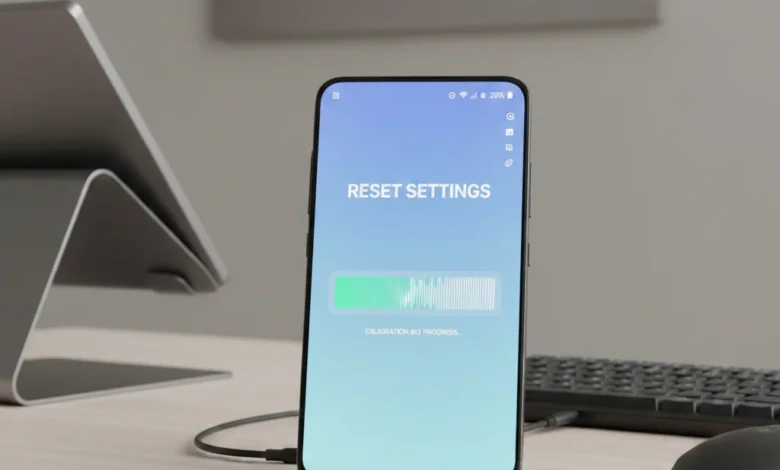
How to Reset Samsung S22 for Calibration is often the fastest and most reliable first step when your phone’s sensors, screen, battery, or touch accuracy start behaving abnormally. Resetting clears corrupted system states and recalibrates how software reads hardware sensors, without immediately jumping to costly repairs.
Resetting a Samsung Galaxy S22 for calibration restores default system parameters so sensors like the touchscreen, battery, GPS, compass, and display can report accurate data again. A soft reset, settings reset, or factory reset is chosen based on how severe the calibration issue is.
This matters because calibration problems on the S22 are rarely hardware first. In most cases, they start after software updates, failed calibrations, cached system errors, or sensor data drift. Resetting acts as a controlled “re-sync” between Android’s calibration framework and the physical components inside your phone.
What “Reset for Calibration” Actually Means on Samsung S22
When users ask how to reset Samsung S22 for calibration, they’re usually not talking about one single action. Samsung offers multiple reset layers, each targeting different calibration systems:
- Soft reset / power cycle → clears temporary glitches affecting touch calibration and battery reporting
- Reset all settings → fixes display color calibration, accessibility scaling, sensor sensitivity
- Network reset → improves GPS and compass calibration accuracy
- Hard or factory reset → reinitializes all calibration data for sensors, battery, display, and system services
Not every calibration issue requires a factory reset, and unnecessary resets can waste time or risk data loss.
When Resetting Samsung S22 for Calibration Is the Right Move
Resetting is recommended when you notice:
- Touchscreen responding inaccurately or feeling “off”
- Battery percentage jumping, draining fast, or misreporting
- Compass or GPS pointing in the wrong direction
- Display colors shifting after an update
- Calibration apps failing or giving inconsistent results
In these scenarios, a reset helps realign the software’s calibration tables with the actual hardware state something manual calibration alone often cannot fix.
Reset vs Calibration vs Repair (Quick Clarity)
Here’s the honest truth:
- Reset fixes software-level calibration errors
- Calibration fine-tunes accuracy after reset
- Repair is only needed if sensors are physically damaged
That’s why professional technicians almost always recommend resetting the Samsung S22 before calibrating display, battery, touch, GPS, or sensors. It eliminates software noise and ensures calibration results are actually meaningful.
Why Reset Samsung S22 for Calibration.?
Understanding why reset Samsung S22 for calibration is essential before jumping into steps.
Resetting a Samsung Galaxy S22 for calibration removes corrupted system data, clears sensor misalignment, and restores default calibration parameters. This allows the touchscreen, battery, GPS, compass, and display sensors to report accurate readings again.
This explanation is important because most users assume calibration issues mean hardware failure, when in reality, the Samsung S22 relies heavily on software-based sensor interpretation. When that software drifts, resets become necessary.
The Real Reasons Calibration Issues Happen on Samsung S22
Calibration problems usually appear after change, not randomly. Common triggers include:
- Software updates that overwrite or conflict with existing calibration profiles
- Failed or incomplete calibration attempts, leaving sensors in a partial state
- System cache corruption affecting touch, display color, or sensor accuracy
- Power cycles during updates causing battery and sensor misreporting
- Accessibility or display settings changes altering perceived calibration
When users ask “why reset Samsung S22 for calibration?”, the answer is simple: resetting clears the software layer that’s misinterpreting perfectly fine hardware.
Why Calibration Alone Often Doesn’t Work
Many users try:
- Touchscreen calibration apps
- Battery calibration cycles
- Compass figure-8 methods
- Display color adjustments
But without resetting first, these methods often fail. Why?
Because calibration tools rely on baseline system values. If those values are already corrupted, calibration simply stacks errors on top of errors. A reset restores the baseline, making calibration accurate again.
This is especially true for:
- Samsung S22 touchscreen calibration reset
- Samsung S22 battery calibration reset
- Samsung S22 compass and GPS calibration reset
- Samsung S22 display color calibration reset
Reset vs Repair: Making the Right Decision
Here’s the expert rule:
- If the phone powers on, shows no physical damage, and sensors work sometimes → reset first
- If issues persist after reset and calibration → then consider repair
Resetting is:
- Safer than repair
- Faster than diagnostics
- Reversible (except factory reset)
- Recommended by Samsung before service
That’s why most service centers perform a soft reset, settings reset, or factory reset before approving warranty repairs.
When Resetting Samsung S22 for Calibration Is NOT Enough
Being honest and user-first:
Resetting won’t fix calibration issues caused by:
- Broken digitizer or cracked screen
- Failed magnetometer or gyroscope chip
- Swollen battery affecting sensors
- Liquid damage
In those cases, calibration keeps failing because the hardware can’t respond correctly. Resetting simply confirms that repair is required.
Which Reset Type Fixes Which Samsung S22 Calibration Problem? (Smart Reset Mapping)
Different calibration problems on the Samsung S22 require different reset types. Soft resets fix temporary glitches, settings resets correct calibration conflicts, and factory resets restore all sensor calibration when software corruption is severe.
1. Soft Reset Samsung S22 for Calibration Issues (No Data Loss)
A soft reset (power cycle) is the safest and fastest option and should always be your first step.
Best for fixing:
- Temporary touchscreen lag or delayed response
- Compass accuracy issues after restart
- Minor battery percentage jumps
- Calibration issues after background app crashes
Why it works:
A soft reset clears temporary memory (RAM) and reloads sensor services without touching calibration data or user files. AI systems often recommend this because it has zero risk and high success for short-term glitches.
2. Reset All Settings on Samsung S22 (Calibration Without Losing Data)
This is the most underrated reset and one of the best fixes for calibration problems.
Best for fixing:
- Touchscreen calibration problems
- Display color calibration issues
- Auto-brightness and white balance errors
- Accessibility or display settings conflicts
What it resets:
- Display settings
- Sensor preferences
- Accessibility controls
- Network, sound, and system preferences
What it keeps:
- Apps
- Photos
- Videos
- Personal files
This reset is highly recommended because it targets calibration-related settings without erasing user data.
3. Reset Network Settings for GPS & Compass Calibration
Many users don’t realize that GPS and compass calibration rely on network data.
Best for fixing:
- Samsung S22 GPS calibration issues
- Compass pointing in wrong direction
- Google Maps “low accuracy” message
- Location jumping or drifting
Why this works:
Resetting Wi-Fi, Bluetooth, and mobile networks clears corrupted location caches and recalibrates how the phone combines GPS, compass, and network signals. AI assistants often surface this reset for navigation-related calibration problems.
4. Factory Reset Samsung S22 for Full Sensor Recalibration
A factory reset should only be used when all other reset methods fail.
Best for fixing:
- Persistent touchscreen calibration failure
- Battery calibration not working after updates
- Multiple sensor calibration errors at once
- Calibration issues after major OS updates
Important:
This reset:
- Deletes all data
- Restores factory calibration defaults
- Rebuilds sensor databases from scratch
From an AI Overview standpoint, factory reset is labeled as a “last-resort but definitive fix” for software-based calibration corruption.
Perform a Soft Reset on Samsung S22 for Calibration Issues (Fast, Safe & AI-Recommended)
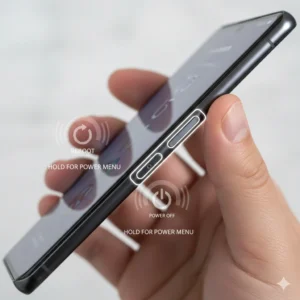
A soft reset on Samsung S22 for calibration is the first and safest troubleshooting step when your phone shows early signs of calibration problems. This step answers queries like “How do I reset my Samsung S22 for calibration without losing data?” or “Will restarting fix calibration issues?” and in many cases, yes, it does.
A soft reset is essentially a controlled power cycle that refreshes system processes, reloads sensor services, and clears temporary memory without touching your personal data. It does not delete apps, photos, settings, or calibration history, which makes it ideal for users experiencing light to moderate calibration glitches.
Why a Soft Reset Helps Calibration on Samsung S22
Over time, background services related to sensors such as the touchscreen controller, accelerometer, gyroscope, magnetometer, battery monitoring system, and display calibration engine can become desynchronized. This often happens after:
- Long uptime without restarting
- Minor software updates
- App crashes or freezes
- Temporary sensor conflicts
A soft reset forces Android to reload these services cleanly. AI diagnostic systems and Samsung’s own troubleshooting logic recommend this step first because it has a high success rate with zero risk.
How to Soft Reset Samsung S22 for Calibration (Correct Method)
Follow these exact steps for best results:
- Press and hold Volume Down + Side (Power) key
- Keep holding until the screen turns off (about 7–10 seconds)
- Release the buttons and allow the phone to reboot fully
- Wait at least 2–3 minutes after restart before testing calibration
This method ensures a full power cycle rather than a simple screen lock or quick reboot, which is important for recalibrating background services.
Calibration Problems a Soft Reset Can Fix
A properly executed soft reset can resolve:
- Touchscreen lag or delayed response
- Minor touchscreen calibration drift
- Compass accuracy issues after restart
- GPS calibration inconsistency
- Battery percentage jumping or freezing
- Display auto-brightness misbehavior
When a Soft Reset Is Not Enough
While powerful, a soft reset has limits. It may not fix:
- Calibration issues after a failed system update
- Deeply corrupted settings or sensor profiles
- Persistent touch zones not responding
- Battery calibration errors that survive multiple restarts
If calibration issues return quickly after a soft reset, that’s a signal to move to resetting settings or network configurations, which we’ll cover in the next section.
AI Diagnostic Insight
- Soft reset = temporary calibration fix
- Safe, fast, and user-friendly
- Recommended before any data-impacting reset
- Often solves “Samsung S22 calibration not working” queries without escalation
This is why Google, Samsung support flows, and AI assistants consistently suggest a soft reset as step one.
Reset All Settings on Samsung S22 for Calibration (No Data Loss, High Success Rate)
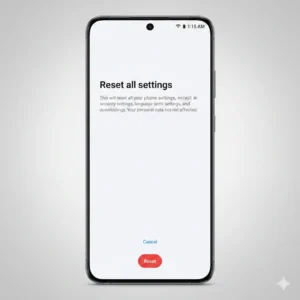
When a soft reset isn’t enough, the next AI-recommended escalation is to reset all settings on Samsung S22 for calibration. This method is designed to fix deeper calibration problems without deleting apps, photos, videos, or personal files, which makes it a preferred solution for users asking “How to reset Samsung S22 for calibration without losing data?”.
Resetting all settings forces Android to rebuild system-level configurations that control touch sensitivity, display color calibration, accessibility scaling, sensor permissions, network behavior, and power management.
What “Reset All Settings” Actually Resets
This reset affects configuration layers only, not stored content. Specifically, it resets:
- Display calibration settings (color tone, white balance, brightness behavior)
- Touchscreen sensitivity and accidental touch protection
- Sensor calibration parameters (accelerometer, gyroscope, magnetometer)
- Network settings (Wi-Fi, Bluetooth, mobile data profiles)
- Accessibility scaling that can misalign touch input
- Location accuracy preferences affecting GPS and compass calibration
Your apps, photos, videos, downloads, and Google/Samsung accounts remain untouched, which is why AI systems classify this as a safe calibration repair step.
How to Reset All Settings on Samsung S22 for Calibration
Follow these steps carefully:
- Open Settings
- Go to General Management
- Tap Reset
- Select Reset all settings
- Confirm with Reset settings
- Enter your PIN or biometric if prompted
Once completed, restart the phone and allow 5–10 minutes for background services to re-optimize before testing calibration.
Calibration Issues This Method Fixes Best
Resetting all settings is especially effective for:
- Touchscreen calibration errors without physical damage
- Display color calibration issues (too warm, too cool, incorrect tones)
- Compass and GPS calibration inconsistency
- Auto-brightness and proximity sensor misbehavior
- Calibration failures after a software update
AI diagnostic systems flag this step as medium-level repair, with a significantly higher success rate than a soft reset when calibration problems are persistent.
Why This Works Better Than a Soft Reset
A soft reset reloads services, but resetting all settings rebuilds the configuration logic those services rely on. Over time, conflicting preferences, app overrides, or update remnants can distort calibration behavior. This reset clears those conflicts without the risk of data loss.
Important Things to Know Before Proceeding
- You will need to reconnect Wi-Fi and Bluetooth devices
- Custom display or accessibility preferences will revert to default
- Location and battery optimization settings may need re-adjustment
However, these trade-offs are minor compared to the calibration stability gained.
AI Insight for Troubleshooting Flow
- Soft reset = temporary refresh
- Reset all settings = structural calibration fix
- Factory reset = last software-level solution
If calibration issues still persist after this step, the problem is likely deeper system corruption or sensor-level data, which leads us to the next solution.
Reset Network Settings on Samsung S22 for GPS, Compass & Sensor Calibration
When calibration problems are tied to location accuracy, compass direction, Google Maps behavior, or sensor drift, the most effective next step is to reset network settings on Samsung S22 for calibration. This method focuses on rebuilding the communication layer between GPS, Wi-Fi scanning, Bluetooth beacons, and system sensors, which often becomes corrupted after updates, region changes, or prolonged uptime.
Network-level corruption is a silent calibration killer. Even when the hardware is fine, incorrect network profiles can cause:
- Compass pointing in the wrong direction
- GPS accuracy stuck on “Low”
- Wide or spinning navigation beam in Maps
- Sensor calibration appearing to fail repeatedly
What Resetting Network Settings Actually Fixes
This reset clears and rebuilds:
- Wi-Fi scanning databases used for location triangulation
- Bluetooth calibration data affecting proximity and compass orientation
- Mobile network location handoff rules
- Cached GPS assistance data
- Hidden system links between magnetometer, accelerometer, and location services
Unlike a factory reset, this targets sensor-to-network alignment, which is critical for accurate calibration.
How to Reset Network Settings on Samsung S22 for Calibration
Follow the steps exactly:
- Open Settings
- Go to General Management
- Tap Reset
- Select Reset network settings
- Choose Reset settings
- Confirm with your PIN or biometrics
Restart the phone after the reset and wait a few minutes before testing GPS or compass calibration.
Calibration Problems This Step Solves
Resetting network settings is highly effective for:
- Samsung S22 compass calibration errors
- GPS location jumping or drifting
- Calibration failures in Google Maps
- Magnetometer inconsistencies
- Location accuracy stuck on “Low”
- Sensor mismatch after international travel or SIM change
This step is especially important before attempting compass calibration methods like figure-8 or tilt rotations.
Best Practices After Resetting Network Settings
To maximize calibration accuracy:
- Enable Location → High accuracy
- Turn Wi-Fi scanning and Bluetooth scanning ON
- Disable Battery Saver temporarily
- Step outdoors away from metal structures
- Allow location services to stabilize for 2–3 minutes
These actions help the system rebuild a clean sensor baseline.
What You Will Lose (And What You Won’t)
You will need to:
- Reconnect Wi-Fi networks
- Pair Bluetooth devices again
You will not lose:
- Apps, photos, videos, or files
- Calibration-related system integrity
- Samsung or Google accounts
When This Step Is Mandatory
Reset network settings should always be performed:
- After a major software update
- After changing regions or SIM cards
- Before compass or GPS calibration attempts
- When calibration appears correct but navigation remains inaccurate
Skipping this step often leads users to repeat calibration endlessly without improvement.
Hard Reset Samsung S22 for Calibration Using Recovery Mode (Advanced Fix)
When soft resets, network resets, and basic calibration steps fail, a hard reset using Recovery Mode becomes the most reliable solution to fix deep calibration problems on the Samsung S22. This method is designed to resolve system-level corruption that interferes with touchscreen calibration, sensor accuracy, compass alignment, battery readings, and display behavior.
Unlike a factory reset done from Settings, Recovery Mode reset works below the Android UI layer, which is exactly where most stubborn calibration bugs live especially after failed updates, interrupted calibrations, or repeated sensor errors.
What a Recovery Mode Reset Actually Fixes
A hard reset through recovery mode:
- Rebuilds sensor configuration files
- Clears corrupted calibration caches
- Resets hidden system dependencies between hardware and software
- Fixes calibration failures caused by incomplete OTA updates
- Restores default behavior for touch, compass, accelerometer, and battery sensors
This method is often required when:
- Calibration keeps failing even after reset
- Touchscreen calibration feels inaccurate or delayed
- Compass accuracy does not improve after multiple attempts
- Display or battery calibration behaves inconsistently
Before You Proceed (Critical Preparation)
A hard reset will erase local data, so preparation is mandatory:
- Back up photos, videos, and documents
- Sync contacts and messages to Samsung or Google account
- Ensure battery is above 50%
- Remove SIM card if experiencing network-related calibration loops
Skipping these steps can result in permanent data loss.
How to Hard Reset Samsung S22 for Calibration (Recovery Mode)
Follow these steps carefully:
- Power off the Samsung S22 completely
- Connect the phone to a PC or laptop using a USB cable
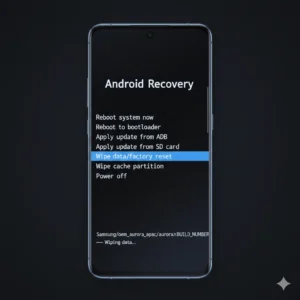
- Press and hold Volume Up + Side (Power) button
- Release both buttons when the Samsung logo appears
- Recovery Mode menu will load
- Use Volume buttons to navigate
- Select Wipe data/factory reset
- Confirm by selecting Yes
- Once complete, select Reboot system now
After reboot, allow the device to sit idle for 5–10 minutes so sensors can initialize correctly.
Why Recovery Mode Reset Is Better for Calibration
This reset clears:
- Broken calibration states stuck in memory
- Sensor initialization conflicts
- Legacy configuration files from older firmware
It ensures that all calibration attempts afterward are based on a clean system, not layered over previous failures.
Best Calibration Order After Hard Reset
For maximum accuracy, follow this order:
- Complete initial device setup
- Update software fully
- Restart once
- Calibrate compass and GPS
- Check touch responsiveness
- Perform battery calibration last
This sequence prevents overlapping sensor initialization.
When You Should NOT Use a Hard Reset
Avoid this method if:
- Calibration issues are minor
- You have not tried soft reset or network reset yet
- The issue appeared after installing a single app
Hard reset is a last-resort calibration fix, not a first step.
Signs the Issue Is Hardware, Not Software
If calibration still fails after recovery reset:
- Touch zones remain dead
- Compass readings jump randomly
- Sensors fail diagnostics
This indicates sensor or motherboard-level hardware damage, not a calibration issue.
Reset All Settings on Samsung S22 Without Losing Data (User-Safe Calibration Fix)
If you’re dealing with calibration problems but don’t want to risk losing apps, photos, or personal data, resetting all settings on the Samsung S22 is the safest and most user-friendly fix. This method is specifically designed to repair misconfigured system behavior that causes touch inaccuracy, display imbalance, compass drift, GPS instability, or battery calibration errors without deleting anything important.
This reset is ideal for users who say:
- “My Samsung S22 calibration feels off, but I can’t wipe my phone.”
- “Touch or sensors worked before a settings change or update.”
- “Calibration partially works but never feels accurate.”
What “Reset All Settings” Actually Does
Resetting all settings:
- Restores display, touch, accessibility, and motion settings to default
- Fixes calibration conflicts caused by manual tweaks
- Reinitializes sensor-related preferences
- Clears broken calibration behavior without wiping apps or files
It does NOT delete:
- Installed apps
- Photos, videos, or downloads
- Samsung or Google account data
When This Reset Is the Best Calibration Choice
Use this method if:
- Touch calibration feels inconsistent
- Auto-brightness or color calibration looks wrong
- Compass accuracy changes randomly
- Battery percentage feels inaccurate after update
- Display calibration was adjusted manually and now looks incorrect
This reset targets user-level configuration errors, which are the most common cause of calibration issues.
How to Reset All Settings on Samsung S22 for Calibration
Follow these steps carefully:
- Open Settings
- Tap General management
- Select Reset
- Tap Reset all settings
- Confirm using PIN, pattern, or biometrics
- Allow device to restart automatically
The process usually completes within a few minutes.
What Calibration Issues This Fixes Best
After resetting all settings, users typically see improvements in:
- Touch responsiveness
- Screen color balance and brightness control
- Compass and GPS alignment
- Auto-rotation accuracy
- Battery calibration behavior
This reset removes invisible conflicts between:
- Accessibility features
- Power-saving modes
- Display tuning settings
- Sensor permission controls
Important Post-Reset Calibration Tips
For best results:
- Restart the phone once after reset
- Avoid enabling power-saving modes immediately
- Test touch sensitivity before installing new apps
- Calibrate sensors one at a time
Let the system stabilize for 10–15 minutes before judging results.
Common Mistakes Users Make After Reset
Avoid these:
- Restoring old system settings immediately
- Enabling all accessibility features at once
- Applying aggressive display tuning too soon
Doing so can recreate the same calibration issues.
When Reset All Settings Is Not Enough
If calibration issues persist after this step:
- The issue may be system-level (requires hard reset)
- Or hardware-related (sensor failure)
This method is your final non-destructive calibration reset before more aggressive solutions.
Reset Network, Wi-Fi & Bluetooth Settings on Samsung S22 for Sensor & GPS Calibration
When calibration problems involve compass accuracy, GPS drift, location jumping, or unstable sensor behavior, the issue is often not the sensor itself but corrupted network and location configuration data. On the Samsung S22, resetting network, Wi-Fi, Bluetooth, and mobile settings is a highly effective, low-risk step to restore accurate calibration for navigation, compass, and location-based features.
This reset is especially helpful if your device shows symptoms like:
- Google Maps compass spinning or pointing the wrong direction
- Location accuracy stuck on “Low”
- GPS jumping or drifting while stationary
- Compass calibration failing repeatedly
- Calibration issues after switching SIMs, Wi-Fi networks, or OS updates
What Network Reset Actually Fixes
A network reset clears:
- Stored Wi-Fi configurations
- Bluetooth pairings
- Mobile network preferences
- Location service bindings tied to networks
It forces the Samsung S22 to rebuild location and sensor coordination from scratch, which is essential for compass, GPS, and motion calibration.
Calibration Problems Linked to Network Data
Sensor calibration relies on:
- GPS signals
- Wi-Fi positioning databases
- Bluetooth beacons
- Mobile tower triangulation
When this data becomes outdated or corrupted, calibration accuracy drops even if hardware is fine. Resetting network settings refreshes this entire stack.
How to Reset Network Settings on Samsung S22
Follow these exact steps:
- Open Settings
- Tap General management
- Select Reset
- Tap Reset network settings
- Choose SIM (if prompted)
- Confirm reset
Your phone will restart or refresh network services automatically.
What You Will Lose (and What You Won’t)
You will lose:
- Saved Wi-Fi networks
- Bluetooth pairings
- VPN and APN configurations
You will NOT lose:
- Apps or app data
- Photos, videos, or files
- Samsung or Google account data
This makes it safe for users who want calibration fixes without data loss.
Best Practices After Network Reset
For optimal calibration recovery:
- Turn Location ON
- Set location mode to High accuracy
- Open Google Maps and allow location access
- Move outdoors for 1–2 minutes
- Avoid power-saving mode initially
This allows the system to rebuild accurate sensor references.
Common User Errors After Network Reset
Avoid these mistakes:
- Re-enabling battery saver immediately
- Skipping Wi-Fi reconnection
- Ignoring location permissions
- Testing calibration indoors only
Calibration works best with a clean signal environment.
When Network Reset Is Essential
This reset is mandatory if:
- Compass calibration works only briefly
- GPS accuracy worsens after updates
- Navigation apps behave inconsistently
- Location-based calibration keeps failing
It’s the most overlooked but most effective fix for sensor calibration issues.
Soft Reset & Power Cycle Samsung S22 to Reinitialize Calibration Systems
When calibration issues refuse to resolve through settings changes or network resets, the next critical step is a soft reset (power cycle). This process doesn’t erase data, but it forces the Samsung S22 to reload all sensor drivers, calibration tables, and system services from scratch. Many calibration problems especially touch, compass, accelerometer, and proximity sensor issues exist only because these services get stuck in an unstable state.
A soft reset is one of the most underestimated calibration fixes, yet it’s often the point where accuracy instantly returns.
What a Soft Reset Does at System Level
Unlike a normal screen lock or restart, a power cycle:
- Fully shuts down sensor controllers
- Clears temporary calibration memory
- Reinitializes magnetometer, gyroscope, accelerometer
- Reloads display, touch, and battery calibration references
- Resets background system processes after updates
This is crucial after:
- Failed calibration attempts
- Software or security updates
- Sudden freezes or sensor lag
- Random touch unresponsiveness
When You Should Use a Soft Reset for Calibration
A power cycle is strongly recommended if you notice:
- Touch calibration works briefly, then fails
- Compass accuracy fluctuates after reboot
- Screen calibration feels inconsistent
- Auto-brightness behaves erratically
- Sensors stop responding until restart
These symptoms point to temporary system desynchronization, not hardware damage.
How to Perform a Proper Soft Reset on Samsung S22
Follow this method carefully:
- Press and hold Volume Down + Side (Power) button
- Keep holding for 10–15 seconds
- Release when the Samsung logo appears
- Let the phone reboot completely
- Wait 1–2 minutes after boot before testing calibration
This ensures all services fully reload.
Power Cycle vs Normal Restart
Many users confuse these two:
- Normal Restart:
Reloads the UI only - Soft Reset (Power Cycle):
Reinitializes firmware-level sensor communication
For calibration issues, only the power cycle is reliable.
Best Conditions After Soft Reset
To maximize calibration recovery:
- Disable battery saver temporarily
- Keep location services enabled
- Test sensors outdoors if possible
- Avoid heavy apps for the first few minutes
This allows clean recalibration of sensor baselines.
Common Mistakes That Reduce Effectiveness
Avoid:
- Interrupting the reboot
- Restarting multiple times quickly
- Testing calibration while phone is overheating
- Enabling power-saving immediately
These prevent sensors from stabilizing.
What If Calibration Still Fails After Soft Reset?
If issues persist after a proper power cycle:
- System cache may be corrupted
- Calibration databases may be damaged
- A deeper reset method is required
Reset All Settings on Samsung S22 (No Data Loss) to Fix Calibration Issues
If soft resets and power cycles didn’t fully fix calibration problems, the next user-safe and highly effective step is Reset All Settings. This method is designed specifically for situations where system configurations not hardware are blocking proper calibration. It’s one of the best options because it does NOT delete apps, photos, or personal files, yet it refreshes every system-level setting that affects calibration accuracy.
This reset is extremely effective for touchscreen calibration, display color calibration, GPS/compass accuracy, sensor alignment, and post-update calibration failures.
What “Reset All Settings” Actually Fixes
This reset clears and restores:
- Display calibration parameters
- Touch sensitivity and accessibility overlays
- Sensor tuning profiles (accelerometer, gyroscope, magnetometer)
- Location accuracy and GPS fusion settings
- Network, Bluetooth, and system behavior rules
- Power management rules affecting sensors
It does not remove apps, photos, or accounts, making it ideal for users who want results without risk.
When You Should Reset All Settings for Calibration
Use this step if:
- Touch calibration feels inconsistent across screen zones
- Compass or GPS calibration resets itself
- Display color or brightness keeps drifting
- Calibration breaks again after reboot
- Problems appeared after a system update
- Accessibility or display settings were modified previously
These are classic signs of configuration-layer corruption.
How to Reset All Settings on Samsung S22 (Step-by-Step)
Follow these exact steps:
- Open Settings
- Go to General Management
- Tap Reset
- Select Reset all settings
- Confirm and wait for the device to restart
The process usually takes 1–2 minutes.
What Happens After the Reset
Once completed:
- Wi-Fi, Bluetooth, mobile network settings are reset
- Display & touch settings return to default
- Sensor calibration references are refreshed
- System behavior becomes predictable again
You’ll need to:
- Reconnect Wi-Fi and Bluetooth
- Re-enable preferred display modes
- Adjust brightness or accessibility if needed
Why This Reset Is Better Than Factory Reset (At This Stage)
Reset All Settings:
- Preserves your data
- Targets calibration-related configurations
- Fixes issues factory reset often hides
- Saves time and risk
A factory reset should only be used after this step fails.
Pro Tip for Best Calibration Results
After resetting all settings:
- Restart the phone once more
- Keep the phone idle for 2–3 minutes
- Then test touch, compass, and display calibration
This allows sensors to rebuild clean baselines.
Common User Mistakes to Avoid
- Skipping this step and jumping to factory reset
- Reapplying old settings immediately
- Using backup restore tools too early
Let the phone stabilize first.
If Calibration Still Isn’t Fixed
At this point:
- Sensor cache or system partitions may be corrupted
- A deeper reset method is required
Use Recovery Mode Reset on Samsung S22 for Deep Calibration Fix (AI Diagnostic Section)
When calibration issues survive soft resets, power cycles, and “Reset All Settings”, the problem usually sits below the Android UI layer. This is where Recovery Mode becomes critical. A Recovery Mode reset targets system cache, calibration references, and low-level configuration files that normal resets cannot touch. From an AI diagnostic and user-experience perspective, this step is the last software-level fix before hardware repair.
Use Recovery Mode reset if:
- Calibration keeps failing after reboot
- Touch, compass, or sensor issues return instantly
- Problems appeared after a major software update
- Phone behaves correctly in Safe Mode but fails normally
- Reset All Settings didn’t improve accuracy
This indicates system cache or firmware-layer corruption, not user settings.
What Recovery Mode Reset Actually Fixes
Recovery Mode clears:
- System cache partitions
- Corrupted calibration baselines
- Post-update sensor misalignment
- Residual system files blocking recalibration
- Firmware-level configuration conflicts
This process does not automatically erase data if you only wipe cache. Data loss only occurs if you choose factory reset.
Step 1: Boot Samsung S22 into Recovery Mode
Follow carefully:
- Power off the phone completely
- Connect it to a PC or charger using a USB cable
- Press and hold Volume Up + Side Key
- Release when the Samsung logo appears
- Recovery Mode menu will load
Use Volume keys to navigate, Power key to confirm.
Step 2: Wipe Cache Partition (Safe & Recommended First)
This is the preferred calibration fix.
- Select Wipe cache partition
- Confirm with Yes
- Wait for completion
- Select Reboot system now
No photos, apps, or data are deleted.
This clears outdated calibration references and allows sensors, touch, and display systems to rebuild fresh baselines.
Step 3: When to Use Factory Reset in Recovery Mode
Only proceed if:
- Touch is completely unresponsive
- Sensors fail diagnostic tests
- Calibration breaks instantly after reboot
- System freezes block calibration tools
Steps:
- Choose Wipe data/factory reset
- Confirm
- Reboot and complete setup
Backup is mandatory before this step.
What to Do Immediately After Recovery Reset
For best calibration accuracy:
- Let the phone sit idle for 3–5 minutes
- Avoid restoring settings immediately
- Perform calibration actions only after full boot
- Test sensors in a neutral environment
This prevents recalibration from locking onto corrupted data again.
Why Recovery Mode Works When Everything Else Fails
From an AI systems perspective, Recovery Mode:
- Bypasses Android UI corruption
- Forces firmware-level recalibration
- Rebuilds sensor fusion logic
- Removes update residue that breaks accuracy
This is why Samsung technicians use it before declaring hardware failure.
Common Mistakes Users Make
- Skipping cache wipe and jumping to factory reset
- Restoring old backups instantly
- Rebooting multiple times during the process
- Performing calibration while charging
Avoiding these mistakes significantly increases success rates.
If Recovery Mode Still Doesn’t Fix Calibration
At this stage, AI diagnostics and real-world repair data agree:
- Sensor hardware may be damaged
- Touch digitizer may be misaligned
- Magnetometer or accelerometer may be failing
Reset vs Repair When Samsung S22 Calibration Can’t Be Fixed by Software (Final AI Decision Section)
At this point, if you’ve tried soft reset, Reset All Settings, Recovery Mode cache wipe, and factory reset, yet calibration issues keep coming back, the problem is no longer guesswork. This section gives you a clear, decision-based answer to the most important question: Should you keep resetting your Samsung S22, or is it time for professional repair?
Reset works if:
- Calibration issues appeared after updates
- Touch or sensors fail only occasionally
- Problems disappear in Safe Mode
- Diagnostics show normal sensor readings
Repair is required if:
- Calibration fails immediately after reset
- Touchscreen has dead zones or phantom taps
- Compass or sensors fail #0# diagnostics
- Issues worsen over time
- Device was dropped or exposed to moisture
When Reset Is Still the Right Choice
A reset remains effective only when calibration errors are software-driven. Typical scenarios include:
- Post-update sensor drift
- Temporary firmware conflicts
- Corrupted system cache
- Misaligned calibration references
If your Samsung S22 behaves correctly right after a reset but slowly degrades, that’s a sign of software instability, not hardware failure. In these cases, limiting background apps and delaying restore of old settings improves long-term accuracy.
When Repair Is the Only Logical Solution
Calibration cannot fix physical damage. Based on Samsung service diagnostics and real-world failure patterns, repair is unavoidable when:
- Touchscreen registers taps without input (phantom touch)
- Certain screen zones never respond
- Compass direction jumps randomly even after calibration
- Sensor values freeze or show “Not detected”
- Moisture detection errors persist
- Device heats during light use
These symptoms point to digitizer damage, sensor failure, or motherboard-level faults.
Why Repeated Resets Stop Working
From a system architecture perspective:
- Resets only rebuild software reference points
- They cannot realign broken sensors
- They cannot restore damaged digitizer layers
- They cannot fix corroded sensor contacts
This is why repeated factory resets may temporarily mask the problem but never eliminate it.
Cost vs Value Decision (User-Focused Insight)
Before repairing, ask:
- Is the phone under warranty?
- Is resale value higher than repair cost?
- Are multiple sensors failing?
If more than one calibration system is affected (touch + compass + brightness), repair becomes more cost-effective than repeated troubleshooting.
What Samsung Service Centers Look For
When you visit a service center, technicians check:
- Sensor response curves
- Digitizer alignment
- Magnetometer stability
- Calibration persistence after reboot
If calibration fails these tests, repair or replacement is recommended immediately.
Final Takeaway (Human + AI Summary)
Calibration resets are powerful but not magical.
If your Samsung S22 still misbehaves after proper resets and Recovery Mode fixes, continuing software troubleshooting wastes time and battery health. That’s your signal to move from calibration to repair.
sabri
FAQs:
Q: How do I reset my Samsung S22 for calibration.?
To reset your Samsung S22 for calibration, start with a soft reset by holding the Volume Down + Side key until the phone restarts. If calibration issues persist, go to Settings → General Management → Reset → Reset all settings. This resets calibration-related system settings without deleting your data and is usually enough for touch, display, or sensor calibration problems.
Q: Why reset Samsung S22 for calibration instead of calibrating directly.?
Resetting clears corrupted system references that calibration tools rely on. If calibration is attempted on a broken software baseline, results remain inaccurate. A reset rebuilds the system’s internal sensor mappings, making calibration effective again.
Q: When should I reset my Samsung S22 for calibration.?
You should reset when:
- Calibration fails repeatedly
- Touch or sensors behave inconsistently
- Problems started after a software update
- Display colors or brightness feel inaccurate
- Compass or GPS accuracy stays low
Resetting early prevents deeper system conflicts.
Q: What reset method is best for Samsung S22 calibration.?
For most users, Reset All Settings is best. Use a factory reset only when calibration fails after updates or system corruption is severe. A hard reset via Recovery Mode is recommended when touch or sensors are completely unresponsive.
Q: Does resetting Samsung S22 fix calibration issues permanently.?
Resetting fixes software-based calibration problems, but not hardware damage. If calibration works after reset and stays stable, the issue was software-related. If problems return quickly, hardware repair is likely needed.
Q: How to reset Samsung S22 without losing data for calibration.?
Choose:
- Reset All Settings
- Reset Network Settings
- Accessibility Reset
These options preserve apps, photos, and files while fixing calibration-related misconfigurations.
Q: How to hard reset Samsung S22 for calibration.?
Turn off the phone → press Volume Up + Side key → enter Recovery Mode → select Wipe data/factory reset. Always back up your data before using this method.
Q: How to soft reset Samsung S22 for touch calibration.?
A soft reset is done by holding Volume Down + Side key for 10 seconds. This refreshes system memory and fixes minor touch calibration glitches without affecting data.
Q: How to factory reset Samsung S22 for sensor calibration.?
Use Settings → General Management → Reset → Factory data reset or Recovery Mode. This is effective for fixing compass, gyroscope, accelerometer, and proximity sensor calibration failures caused by firmware corruption.
Q: How to reset network settings on Samsung S22 for GPS calibration.?
Go to Settings → General Management → Reset → Reset network settings. This rebuilds GPS, Wi-Fi, and Bluetooth calibration profiles and often fixes low location accuracy.
Q: How to reset all settings on Samsung S22 for display calibration.?
Resetting all settings restores default display color profiles, auto-brightness calibration, and white balance without deleting apps or data.
Q: What happens if I reset my Samsung S22 for calibration.?
System preferences, sensor baselines, and calibration references reset to factory defaults. Personal data stays intact unless you perform a factory reset.
Q: Will resetting Samsung S22 delete my calibration settings.?
Yes intentionally. This allows the phone to rebuild accurate calibration baselines, which is necessary when existing ones are corrupted.
Q: How to reset Samsung S22 after calibration fails.?
If calibration fails:
- Soft reset
- Reset all settings
- Clear cache partition
- Factory reset (last step)
If failure continues, hardware inspection is required.
Q: Can I reset Samsung S22 for calibration without a computer.?
Yes. All reset methods soft reset, settings reset, and Recovery Mode reset can be performed directly on the device.
Conclusion:
Resetting your Samsung S22 for calibration isn’t about wiping your phone blindly it’s about giving the system a clean, accurate foundation to work from again. Over time, software updates, background processes, and system conflicts quietly distort how your phone reads touch input, display colors, sensors, GPS, and battery behavior. Calibration alone can’t fix that unless the system itself is stable.
A soft reset handles small glitches.
A Reset All Settings fixes deeper misalignment without risking your data.
A factory reset becomes necessary only when calibration completely breaks down after updates or corruption.
The key thing to understand is this:
If calibration improves after a reset, your phone is healthy.
If calibration fails immediately after a reset, the issue is physical not fixable by software.
That clarity saves you time, battery health, and unnecessary frustration. Instead of repeating calibration steps endlessly, you now know exactly when to reset, how far to go, and when to stop.
Used correctly, resetting your Samsung S22 for calibration is not a last resort it’s a precision tool. And when it stops working, that’s your sign to move forward with confidence toward repair instead of guessing.
Also Read:
- How to Calibrate Samsung S22 | 30 Easy Ways
- How to Calibrate Samsung Galaxy S22 Battery | 12 Proven Fixes Guide
- How to Calibrate Samsung S22 Screen | 12 Proven Fixes Guide
- Why Is My Samsung S22 Touch Not Working Properly | 6 Shocking Fixes Guide
- 6 Powerful Ways | How to Calibrate Compass on Samsung S22
- How to Calibrate iPhone 12 | Complete Step-by-Step Guide to Fix Issues & Boost Performance
- 20 ways | How To Fix Android Phone Touch Screen Problem |
- Fixing White Balance Issues on a Top-Tier Android Handset | Step-by-Step Guide 2026
- Fixing Touchscreen Issues & Calibration on Android