ISO Calibration Requirement | 17 Rules Every Lab Needs
ISO Calibration Requirement | What They Are and Why Every Organization Must Understand Them


If you manage a quality system, run a laboratory, work in a regulated manufacturing environment, or simply own and use precision measurement equipment, calibration requirements are not optional background knowledge they are operational reality that directly affects your audit results, product quality, regulatory standing, and in certain industries, the safety of the people who use what you produce. I’ve seen enough quality audits, regulatory inspections, and calibration failures to know exactly what happens when organizations treat calibration requirements as a paperwork exercise rather than a technical discipline: avoidable non-conformances, failed FDA inspections, invalid test results, and in the worst cases, defective products reaching the market.
Calibration requirements are the documented, standards-based rules that govern how measurement equipment must be calibrated, how often, by whom, using what reference standards, with what documentation, and to what level of accuracy. They exist at multiple layers.
At the international level, standards like ISO 9001 and ISO/IEC 17025 establish the framework requirements applicable to virtually all organizations using measurement equipment. On top of that framework, industry-specific regulations and standards FDA 21 CFR Part 820 for medical devices, AS9100D for aerospace, IATF 16949 for automotive, ASME B40.100 for pressure gauges, ANSI/NCSL Z540.3 for test equipment in the US add sector-specific calibration requirements that reflect the particular risks and measurement contexts of each industry. And at the organizational level, internal calibration procedures, calibration plans, and calibration schedules translate all of those external requirements into day-to-day operational practice.
What makes this topic genuinely complex is that calibration requirements are not universal. A pharmaceutical manufacturer has different calibration requirements than an automotive parts supplier. A metrology laboratory operating under ISO/IEC 17025 accreditation faces fundamentally different requirements than a job shop maintaining ISO 9001 certification. An ADAS calibration technician calibrating vehicle safety systems faces requirements that have no parallel in a laboratory environment. Understanding which requirements apply to you and exactly what they demand is the starting point for building a calibration program that actually works.
One more thing I want to address directly before we get into the specifics: calibration requirements are not bureaucratic obstacles designed to make your life harder. Every requirement in every calibration standard exists because real measurement failures, real quality problems, and real safety incidents happened when those requirements were not followed. The FDA doesn’t require pharmaceutical manufacturers to calibrate their weighing scales because it enjoys paperwork it requires it because undiscovered calibration failures in pharmaceutical manufacturing have caused patients to receive incorrect drug doses.
ISO/IEC 17025 doesn’t require measurement uncertainty analysis because it’s theoretically interesting it requires it because calibration certificates without uncertainty values are technically meaningless as evidence of measurement accuracy. Understanding the reason behind each requirement makes it far easier to implement it correctly and to defend it intelligently during an audit.
This guide covers seventeen key areas of calibration requirements, from the universal five-element framework that underpins all calibration standards through to specific requirements for ADAS vehicle systems, pharmaceutical cold storage, gas detectors, and medical devices. Every section is written to give you the direct, accurate, actionable information you need not generalities, not marketing language, and nothing you’ll have to cross-reference elsewhere to actually understand.
What Are the 5 Core Requirements for a Calibration Standard?
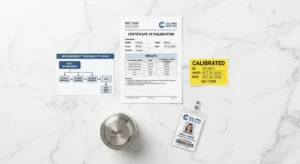
Before diving into specific standards and industries, it’s worth establishing the universal foundation the five core requirements that appear consistently across every credible calibration standard ever written. Whether you’re reading ISO 9001 Clause 7.1.5, ISO/IEC 17025, AS9100D, FDA 21 CFR Part 820, or ANSI/NCSL Z540.3, these five elements are always present. Understanding them gives you a mental framework that makes every other calibration standard easier to read, interpret, and implement. They are not arbitrary rules each one addresses a specific failure mode in measurement systems that has caused real quality and safety problems in practice.
The first is traceability to national or international measurement standards. Every calibration must be traceable there must be an unbroken, documented chain of comparisons linking your instrument’s calibration all the way back to a primary national or international measurement standard. In the United States, this means NIST (National Institute of Standards and Technology). Internationally, it means the SI as maintained by BIPM and national metrology institutes like PTB in Germany, NPL in the UK, and NMIJ in Japan. Traceability is not a phrase that means “we calibrated it” it is a specific technical and documentary requirement with defined meaning. A calibration without a traceable reference chain is scientifically invalid regardless of how skilled the technician was.
The second is documented calibration records. Every calibration must be documented with sufficient information to be technically useful and legally defensible: instrument identification (manufacturer, model, serial number, asset number), calibration date and next due date, reference standards used with their own traceability, measurement results in as-found and as-left format, measurement uncertainty, pass/fail determination, and the identity of the calibration technician or organization. These records are the evidence that auditors, regulators, and customers rely on without them, the calibration effectively didn’t happen from a compliance standpoint.
The third is defined calibration intervals. Calibration must happen at predetermined, documented intervals based on technical justification. This means manufacturer recommendations, historical drift data, application criticality, and regulatory requirements must all inform the interval decision. “When we remember” or “when it seems off” does not meet any calibration standard’s requirements. Intervals must be set, documented, and enforced through a recall system.
The fourth is competent personnel. Calibration must be performed by people with documented training, qualifications, and demonstrated ability appropriate to the calibration type and accuracy level. A certificate signed by an unqualified technician is not a compliant calibration record.
The fifth is suitable reference standards. Reference standards must be appropriate for the accuracy required specifically, they must support a test uncertainty ratio (TUR) of at least 4:1 relative to the calibrated instrument’s tolerance. A reference that is insufficiently accurate compared to the instrument it’s calibrating cannot reliably determine whether that instrument is in or out of tolerance. This is the technical heart of calibration everything else is documentation.
Why Removing Any One of These Five Elements Breaks the Entire Program
Each of the five requirements addresses a failure mode that has been observed in real calibration programs. Removing traceability means systematic errors from reference standards can propagate undetected. Removing documentation means calibration failures cannot be identified after the fact, and impact assessments become impossible. Removing defined intervals means instruments drift out of calibration between checks and nobody knows it. Removing competency requirements means procedural errors occur that produce incorrect calibration results. Removing suitable reference requirements means the calibration itself introduces errors larger than the ones it’s meant to detect. A calibration program missing any single element is unreliable not “slightly suboptimal,” but fundamentally unreliable.
The Calibration Risk Assessment That Should Drive All Five Requirements
These five requirements do not exist in isolation they should be implemented in a risk-based framework that allocates more rigorous application of each requirement to higher-risk instruments and applications. Calibration risk assessment is now explicitly required under ISO 9001:2015’s risk-based thinking mandate and ISO/IEC 17025’s impartiality and competence requirements.
A calibration risk assessment evaluates: the consequence of using the instrument if it’s out of calibration (safety risk, regulatory risk, financial risk), the likelihood of out-of-calibration occurring within the current interval (based on drift history and operating environment), and the detectability of the failure before it causes harm. High-risk instruments get shorter intervals, more rigorous documentation requirements, tighter TUR requirements, and mandatory accredited calibration. Low-risk instruments can be managed with lighter-touch approaches. This risk-based stratification is what separates a mature calibration program from a compliance checkbox exercise.
ISO 9001 Calibration Requirements – What Clause 7.1.5 Actually Demands

ISO 9001 is the world’s most widely adopted quality management standard, with over one million certified organizations across virtually every industry and country. Its calibration requirements are contained in Clause 7.1.5 Monitoring and Measuring Resources and understanding exactly what this clause requires is essential for any organization seeking or maintaining ISO 9001 certification. What I find consistently in audits is that organizations either oversimplify these requirements (treating calibration as just “stick a sticker on it”) or overinterpret them (believing they must use ISO/IEC 17025 accredited laboratories for everything). Both errors create problems. The correct approach is to read the clause accurately and implement it precisely.
Clause 7.1.5.1 establishes the general requirement: determine and provide the monitoring and measuring resources needed to ensure valid and reliable measurement results. This is broader than just calibration it includes any monitoring or measuring activity used to verify product or service conformity. The clause applies to any measurement that influences whether a product or service conforms to its requirements, regardless of the instrument type or industry.
Clause 7.1.5.2 is the specific calibration clause, and it applies “when measurement traceability is a requirement, or is considered by the organization to be an essential part of providing confidence in the validity of measurement results.” This qualification means ISO 9001 does not require calibration for every single measuring device it requires calibration where traceability is needed to ensure measurement validity.
In practice, most organizations determine that any instrument used to make acceptance or rejection decisions about products or services requires traceable calibration. The four specific requirements under this clause are: calibrated or verified at specified intervals or before use against traceable standards; identified so calibration status can be determined at all times; protected from adjustments, damage, and deterioration that would invalidate calibration; and documented information confirming fitness for purpose retained.
ISO 9001 calibration requirements do not mandate ISO/IEC 17025 accredited calibration. They require traceability which can be demonstrated through in-house calibration with traceable references or through external calibration from any competent, traceable provider. The decision between in-house and external, and between accredited and non-accredited external, is a risk-based business decision under ISO 9001.
ISO 9001 Calibration Label Requirements
The standard does not prescribe a specific label format, but it requires that calibration status be determinable at all times. In practice this means every calibrated instrument must carry a label or tag showing at minimum: the calibration date, the next calibration due date, and ideally the calibration record reference number. When an auditor picks up an instrument in your facility, they should be able to immediately determine whether it is currently within its calibration interval. An instrument with no calibration label, an expired calibration label, or a label with only a date and no due date does not meet this requirement.
ISO 9001 Calibration Requirements for Scales, Gauges, and Thermometers
ISO 9001 itself does not specify calibration requirements for any particular instrument type it provides the framework, and the specific technical requirements for each instrument type come from the applicable measurement standards. ISO 9001 scale calibration requirements are implemented through OIML R 111 (weights) and OIML R 76 (non-automatic weighing instruments). ISO gauge calibration requirements follow the relevant instrument standard (ASME B40.100 for pressure gauges, ISO 6789 for torque tools). ISO thermometer calibration requirements follow EURAMET cg-13 or ASTM E77 depending on thermometer type. The ISO 9001 quality management system is the administrative and documentary framework; the measurement standards are the technical content.
Out-of-Tolerance Response Requirements Under ISO 9001
This is the most frequently mismanaged aspect of ISO 9001 calibration compliance. When an instrument is found out of tolerance at calibration as-found data showing deviations exceeding permissible error ISO 9001 requires a documented response that includes: determining whether previous measurement results were invalid, assessing the impact on products or services, taking appropriate action on affected products, and implementing corrective action to prevent recurrence. Organizations that simply adjust the instrument and return it to service without performing this impact assessment are non-compliant with ISO 9001 even if the calibration certificate itself is complete. This is consistently one of the top calibration-related findings in ISO 9001 surveillance audits.
ISO 17025 Calibration Requirements: The Standard for Laboratory Competence

ISO/IEC 17025 is the international standard for testing and calibration laboratory competence, and its calibration requirements go significantly beyond anything in ISO 9001. While ISO 9001 provides a quality management framework that includes calibration as one element, ISO/IEC 17025 is specifically focused on whether a laboratory is technically capable of producing valid calibration results results that are scientifically defensible, traceable, accompanied by documented uncertainty, and produced by methods that have been validated and by staff whose competence has been formally assessed.
The scope of ISO/IEC 17025 calibration requirements covers five key technical areas that ISO 9001 does not address with the same depth. First, measurement uncertainty every calibration result issued by an accredited laboratory under ISO/IEC 17025 must be accompanied by a measurement uncertainty statement expressed at a defined confidence level (typically 95%, k=2).
This is not optional and cannot be omitted even at the customer’s request. Without uncertainty, a numerical calibration result is not scientifically complete it tells you what the measurement was but not how confident you should be in it. Second, method validation calibration methods must be formally validated before use, and the validation records must be maintained. Third, proficiency testing accredited laboratories must participate in inter-laboratory proficiency testing programs to verify that their results are consistent with peer laboratories. Fourth, formal competency assessment all calibration personnel must undergo documented competency assessments, not just training records. Fifth, impartiality laboratories must manage conflicts of interest that could compromise the objectivity of calibration results.
These requirements reflect the higher stakes of accredited calibration: a calibration certificate issued under ISO/IEC 17025 accreditation is used by customers, regulators, and legal proceedings as authoritative evidence of measurement accuracy. The standard is designed to ensure that evidence is actually trustworthy.
ISO 17025 Calibration Certificate Requirements
An ISO/IEC 17025 compliant calibration certificate has mandatory content requirements that are more detailed than a basic calibration record. Every certificate must include: the title “Calibration Certificate” stated clearly, the laboratory name and contact details, the accreditation body logo and accreditation number, a unique certificate number, the calibration date and the date of issue, client identification, complete instrument identification (manufacturer, model, serial number), the calibration method referenced, environmental conditions during calibration, as-found and as-left measurement data in tabular form, measurement uncertainty for each result at a stated confidence level, a traceability statement identifying the reference standards used, a conformance statement (in-tolerance/out-of-tolerance/adjusted), and the authorizing signatory’s identification.
A certificate missing any of these elements is not fully compliant with ISO/IEC 17025 and may not be accepted by auditors or regulatory inspectors requiring accredited calibration documentation.
ISO 17025 Pipette Calibration Requirements
Pipette calibration under ISO/IEC 17025 is governed by ISO 8655, the standard for piston-operated volumetric instruments. The calibration method is gravimetric the volume dispensed by the pipette is determined by weighing the dispensed liquid on a calibrated analytical balance and applying a water density correction for the measured temperature. The calibration must be performed at defined test volumes (typically 10%, 50%, and 100% of the pipette’s nominal volume), under controlled temperature and humidity (20°C ±0.5°C, ≥50% relative humidity to minimize evaporation errors), with a minimum of ten replicates at each volume to determine both systematic error (accuracy) and random error (repeatability). Results are evaluated against ISO 8655 maximum permissible errors for the pipette’s volume range and accuracy class.
NIST Traceable vs ISO 17025: Clarifying the Relationship
The phrase “NIST traceable” and “ISO/IEC 17025 accredited” are often used interchangeably by people unfamiliar with the technical distinction and that confusion leads to real problems when selecting calibration service providers. NIST traceability is a property of a calibration the unbroken chain of comparisons back to NIST primary standards. ISO/IEC 17025 accreditation is a property of a laboratory the formally assessed technical competence to perform calibrations correctly. An ISO/IEC 17025 accredited laboratory in the US produces calibrations that are NIST traceable as a condition of its accreditation but NIST traceability alone does not confirm ISO/IEC 17025 accreditation.
Many calibration providers claim NIST traceability without accreditation, which means their traceability chain has not been independently verified and their calibration procedures have not been validated by an accreditation body.
When your regulatory requirements or customer requirements specifically call for accredited calibration, verify accreditation directly through the accreditation body’s online directory never rely solely on a supplier’s claim.
ISO 9001 vs ISO 17025: Which Calibration Standard Applies to Your Organization?
This is one of the most practically important questions in calibration management, and getting the answer wrong leads to one of two problems: either you spend resources on accredited calibration you don’t need, or you use non-accredited calibration in contexts where accredited calibration is specifically required. The fundamental distinction between the two standards is this ISO 9001 is a quality management system standard that governs how an organization manages its processes, documentation, and improvement; ISO/IEC 17025 is a technical competence standard that governs whether a laboratory is capable of producing technically valid calibration and test results. They address different questions and they apply to different organizational contexts.
ISO 9001 applies to virtually any organization that wants to demonstrate systematic quality management manufacturers, service providers, healthcare organizations, software companies. Its calibration requirements (Clause 7.1.5) are about ensuring measurement equipment is managed in a way that keeps measurement results reliable within the quality management system. ISO/IEC 17025 applies to organizations that perform calibration or testing as a service, or that need to demonstrate the highest level of technical measurement credibility typically calibration laboratories, testing laboratories, reference material producers, and inspection bodies.
An organization can hold ISO 9001 certification without ISO/IEC 17025 accreditation the vast majority of manufacturers do. An organization can hold ISO/IEC 17025 accreditation without ISO 9001 certification, because ISO/IEC 17025:2017 contains its own management system requirements that satisfy the intent of ISO 9001. Some organizations typically calibration service providers serving regulated industries hold both. The decision is driven by customer requirements, regulatory requirements, and the organization’s own quality strategy.
When ISO 9001 Calibration Is Sufficient
ISO 9001 calibration under Clause 7.1.5 is sufficient when your customers and regulators do not specifically require accredited calibration. This covers most manufacturing, service, and process industries. A machined parts manufacturer, a food processor, a medical device packaging operation, or a general engineering services provider operating under ISO 9001 can meet their calibration requirements with traceable, documented calibration either in-house or from any competent external provider without needing ISO/IEC 17025 accreditation for every calibration activity.
When ISO 17025 Accredited Calibration Is Required
Accredited calibration under ISO/IEC 17025 is required when: customers specifically require accredited calibration certificates as a contractual condition; regulatory frameworks mandate it (CLIA for clinical laboratory instruments, many aerospace and defense contracts, certain pharmaceutical GMP contexts where calibration laboratory competence must be formally demonstrated); the organization operates a calibration laboratory itself and needs to demonstrate competence to its own customers; or the measurement being made is so technically demanding or safety-critical that independent verification of the calibration method and reference standards is necessary to provide adequate confidence.
ISO 9001 vs 17025: A Practical Comparison for Quality Managers
When a quality manager asks “should I send this gauge to an ISO/IEC 17025 accredited lab or can I use our in-house calibration?” the answer depends on three factors: Does the applicable standard (ISO 9001, AS9100D, customer contract, FDA regulation) specifically require accredited calibration? Is the instrument’s accuracy class high enough that in-house reference standards cannot support TUR ≥ 4:1? And is the measurement safety-critical or regulatory-critical enough that independent verification of the calibration is warranted? If the answer to all three is no, in-house or non-accredited external calibration under ISO 9001 is appropriate. If the answer to any one is yes, accredited calibration should be used.
NIST Traceable Calibration Requirements: What Traceability Actually Means in Practice
Traceability is one of the most used and least understood concepts in calibration. Nearly every calibration certificate claims NIST traceability, but what that actually means and what it does and doesn’t guarantee is rarely explained clearly. I want to fix that here because the difference between real traceability and claimed traceability is the difference between a calibration that means something and one that doesn’t.
NIST traceability means there is an unbroken, documented chain of calibration comparisons connecting your instrument’s calibration all the way back to NIST’s primary measurement standards the physical and electrical standards that NIST maintains at the highest accuracy level achievable. Each link in that chain is a calibration performed with documented uncertainty, by a qualified person, using validated procedures, and resulting in a certificate that identifies the reference standards used and their own calibration. The chain cannot have gaps: if any link in the chain lacks documentation, validation, or traceable reference standards, the entire chain below that point is broken and the traceability claim is invalid.
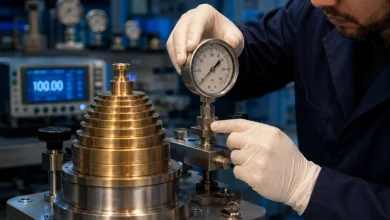
In practice, the traceability chain for a typical industrial pressure gauge works like this: NIST maintains primary pressure standards. An accredited calibration laboratory (accredited under A2LA or NVLAP) calibrates its deadweight tester against a NIST-calibrated pressure standard this is the top of the laboratory’s traceability chain. That calibrated deadweight tester is then used to calibrate transfer standards and working standards. Those working standards are used to calibrate your gauge. Every link from NIST to the accredited lab, from the accredited lab to their working standard, from the working standard to your gauge must be documented with calibration certificates showing dates, uncertainty values, and reference standard identification. Your calibration certificate should be traceable back through this entire chain.
What Breaks a Traceability Chain
The most common ways traceability chains break in practice are: using calibration equipment whose own calibration has expired (so the reference is no longer in a known, validated state); using reference standards calibrated by non-accredited providers whose own calibration chain hasn’t been independently verified; applying calibrations at accuracy levels that aren’t within the accredited scope of the laboratory performing them; and failing to maintain calibration records that document the entire chain. When an auditor asks for your traceability documentation and you can only produce the certificate for your gauge without the chain above it, the traceability claim is unverifiable which is functionally the same as having no traceability.
NIST Temperature Calibration and Cold Storage Traceability
NIST temperature calibration traceability is specifically required in pharmaceutical cold storage calibration, food storage temperature monitoring, and laboratory environmental monitoring. The temperature sensors used to monitor these environments must be calibrated against NIST-traceable reference thermometers, and those reference thermometers must be calibrated by a laboratory with accreditation for temperature calibration covering the relevant range (typically -80°C to +30°C for pharmaceutical cold storage applications). Pharmacy cold storage calibration requirements under FDA guidance, USP General Chapter <659>, and ICH Q1A require that all temperature sensors used in drug storage monitoring be calibrated with documented NIST traceability and that calibration records be retained for inspection.
Calibration Standards NIST: Pressure, Electrical, and Dimensional
For pressure calibration standards, NIST traceability requires that the reference pressure standards (deadweight testers, precision digital pressure standards) be calibrated by an A2LA or NVLAP accredited laboratory whose scope includes pressure at the relevant range and accuracy level. For electrical calibration standards, the multi-function calibrator used as the working reference must be calibrated by an accredited laboratory with an accreditation scope covering the specific voltage, current, resistance, and frequency ranges being calibrated. For dimensional calibration standards, gauge blocks must be calibrated by a laboratory accredited for dimensional calibration at the relevant grade and size range.
Calibration Requirements for Industrial Measurement Tools
Industrial measurement tools are the instruments on factory floors, in quality laboratories, on process lines, and in maintenance departments that collectively determine whether products are conforming, whether processes are in control, and whether safety systems are functioning correctly. The calibration requirements for these tools are governed by the intersection of the quality management standard applicable to the facility (ISO 9001, AS9100D, IATF 16949), the instrument-specific measurement standards that define accuracy classes and calibration procedures, and the regulatory requirements of the industry. Getting this intersection right for each instrument type in your inventory is the practical work of calibration program management.
The starting point is always instrument classification. Not every measuring device in a facility requires the same level of calibration rigor. Instruments used to make product acceptance or rejection decisions (incoming inspection gauges, final inspection instruments, process control sensors governing critical parameters) require full calibration with documented traceability, TUR ≥ 4:1, and formal calibration certificates. Instruments used for monitoring purposes only (workshop thermometers, general-purpose meters used for rough guidance) may require only periodic verification against a reference, not full calibration.
Reference standards used to calibrate other instruments require the most rigorous calibration of all typically from an ISO/IEC 17025 accredited laboratory with uncertainty well below TUR 4:1 relative to the instruments they calibrate. This three-tier classification calibration required, verification sufficient, accredited calibration required is the foundation of an efficient calibration program that allocates resources proportionally to risk.
Pressure Gauge Calibration Requirements
Pressure gauge calibration requirements are governed by ASME B40.100 in the US and EN 837 in Europe. These standards define accuracy classes and their corresponding permissible errors (Class 0.25 = ±0.25% full scale, Class 1.0 = ±1.0% full scale), required test points (minimum 25%, 50%, 75%, and 100% of range, both upscale and downscale), and the reference standard accuracy needed (TUR ≥ 4:1 relative to the gauge’s permissible error). ASME pressure gauge calibration requirements additionally specify requirements for over-range protection verification and zero verification at atmospheric pressure. Calibration intervals for process pressure gauges typically range from 6 to 12 months depending on operating environment severity and measurement criticality.
Torque Wrench Calibration Requirements
Torque wrench calibration requirements are defined in ISO 6789-2:2017. The standard requires calibration at a minimum of three test torques (typically 20%, 60%, and 100% of rated torque) with a minimum of five readings at each point, in both clockwise and counterclockwise directions where applicable. The reference torque transducer must support TUR ≥ 4:1 relative to the torque wrench’s maximum permissible error (which is ±4% for Type I indicating wrenches and ±4% for Type II setting wrenches under ISO 6789). ISO 6789 recommends calibration every 5,000 cycles or 12 months, whichever comes first with shorter intervals for safety-critical assembly applications in aerospace and automotive.
Flow Meter Calibration Requirements
Flow meter calibration requirements depend on the measurement technology. Differential pressure flow meters require calibration of the associated differential pressure transmitters against traceable pressure references. Positive displacement, turbine, Coriolis, and electromagnetic flow meters require flow calibration against a traceable volumetric or mass flow reference. Calibration intervals for process flow meters in critical service are typically 6 months, with annual calibration acceptable for non-critical monitoring applications. For fiscal metering applications (custody transfer of oil, gas, or water), flow meter calibration requirements are governed by API MPMS standards and legal metrology regulations, with accredited calibration mandatory and intervals set by the applicable regulation.
Micrometer Calibration Standards
Micrometer calibration is governed by ASME B89.1.5 and ISO 3611. The calibration procedure requires verification of zero setting, flatness and parallelism of the measuring faces (using an optical flat), and dimensional accuracy at multiple points across the measuring range using calibrated gauge blocks traceable to NIST or SI. The gauge blocks used as the reference standard must be at a higher grade than is necessary to support TUR ≥ 4:1 for a micrometer with accuracy ±0.004mm, the gauge blocks must have uncertainty ≤ ±0.001mm. Calibration intervals for micrometers in production service are typically 6 to 12 months.
Calibration Requirements for Electronic Testing Equipment
Determining the right calibration requirements for electronic testing equipment requires a structured approach based on the specific measurement functions of the instrument, its accuracy specification, the regulatory and quality framework governing its use, and the measurement application. The answer is different for a bench multimeter in a general-purpose electronics lab versus an electrical safety tester used to verify medical device insulation versus a power quality analyzer used for ISO 50001 energy monitoring compliance. Treating all electronic test equipment as a homogeneous category with a single calibration approach is one of the most common and costly mistakes I see in calibration program management.
The governing framework for most electronic test equipment calibration in the US is ANSI/NCSL Z540.3, which requires TUR ≥ 4:1 for all calibrations, documented calibration procedures, traceable reference standards, defined calibration intervals, and calibration results recorded with measurement uncertainty. For organizations operating under AS9100D, NADCAP, or defense contracts, Z540.3 compliance is typically a contractual requirement. For ISO 9001 organizations, Z540.3 provides a best-practice technical baseline even where it isn’t explicitly required.
Multimeter Calibration Requirements
Multimeter calibration requirements cover the full set of electrical measurement functions: DC voltage, AC voltage, DC current, AC current, resistance, and in some instruments, frequency, capacitance, and temperature. The calibration procedure must test each function at multiple points across the instrument’s specified range, using a multi-function reference calibrator whose uncertainty is traceable to NIST and supports TUR ≥ 4:1 for each function. Electrical meter calibration requirements under IEC 61010 specify the safety and performance standards for electrical measuring instruments; calibration must verify conformance to the accuracy specifications in this standard. Annual calibration intervals are typical for bench multimeters in general-purpose service; instruments used in safety-critical electrical testing applications may require semi-annual calibration.
Megger and Insulation Tester Calibration Requirements
Megger calibration requirements for insulation resistance testers are governed by IEC 61557-2. The calibration must verify accuracy at multiple resistance values across the instrument’s range, using calibrated resistance standards and a verified high-voltage reference. Insulation testers used for medical device safety testing, electrical installation certification, or motor winding testing should be calibrated at minimum annually, with the calibration certificate specifically covering the test voltages and resistance ranges used in the application.
ANSI/NCSL Z540.1 and Z540.3: The US Calibration Requirements Standard
ANSI/NCSL Z540-1 is the original US national standard for calibration laboratories, now largely superseded by ANSI/NCSL Z540.3. Z540.3 establishes the 4:1 TUR requirement as a formal standard requirement and introduces risk-based decision-making when TUR is unavoidably lower than 4:1. Z540 calibration requirements are referenced in US defense contracts (MIL-PRF-45662A cited Z540-1 explicitly), AS9100D aerospace quality systems, and NADCAP special process requirements. Organizations working in these sectors must ensure their calibration programs whether in-house or outsourced are fully compliant with Z540.3 as the applicable technical baseline.
Medical Device Calibration Requirements: FDA, ISO 13485, and CLIA
Medical device calibration requirements operate at the highest stakes of any calibration context. When measurement instruments used in medical device manufacturing, clinical laboratory testing, or patient-care equipment are out of calibration, the consequences are not production inefficiency or customer complaints they are patient harm, regulatory enforcement action, and in the most serious cases, loss of life. This is not hyperbole: the FDA has issued warning letters, consent decrees, and facility shutdown orders based on calibration failures in medical device and pharmaceutical manufacturing facilities. Understanding and implementing these requirements correctly is therefore not optional for anyone operating in the healthcare sector.
FDA 21 CFR Part 820 the Quality System Regulation governing medical device manufacturers requires that all measuring and test equipment be calibrated at suitable intervals using certified equipment having known valid relationships to nationally or internationally recognized standards. This requirement extends to all equipment whose measurements influence product release decisions, process control, or quality system performance verification. The regulation further requires that calibration records be maintained and that out-of-calibration instruments trigger a documented review of the products measured with them.
What medical equipment needs calibration? In a medical device manufacturing environment: all dimensional measuring instruments used for product inspection, force and torque tools used in assembly of safety-critical components, weighing scales used for raw material weighing and dose verification, temperature sensors governing manufacturing process parameters, pressure instruments monitoring sterilization cycles, electrical test equipment verifying device safety and performance, and environmental monitoring sensors governing controlled manufacturing areas. In a clinical or hospital environment: blood glucose analyzers, infusion pumps, ventilators, blood pressure monitors, defibrillators, autoclaves, ECG machines, diagnostic imaging equipment, and all clinical laboratory analyzers. The fundamental principle is consistent: any instrument whose output informs a clinical or quality decision must be calibrated.
ISO 13485 Calibration Requirements
ISO 13485 is the quality management system standard specific to medical device organizations, and its calibration requirements are more prescriptive than ISO 9001 in several important respects. ISO 13485 requires documented procedures for the control of monitoring and measuring equipment, calibration at specified intervals against traceable standards, specific retention of calibration records (typically for the lifetime of the device plus an additional defined period), and validation of software used for monitoring and measurement a requirement that extends the calibration framework to software-based measurement systems.
The standard also requires that the results of calibration be evaluated and that action be taken if the equipment is found to not meet requirements including assessment of the impact on products that were measured with the out-of-calibration equipment.
CLIA and CAP Calibration Verification Requirements
CLIA calibration verification requirements for clinical laboratories require that all quantitative analytical instruments be calibrated or have their calibration verified before being placed in service, after maintenance or repair affecting performance, when reagent lots change (for some analytes), and at intervals defined by the manufacturer or established by the laboratory. CAP calibration verification requirements add additional specificity for accredited clinical laboratories, requiring calibration verification using at least two samples with known analyte concentrations spanning the analytical measurement range. Cap pipette calibration requirements under CAP inspection checklists require gravimetric calibration of all pipettes used for quantitative analytical work, with documented uncertainty analysis and calibration intervals not exceeding 12 months.
Pharmaceutical Equipment Calibration Requirements
Pharmaceutical manufacturing operates under some of the most rigorously enforced calibration requirements of any industry, and the enforcement is direct: FDA inspectors audit calibration programs in detail, and calibration deficiencies are among the most frequently cited observations in FDA warning letters. The reason is straightforward pharmaceutical manufacturing is a precision process where measurement errors translate directly into drug potency, purity, or safety problems that reach patients. Getting calibration right in pharmaceutical manufacturing is therefore inseparable from getting product quality right.
FDA 21 CFR Part 211.68 specifically governs automatic, mechanical, and electronic equipment used in pharmaceutical manufacturing. It requires that such equipment be calibrated, inspected, and checked according to a written program, that calibration records be maintained and reviewed, and that equipment be taken out of service when it fails calibration until it has been repaired and recalibrated. 21 CFR Part 211.68(b) extends these requirements to computer systems used in manufacturing and quality control, requiring that input/output operations be checked for accuracy.
The FDA’s interpretation of these requirements through guidance documents and inspection observations has established several practices as de facto requirements: as-found data must be recorded before any adjustment; calibration records must be reviewed periodically for trends; out-of-tolerance events must trigger documented impact assessments; and calibration intervals must be justified based on technical evidence, not just administrative convenience.
FDA Scale Calibration Requirements
Weighing scales in pharmaceutical manufacturing are among the most critically calibrated instruments because weighing errors directly affect drug composition and dose accuracy. FDA scale calibration requirements under 21 CFR Part 211 require calibration using weights traceable to NIST, at defined intervals, with documented procedures and records. In practice, pharmaceutical manufacturers also perform daily operational checks using calibrated check weights as a routine process control step in addition to formal periodic calibration. FDA scale variation calibration requirements extend to verifying the linearity of the scale response across its working range, not just at a single load point. Weighing scale calibration ISO standard under OIML R 76 provides the technical framework for the calibration procedure and permissible errors.
Cold Storage Calibration for Pharmaceuticals
Pharmaceutical cold storage calibration is one of the most actively enforced areas of FDA GMP compliance, particularly since the widespread deployment of cold chain medications and vaccines. USP General Chapter <659> and FDA guidance on pharmaceutical cold storage require that all temperature monitoring devices used in drug storage be calibrated, and that thermal mapping studies of storage areas be performed using calibrated temperature sensors to verify temperature uniformity before placing drugs in storage.
Cold storage calibration for pharmaceuticals must address: the calibration of individual temperature sensors (against NIST-traceable reference thermometers), the mapping of temperature distribution throughout the storage space (identifying hot and cold spots), and the qualification of the monitoring system as a whole (verifying that alarm set points are correctly calibrated and that the monitoring system detects excursions reliably).
Calibration Requirements by Sector: Aerospace, Automotive, and Defense
Aerospace, automotive, and defense sectors operate under calibration requirements that are among the most prescriptive and thoroughly audited in industry. The reasons are consistent across these sectors: the products they make carry human lives, the failure modes of measurement errors can be catastrophic, and the regulatory and contractual frameworks governing these industries have evolved over decades of learning from real quality failures.
AS9100D is the quality management system standard for aviation, space, and defense organizations. Its calibration requirements add significant depth beyond the ISO 9001 baseline. AS9100D explicitly requires that external calibration be performed by ISO/IEC 17025 accredited laboratories a requirement that ISO 9001 does not mandate. It requires documented calibration procedures including measurement uncertainty analysis, requirements for investigation when calibration intervals are exceeded, requirements for out-of-tolerance investigation and product impact assessment, and specific requirements for the protection and control of measurement reference standards. AS9100 calibration requirements also include requirements for customer notification when suspect product related to calibration failures may have been shipped.
NADCAP calibration requirements take this further. NADCAP (National Aerospace and Defense Contractors Accreditation Program) special process accreditation covers measurement and inspection as a distinct process area, with audit criteria that cover every element of a calibration program in detail: traceability documentation, TUR documentation for every calibration, calibration interval justification records, calibration failure response records, environmental control of calibration areas, and personnel competency records. Achieving and maintaining NADCAP accreditation for measurement and inspection is a significant undertaking that provides a genuine competitive advantage in the aerospace supply chain.
IATF 16949 Gauge Calibration Requirements
IATF 16949 is the quality management standard for automotive production and service part organizations. Its calibration requirements go beyond ISO 9001 by explicitly requiring measurement system analysis (MSA) including gauge repeatability and reproducibility (gauge R&R) studies for all measurement systems referenced in the control plan. This requirement recognizes that calibration alone doesn’t fully characterize measurement system performance repeatability, reproducibility, linearity, and bias across the measurement range must also be understood and controlled. IATF 16949 gauge calibration requirements cover variable gauges (calipers, micrometers, CMMs, surface plates) and attribute gauges (go/no-go gauges, fixtures, templates), and require that both be calibrated at documented intervals.
Navy, NAVSEA, and Military Calibration Requirements
Navy calibration requirements and NAVSEA calibration requirements follow the US military calibration system historically governed by MIL-STD-45662A, which established requirements for measurement standards laboratories, calibration intervals, and documentation. Navy and defense calibration requirements emphasize the metrology chain of custody every instrument’s calibration history must be fully traceable and documented, and calibration intervals are set conservatively based on criticality classification. NRC calibration requirements for nuclear power plant instrumentation add nuclear safety-specific requirements including seismic qualification, environmental qualification for accident conditions, and surveillance testing that extends beyond standard calibration to verify instrument performance under abnormal operating conditions.
Environmental and Safety Equipment Calibration Requirements
Environmental monitoring equipment and safety detection instruments occupy a unique position in the calibration requirements landscape: they are often the last line of defense before a hazardous situation becomes an incident. A gas detector that has drifted out of calibration doesn’t just produce inaccurate readings it may fail to alarm when a worker’s life is at risk. An emissions monitoring system that is out of calibration produces regulatory compliance data that may misrepresent actual emissions levels, creating both environmental harm and legal liability. These instruments must be calibrated correctly, at appropriate intervals, using the right reference standards and there is very little margin for error.
Gas detector calibration requirements vary by jurisdiction and application. In Australia, gas detector calibration requirements are governed by AS 2625 and the applicable state workplace health and safety regulations. In Singapore, requirements under the Workplace Safety and Health Act require calibration by accredited service providers at intervals specified by the regulator. In the United States, OSHA gas monitor calibration requirements do not specify universal intervals for all detector types, but OSHA’s enforcement position supported by citations and guidance documents is that detectors be calibrated per manufacturer recommendations using certified calibration gas mixtures traceable to NIST.
Portable gas detector calibration requirements for life-safety applications (confined space entry, hot work permits) require pre-use bump testing with certified gas plus periodic formal calibration at intervals typically ranging from 3 to 6 months.
EPA calibration requirements for continuous emissions monitoring systems (CEMS) are among the most technically detailed environmental calibration requirements. EPA Reference Methods (Method 7E for NOx, Method 6C for SO₂, among others) specify exact calibration procedures, certified reference gas requirements with NIST-traceable concentration values, calibration frequency (typically daily for zero and span checks, quarterly for linearity audits, annual for relative accuracy test audits), and documentation requirements that must be met for emissions data to be legally defensible under Clean Air Act permit conditions.
Dosimeter Calibration Requirements
Radiation dosimeter calibration requirements are governed by IAEA Safety Standards and national radiation protection regulations. Personal dosimeters used for occupational radiation monitoring must be calibrated using NIST-traceable radiation reference sources, and the calibration uncertainty must be documented to support the dose assessment calculations based on dosimeter readings. Noise dosimeter calibration requirements for occupational noise exposure monitoring follow IEC 61252 (for personal sound exposure meters) and must include verification of frequency response, level linearity, and integration accuracy against acoustic reference standards.
ADAS and Vehicle Calibration Requirements
Advanced Driver Assistance Systems calibration has emerged as one of the most consequential new calibration disciplines of the past decade, and its requirements are growing in complexity and enforceability as ADAS technology proliferates across the vehicle fleet. Every modern vehicle contains a network of radar sensors, forward and surround-view cameras, lidar systems, and ultrasonic sensors whose correct alignment and calibration are prerequisites for their safety functions to work as designed.
When these systems are miscalibrated after a collision repair, a windshield replacement, a wheel alignment, or a suspension component replacement the safety systems they govern can fail dangerously: automatic emergency braking that doesn’t activate in time, lane-keeping assist that steers toward rather than away from a lane boundary, adaptive cruise control that closes inappropriately on slower traffic.
ADAS calibration requirements from every major OEM are now documented and publicly available. BMW calibration requirements, Toyota calibration requirements, Honda calibration requirements, Nissan calibration requirements, Ford calibration requirements, Subaru calibration requirements, Volkswagen calibration requirements, Volvo calibration requirements, Mercedes calibration requirements, Audi calibration requirements, Kia calibration requirements, Hyundai calibration requirements, Lexus calibration requirements, Porsche calibration requirements, Tesla calibration requirements, Genesis calibration requirements, Mazda calibration requirements, and Rivian calibration requirements all specify the exact conditions under which ADAS calibration is required after various repair types, the equipment and targets needed for static calibration, the vehicle preparation requirements (correct tire pressure, fuel level, suspension geometry), and the procedures for performing and documenting the calibration.
ADAS Calibration Space Requirements
Static ADAS calibration performed with the vehicle stationary using calibration targets positioned at OEM-specified distances and angles in front of or around the vehicle has strict environmental requirements that many collision repair shops underestimate. Floor levelness is a critical requirement: most OEM procedures specify maximum floor slope and unevenness tolerances in the range of 1–3mm over a defined measurement area, because even small floor tilts affect the angular position of calibration targets relative to the sensors being calibrated.
Ambient lighting must be controlled no direct sunlight or strong directional light sources that could interfere with camera-based calibration targets. Minimum ceiling height and clear floor area are specified by each OEM based on the specific target configurations required for their systems.
I-CAR Calibration Requirements
I-CAR calibration requirements provide the collision repair industry’s standardized framework for ADAS calibration. I-CAR’s Gold Class and Platinum recognition programs, OEM certification programs, and ProLevel technician training all incorporate ADAS calibration requirements as core competencies. I-CAR calibration requirements specify which repairs trigger mandatory ADAS calibration per OEM documentation, how to identify the correct calibration procedure for a specific vehicle, how to set up calibration equipment correctly, and how to document calibration completion. Following I-CAR calibration requirements is increasingly a prerequisite for OEM collision repair certification and insurance direct repair program participation.
Calibration Interval Guidelines: How to Set the Right Calibration Frequency
Calibration interval management is where the theoretical requirements of calibration standards meet the practical realities of instrument behavior, operational budgets, and risk tolerance. The calibration interval the maximum time allowed between calibrations directly determines both the risk level of the calibration program and its cost. Set intervals too short and you waste resources on unnecessary calibrations. Set them too long and instruments drift out of tolerance during service without detection, creating measurement failures with potentially serious quality, safety, or regulatory consequences. Getting calibration intervals right is therefore one of the most important technical decisions in calibration program management.
The starting point for every interval decision is the manufacturer’s recommendation, which is typically derived from the manufacturer’s knowledge of the instrument’s design, expected drift rate, and typical use conditions. For most industrial instruments, the manufacturer’s recommendation is 12 months which has become the default interval for general industrial calibration, often without further justification. But 12 months is a starting point, not a final answer. The technically correct approach to interval setting uses the instrument’s actual calibration history specifically, the as-found data from successive calibrations to determine how fast the instrument actually drifts in its specific application and environment, and sets the interval based on that empirical evidence.
ILAC-G24, the international guideline for calibration interval determination published by the International Laboratory Accreditation Cooperation, establishes four recognized methods for calibration interval setting: automatic recall (fixed intervals with periodic review based on history), calendar time method (intervals adjusted based on as-found data trends), control chart method (using statistical process control to track drift), and in-service experience method (using field data and user feedback to inform intervals). The first method fixed intervals with periodic review is the most practical for most organizations and is fully compliant with ISO 9001, ISO/IEC 17025, and other calibration standards.
How Often Should Specific Equipment Types Be Calibrated?
Pipette calibration frequency requirements under ISO 8655 and most laboratory standards recommend annual calibration as a minimum, with semi-annual or quarterly intervals for high-use pipettes in critical analytical work. Flow meter calibration requirements typically follow 6–12 month intervals for critical process meters, annual for monitoring service. Thermometer calibration requirements for contact thermometers in pharmaceutical service recommend 6–12 month intervals with daily operational checks. How often ANSI requires field instruments to be calibrated a common question is answered by Z540.3 with the requirement that intervals be defined and justified based on instrument history, not a specific prescribed interval. Torque wrench calibration intervals under ISO 6789 are triggered by either time (12 months) or use cycles (5,000 cycles), whichever comes first.
Calibration Interval Optimization Process
The interval optimization process works in a straightforward cycle: at each calibration, record the as-found deviation as a percentage of the instrument’s permissible error. After three to five calibration cycles, evaluate the trend. If as-found deviation consistently falls below 50% of permissible error, the interval is a candidate for extension by 25–50%. If as-found deviation consistently exceeds 80% of permissible error, the interval needs to be shortened and the instrument’s operating environment reviewed for sources of accelerated drift. This data-driven approach explicitly encouraged by ILAC-G24 and required by ISO/IEC 17025’s management review process progressively optimizes intervals based on real instrument behavior rather than conservative defaults.
Calibration Certificate Requirements: What Every Valid Certificate Must Contain
A calibration certificate is the documentary output of the calibration process it is the evidence that calibration was performed, what the results were, and what they mean for the instrument’s fitness for use. A certificate that is incomplete, technically incorrect, or missing required elements is worse than useless: it creates a false sense of compliance that can mislead quality managers, deceive auditors, and in the worst cases, provide false confidence in the accuracy of instruments whose actual condition is unknown.
The minimum content requirements for a complete, compliant calibration certificate are defined most completely by ISO/IEC 17025, but apply as a best-practice standard to all calibration certificates regardless of whether the issuing laboratory is accredited.
Every certificate must contain: the title “Calibration Certificate” stated explicitly; the name and contact information of the issuing laboratory; a unique sequential certificate number that allows the certificate to be uniquely identified; the date calibration was performed (not just the date the certificate was issued); the next calibration due date; the client’s name and address; complete, unambiguous identification of the calibrated instrument (manufacturer name, model number, serial number, and asset or tag number); the calibration method or procedure reference; the environmental conditions (temperature and relative humidity at minimum) during calibration; as-found measurement data recorded before any adjustment; as-left measurement data recorded after adjustment (if adjustment was made); measurement uncertainty for each reported result at a stated confidence level;
Traceability statement identifying the reference standards used with their own calibration certificate numbers; a conformance statement (in-tolerance, out-of-tolerance, or adjusted in-tolerance); and the name and signature of the authorized calibration technician.
The as-found data requirement deserves emphasis because it is the element most frequently omitted by calibration service providers who want to avoid documenting unfavorable pre-adjustment conditions. A certificate that reports only as-left data the condition after adjustment withholds the information that quality systems need to perform impact assessment for instruments found out of tolerance. Always require as-found data on calibration certificates, and treat its absence as a serious quality concern about the calibration service provider.
Calibration Record Retention Requirements
Calibration record retention requirements vary by industry and regulatory framework. ISO 9001 does not specify a retention period and leaves it to the organization to define based on their quality context. FDA regulations require calibration records to be retained for at least one year beyond the expiry date of the batch (for pharmaceutical manufacturers) or for the lifetime of the device plus an additional period (for medical device manufacturers). AS9100D and aerospace contracts frequently specify 10-year or longer retention requirements. IATF 16949 requires retention for the life of the part or tool plus the regulatory requirement. For organizations subject to multiple requirements, always retain records for the longest period applicable to any relevant requirement.
In-House Calibration Requirements vs. Accredited External Calibration
The decision between in-house calibration and outsourcing to an accredited laboratory is one of the most consequential calibration management decisions an organization makes, and it needs to be made on technical and risk-based grounds rather than purely on cost. In-house calibration is not inherently inferior to external calibration when done correctly, with appropriate reference standards, validated procedures, and competent personnel, in-house calibration produces results that are every bit as valid as externally accredited calibration. But in-house calibration done incorrectly without adequate reference standards, without validated procedures, or by inadequately trained personnel produces results that are scientifically invalid regardless of how good the documentation looks.
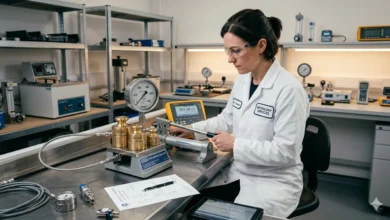
In-house calibration requirements under ISO 9001 and ISO/IEC 17025 include: maintaining in-house reference standards that are themselves calibrated by accredited laboratories at intervals that keep them within their specified accuracy; documenting calibration procedures that define the test points, method, acceptance criteria, and documentation requirements for each instrument type calibrated in-house; training and documenting the competence of all calibration personnel; maintaining environmental controls (temperature, humidity) appropriate to the accuracy level of the calibrations being performed; and maintaining calibration records that meet all documentary requirements including uncertainty estimates.
The key limiting factor for in-house calibration is usually the reference standard: can the organization acquire and maintain reference standards with sufficient accuracy to achieve TUR ≥ 4:1 for the instruments it intends to calibrate in-house? For routine industrial gauges pressure gauges with accuracy class 1.0, general-purpose thermometers, industrial calipers in-house calibration with appropriate reference instruments is entirely practical. For high-accuracy instruments Class 0.1 or 0.25 pressure gauges, precision RTDs, calibrated laboratory balances in-house calibration may not be practical because the required reference standards are expensive, require highly controlled environments, and need frequent accredited calibration themselves.
Outsourcing Calibration: Selecting the Right Provider
When outsourcing calibration, the selection of the right service provider is a quality decision, not just a procurement decision. The technical capability of your calibration service provider directly affects the validity of your calibration data and therefore the reliability of every measurement decision made on the basis of that data.
Verify ISO/IEC 17025 accreditation directly on the accreditation body’s online directory never rely solely on a supplier’s claim or marketing materials. Confirm that the scope of accreditation specifically covers the measurement quantities, ranges, and uncertainty levels you need. Request and review sample calibration certificates before placing work to verify that as-found data, measurement uncertainty, and full traceability documentation are included. Confirm that the provider’s calibration intervals for their own reference standards are appropriate and that their reference standards are within calibration at the time they perform your work.
FAQs
What are the typical calibration requirements for industrial measurement tools?
Industrial measurement tools must be calibrated at defined intervals against traceable reference standards with TUR ≥ 4:1, using documented procedures, by competent personnel, with results recorded in calibration certificates that include as-found and as-left data and measurement uncertainty. The governing framework is ISO 9001 Clause 7.1.5, supplemented by instrument-specific standards (ASME, ISO, ASTM) and sector requirements (IATF 16949, AS9100D, API).
How do I determine calibration requirements for electronic testing equipment?
Identify the instrument’s accuracy specification and the maximum permissible error for its application. Select a reference standard supporting TUR ≥ 4:1. Apply the relevant calibration standard (IEC 61557, ANSI/NCSL Z540.3, manufacturer procedure). Set the calibration interval based on manufacturer recommendation and historical drift data. Ensure NIST-traceable documentation with measurement uncertainty on the calibration certificate.
What are the calibration requirements for medical devices?
Medical device calibration requirements are governed by FDA 21 CFR Part 820, ISO 13485, CLIA for clinical laboratory instruments, and ISO/IEC 17025 where accredited calibration is required. All require traceable calibration at defined intervals, documented records with as-found and as-left data, and out-of-calibration impact assessment procedures.
How often should lab equipment be calibrated?
Calibration frequency for laboratory equipment should start with the manufacturer’s recommendation (typically 12 months), then be adjusted based on historical as-found drift data and application criticality. Pipettes in high-use analytical applications typically require semi-annual or quarterly calibration. Critical reference instruments may require more frequent calibration to maintain their position in the traceability chain.
What standards govern industrial sensor calibration?
Industrial sensor calibration is governed by: ISO 9001 Clause 7.1.5 (quality management baseline), ISO/IEC 17025 (for accredited calibration), instrument-specific standards (ISO, ASTM, ASME, IEC for specific sensor types), sector standards (AS9100D, IATF 16949, API, FDA), and ANSI/NCSL Z540.3 (US technical baseline for test equipment). The applicable combination depends on sensor type, industry, and regulatory environment.
What is a calibration plan and what should it contain?
A calibration plan is the master document defining all calibration requirements for an organization’s measurement equipment. It must contain: complete instrument inventory, applicable calibration standard or procedure for each instrument, calibration interval justification, reference standard requirements, responsibility assignment (in-house or external), documentation requirements, and out-of-tolerance response procedures.
What is the difference between in-house calibration and accredited calibration?
In-house calibration is performed by the organization’s own staff using in-house reference standards, without independent third-party accreditation of the process. Accredited calibration is performed by a laboratory whose technical competence has been independently assessed and certified by a recognized accreditation body under ISO/IEC 17025. In-house calibration is appropriate under ISO 9001 when the organization has adequate reference standards and competent personnel. Accredited calibration is required when regulatory frameworks, customer contracts, or the organization’s own risk assessment demands independently verified measurement competence.
What happens when a calibration interval is exceeded?
When a calibration interval is exceeded, the instrument must be treated as potentially out of calibration until re-calibrated. Under ISO 9001 and most sector standards, an exceedance must be documented as a nonconformity, the instrument must be quarantined from use, and an assessment must be made of whether measurements made with the instrument during the exceedance period were valid. Root cause analysis and corrective action to prevent recurrence are required. Simply recalibrating the instrument and continuing without completing this assessment is a compliance failure.
Conclusion:
Seventeen sections covering the full spectrum of calibration requirements from the universal five-element framework through ISO 9001, ISO/IEC 17025, FDA, NIST traceability, industrial measurement tools, electronic testing equipment, medical devices, pharmaceuticals, aerospace, automotive, defense, environmental monitoring, ADAS, calibration intervals, certificates, and the in-house versus accredited decision. The one conclusion I want you to take from all of it is this: calibration requirements exist because measurement failures have real consequences, and the requirements are designed precisely to prevent those consequences.
The organizations that build their calibration programs on a genuine technical understanding of these requirements not just on checking boxes to pass an audit consistently deliver better product quality, cleaner regulatory inspections, lower quality costs, and more trustworthy measurement data than those that treat calibration as an administrative burden. The requirements are not difficult to understand when they’re explained clearly. And once you understand them, implementing them correctly is a straightforward engineering and management challenge rather than a bureaucratic maze.
Written by the STS Calibration technical and compliance team specialists in calibration requirements, ISO/IEC 17025, ISO 9001, FDA compliance, and measurement system management with over two decades of industry experience across manufacturing, pharmaceutical, aerospace, healthcare, and energy sectors.
Alos Read:
- What is Calibration? Why Accuracy Fails Without It
- Calibration Process Guide 2026 | Steps Methods & Importance
- 20 ways | How To Fix Android Phone Touch Screen Problem
- CRITICAL Fixes PS5 Controller Not Working | STS-Calibration
- Calibration Guide 2026 | Process, Steps & Accuracy
- Why Calibration Is Important | 15 Key Benefits, Types & Standards
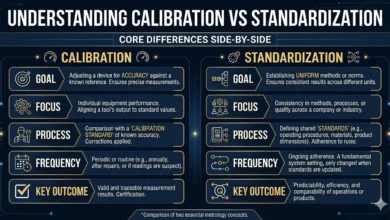
- Calibration vs Standardization | 15 Key Differences Explained
- How to Calibrate Equipment Correctly | 15 Critical Steps Most Technicians Miss
- Pressure Gauge Calibration Process | 18 Steps Every Technician Must Know (2026)