What is Calibration? Why Accuracy Fails Without It
Understand what is calibration, why it matters, and how to ensure accurate, reliable measurements using proven methods, standards, and real-world calibration techniques.


What is Calibration? The Complete Definition
Calibration is the process of comparing a measuring instrument with a known reference standard to identify errors and ensure accurate, reliable, and traceable results.
Here’s the part most people miss: calibration isn’t just checking a device it’s about proving measurement accuracy with evidence.
Calibration is the structured process of comparing a device under test (DUT) against a reference standard with a known value to determine accuracy, identify deviation, and apply necessary adjustments. In simple terms, it ensures that a measuring instrument produces results that are accurate, reliable, and traceable to internationally recognized standards such as SI Units.
From a technical standpoint, calibration includes:
- Measurement uncertainty evaluation
- Traceability to national standards
- Documented calibration certificates
Without calibration, instruments experience drift, leading to unreliable data, safety risks, and compliance failures.
From a technical perspective, calibration doesn’t stop at simple comparison. It includes measurement uncertainty evaluation, traceability validation, and documentation through calibration certificates. The process ensures that readings align with accepted measurement standards defined by global bodies like NIST (National Institute of Standards and Technology) and BIPM (International Bureau of Weights and Measures).
Calibration is not just about correction. It involves:
- As-found verification (initial measurement state)
- Adjustment (if required)
- As-left verification (final confirmed accuracy)
This ensures full transparency and audit readiness. Without calibration, instrument drift over time leads to inaccurate results, which can compromise quality, safety, and compliance across industries like pharmaceutical manufacturing, aerospace and defense, and semiconductors.
Simple Definition of Calibration (Comparison Process)
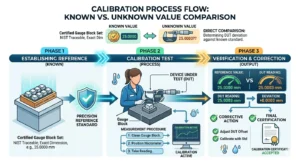
At its core, calibration is a comparison between a known value and an unknown value. The instrument reading is checked against a measurement standard, and any deviation is recorded. This comparison ensures that the device maintains required accuracy and precision.
Let’s break this down simply:
If your device says 100 but the actual value is 98 calibration identifies that gap and corrects it.
This process ensures:
- Accuracy
- Precision
- Consistency
Technical Definition (Traceability & Uncertainty)
Calibration technically includes:
- Traceability chain to National Metrology Institutes (NMI)
- Measurement uncertainty calculation
- Test Uncertainty Ratio (TUR) or Test Accuracy Ratio (TAR)
This ensures your measurement is not just “correct” it is scientifically valid and globally comparable.
Why Calibration Is Important in Industry
Here’s the truth: every measurement drives a decision.
Calibration is critical because every measurement influences decisions. Whether it’s patient safety in healthcare or quality control in manufacturing, even a small error can lead to serious consequences like product recalls or compliance violations.
Calibration ensures:
- Measurement accuracy
- Regulatory compliance (FDA, FAA)
- Audit readiness
- Risk mitigation
In mission-critical industries, calibration directly impacts safety and financial outcomes. Without it, organizations operate blindly with unreliable data.
This is where things break down:
Most companies skip calibration until something fails and by then, it’s already expensive.
Impact on Safety and Compliance
Calibration supports standards like:
- ISO/IEC 17025:2017
- ANSI/NCSL Z540-1
These require:
- Traceable measurements
- Documented uncertainty
- Full audit trails
In industries like healthcare, this directly affects patient safety.
Cost & ROI Benefits
Calibration reduces:
- Rework
- Product defects
- Downtime
And increases:
- Efficiency
- Consistency
- Profitability
Calibration is not a cost, it’s a risk control system.z
Real-World Calibration Experience & Trust Signals
Calibration isn’t just a theoretical concept explained in guides, it’s a discipline built on real-world application, technical expertise, and strict adherence to global standards. Every concept explained in this guide is based on practical calibration workflows used in industrial, laboratory, and field environments where accuracy directly impacts safety, compliance, and operational performance.
In real calibration environments, instruments are not simply “checked” they are evaluated against traceable reference standards, documented with measurement uncertainty, and verified through structured processes such as as-found and as-left verification. These are not optional steps; they are mandatory practices followed by accredited calibration laboratories operating under standards like ISO/IEC 17025:2017.
This guide reflects methodologies aligned with globally recognized metrology frameworks maintained by organizations such as NIST and BIPM, ensuring that every explanation is grounded in internationally accepted measurement principles.
From working with temperature sensors and pressure gauges to understanding system-level calibration in complex industrial setups, the practices described here mirror how calibration is actually performed not just how it is defined. This includes handling instrument drift, managing out-of-tolerance (OOT) events, and maintaining full traceability through calibration certificates and audit trails.
More importantly, this content is written with a focus on decision-makers, technicians, and engineers who rely on accurate measurements daily. The goal is not just to explain what calibration is, but to ensure you understand how to apply it correctly in real scenarios because in practice, accuracy is not assumed, it is verified.
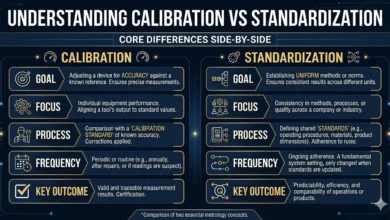
Calibration vs Standardization Explained
Let’s simplify confusion
Calibration and standardization are often confused, but they serve different purposes.
Calibration = adjusting an instrument
Standardization = defining a consistent measurement system
Calibration ensures accuracy, while standardization ensures uniformity across systems.
Calibration vs Verification
- Verification = check only
- Calibration = check + adjust
Big difference. One finds problems the other fixes them.
Calibration vs Certification
- Calibration = process
- Certification = proof (certificate)
Key Takeaways
- Calibration ensures measurement accuracy and reliability
- It compares devices with reference standards
- It includes adjustment, verification, and documentation
- It prevents errors caused by instrument drift
- It is essential for safety, compliance, and quality
The 6-Step Calibration Process
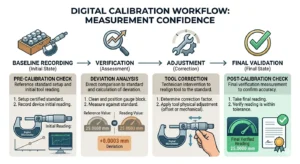
The calibration process follows a structured workflow:
- Baseline recording
- As-found verification
- Comparison with reference standard
- Adjustment (if required)
- Re-test to confirm
- As-left verification
This ensures:
- Accuracy
- Traceability
- Audit readiness
Role of Measurement Uncertainty
Every measurement has uncertainty. Calibration quantifies this through an uncertainty budget, ensuring reliable results.
Out-of-Tolerance (OOT) Handling
If deviation exceeds limits:
- Instrument flagged as OOT
- Impact analysis performed
- Corrective action taken
Understanding the Traceability Pyramid
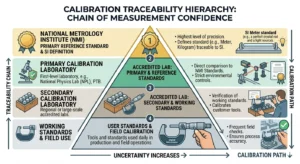
This is where global accuracy comes from:
- National Metrology Institute (NMI)
- Primary calibration lab
- Secondary calibration lab
- Working standard
This structure ensures global measurement consistency.
Role of NIST and BIPM
Organizations like NIST and BIPM maintain global measurement standards.
SI Units and Global Consistency
All calibration links to SI Units:
- Meter
- Kilogram
- Kelvin
Types of Calibration
Calibration varies by instrument type:
- Electronic calibration
- Pressure calibration
- Temperature calibration
- Flow calibration
- Mechanical calibration
- RF calibration
Each type requires specific procedures and standards.
Electronic Calibration
Used for:
- Voltage
- Current
- Resistance
Temperature Calibration
Uses:
- Thermocouples
- RTDs
How to Calibrate Equipment
Let’s break this down practically:
- Use a certified reference standard
- Compare readings
- Calculate deviation
- Apply correction factor
- Verify results
Device Under Test (DUT)
The DUT is the instrument being calibrated.
Correction Factor Application
Correction factors adjust readings without physically modifying the device.
When Do You Actually Need Calibration?
You need calibration when:
- Accuracy affects safety
- Decisions depend on measurement
- Compliance is required
- Financial impact exists
If accuracy matters calibration is required.
Calibration Interval and Maintenance
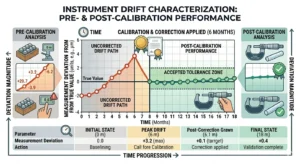
Calibration is not permanent.
Intervals depend on:
- Usage
- Environment
- Risk level
Common intervals:
- Monthly
- Quarterly
- Annually
Instrument Drift
Over time, instruments drift due to wear and environmental factors.
Intermediate Verification
Quick checks between calibrations ensure stability.
In-house vs Outsourcing Calibration
Organizations choose between:
- In-house calibration
- External accredited labs
Field vs Lab Calibration
Field = on-site
Lab = controlled environment
Cost vs Accuracy Tradeoff
Higher accuracy usually means higher cost.
Calibration Documentation and Certification
Calibration must be documented.
A calibration certificate includes:
- Results
- Uncertainty
- Traceability statement
- Accreditation mark
Audit Trail Importance
Documentation ensures compliance and audit readiness.
Asset Management Software
Used to track:
- Calibration schedules
- Records
Common Calibration Mistakes
- Skipping intervals
- Using non-traceable standards
- Ignoring uncertainty
Misconception: Calibration Lasts Forever
False: all instruments drift over time.
Ignoring Measurement Uncertainty
Accuracy without uncertainty = incomplete.
Calibration in Real Industries
Used in:
- Pharmaceuticals
- Aerospace
- Electronics
- Life sciences
Patient Safety
Incorrect calibration can risk lives.
Product Recalls
Calibration failure leads to costly recalls.
Future of Calibration
Modern calibration includes:
- IoT monitoring
- Automated systems
- Predictive maintenance
Digital Calibration Systems
Software-driven calibration improves efficiency.
AI-Based Drift Detection
AI predicts when recalibration is needed.
FAQs:
What is calibration in one sentence?
Calibration is the process of comparing a measuring instrument with a known reference standard to detect errors and ensure accurate, reliable results.
What is calibration in simple words?
It checks and corrects a device to ensure accurate measurement.
Why is calibration important?
It ensures accurate measurements, improves safety, and maintains compliance with industry standards.
What is a reference standard?
A reference standard is a highly accurate device used as a benchmark during calibration.
What is instrument drift?
It is the gradual loss of accuracy in a device over time.
What is measurement uncertainty?
It is the range within which the true value is expected to lie.
What is traceability?
Link to national/international standards.
What is traceability in calibration?
Traceability means linking measurements to national or international standards.
What happens during calibration?
The device is tested, adjusted, and verified against a known standard.
What is a calibration certificate?
It is a document proving that calibration was performed with traceable standards.
How often should calibration be done?
It depends on usage, but typically ranges from monthly to annually.
Can calibration be done in-house?
Yes, if proper standards and trained personnel are available.
When Do You Actually Need Calibration?
You need calibration when measurement accuracy directly affects safety, compliance, product quality, or financial decisions. If incorrect readings can cause errors, failures, or risks calibration is required.
What happens if calibration is skipped?
Inaccurate results, risks, and failures.
Conclusion
If you’ve read this far, you already understand something most websites fail to explain clearly what is calibration is not just a definition, it’s a complete system that protects the accuracy of every measurement you rely on.
At its core, calibration is about trust. When a device measures something, you’re making decisions based on that value. Whether it’s a temperature reading in pharmaceutical manufacturing, a pressure value in aerospace systems, or an electrical signal in semiconductors, even a small deviation can create serious consequences. That’s why calibration exists to eliminate doubt and ensure that every reading is aligned with a reference standard, backed by traceability, and supported by a documented process.
One important thing to understand is that calibration is not a one-time activity. Instruments naturally experience drift over time, which means their accuracy slowly changes due to environmental conditions, usage, and aging components. Without regular calibration, this drift goes unnoticed, and your entire system starts operating on unreliable data. This is where structured practices like calibration intervals, as-found and as-left verification, and re-testing to confirm accuracy become critical.
Another key takeaway is the difference between simply checking a device and actually calibrating it. Many people confuse verification with calibration, but verification only tells you whether something is within limits it doesn’t correct the error. True calibration includes comparison, adjustment, and confirmation, ensuring that the device not only meets standards but continues to perform consistently within defined tolerance limits.
From a technical perspective, calibration also brings in deeper concepts like measurement uncertainty, Test Uncertainty Ratio (TUR), and uncertainty budgets. These are not just theoretical terms they define how confident you can be in your measurements. In industries where decisions are mission-critical, understanding and controlling uncertainty is just as important as achieving accuracy.
Beyond accuracy, calibration plays a major role in regulatory compliance and audit readiness. Standards like ISO/IEC 17025:2017 require documented calibration processes, traceable results, and proper certification. Without this, organizations risk failed audits, compliance issues, and even product recalls. In sectors like healthcare, poor calibration doesn’t just affect quality it can directly impact patient safety.
What separates high-performing organizations from average ones is how they approach calibration. The best systems don’t just follow schedules they analyze historical data, monitor performance trends, and optimize calibration intervals based on real-world usage. They treat calibration as part of a larger metrology infrastructure, connecting working standards to national measurement systems through a clear traceability pyramid.
Looking ahead, calibration is evolving. With the rise of digital systems, IoT devices, and automated calibration tools, organizations are moving toward predictive models that detect drift before it becomes a problem. This shift transforms calibration from a reactive task into a proactive strategy one that improves efficiency, reduces downtime, and strengthens overall measurement reliability.
So if you take one practical lesson from this guide, let it be this:
Calibration is not a cost it’s a control system for accuracy, quality, and risk.
When done correctly, it gives you:
- Confidence in your measurements
- Consistency across systems
- Compliance with global standards
- Protection against costly errors
And most importantly, it ensures that every decision you make is based on data you can actually trust.
That’s the real meaning behind what is calibration not just a process, but a foundation for precision in everything you measure.
If your measurements matter, calibration isn’t optional.
It’s the difference between guessing and knowing.
And in industries where accuracy defines outcomes that difference is everything.
Also Read:
- What Is Calibration and Why Is It Important
- 20 ways | How To Fix Android Phone Touch Screen Problem |
- CRITICAL Fixes PS5 Controller Not Working | STS-Calibration
- Calibration Guide 2026 | Process, Steps & Accuracy
- Why Calibration Is Important | 15 Key Benefits, Types & Standards
- Calibration vs Standardization | 15 Key Differences Explained
- How to Calibrate Equipment Correctly | 15 Critical Steps Most Technicians Miss
- Pressure Gauge Calibration Process | 18 Steps Every Technician Must Know (2026)
- ISO Calibration Requirement | 17 Rules Every Lab Needs