Why Calibration Is Important | 15 Key Benefits, Types & Standards
Why Calibration Is Important - The Complete Guide Every Industry Professional Needs

If you work with any kind of measurement instrument whether it’s a multimeter on a factory floor, a thermometer in a pharmaceutical lab, or a pressure gauge in an oil refinery you’ve probably heard the word “calibration” more times than you can count. But here’s the honest truth most people don’t stop to think about: calibration ensures accurate measurement results, and without it, every reading your equipment gives you is nothing more than a number with a question mark attached. That is not an exaggeration. That is the real consequence of skipping calibration.
I’ve spent years working in the calibration and test and measurement space, and the one thing I keep coming back to is this why calibration is important isn’t just a textbook answer. It’s a real operational reality that directly affects your product quality, your regulatory standing, your safety, and ultimately your bottom line. In the very first paragraph of this guide, I want you to understand one thing clearly: calibration is not a maintenance task you schedule because someone told you to. It is the foundation on which every accurate, trustworthy measurement in your operation is built.
In this guide, I’ll walk you through everything the calibration definition, the science behind measurement accuracy, what happens when calibration is skipped, industry-specific impacts, regulatory requirements, and how to build a calibration program that actually delivers results. Every section is based on real professional insight, not filler content pulled from generic sources.
What Is Calibration? Understanding the Calibration Definition Before Anything Else
The Calibration Definition That Actually Makes Sense
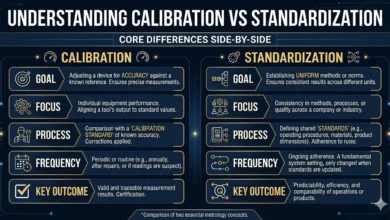
Before we dive into why calibration is important, let’s make sure we’re on the same page about what calibration actually means. In its most precise technical sense, calibration is the process of comparing the output of a measurement instrument against a known standard or reference standard under specified conditions, with the goal of quantifying any deviation and determining measurement uncertainty. That’s the official metrology definition, and it’s the one that should guide every calibration decision you make.
What I think trips a lot of people up is the difference between verification and adjustment. Calibration itself is technically just the comparison you measure your device against a traceable reference and document the difference. Adjustment, which many people lump together with calibration, is the separate act of correcting the instrument so it aligns with the standard. When you receive a calibration certificate, it should document the “as-found” condition (before any adjustment) and the “as-left” condition (after correction, if any was made). That distinction matters enormously for your documented calibration records.
The Comparison Method – How Calibration Actually Works
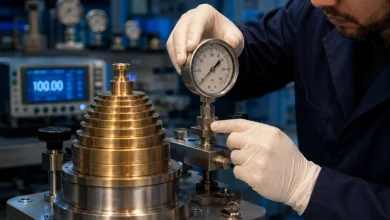
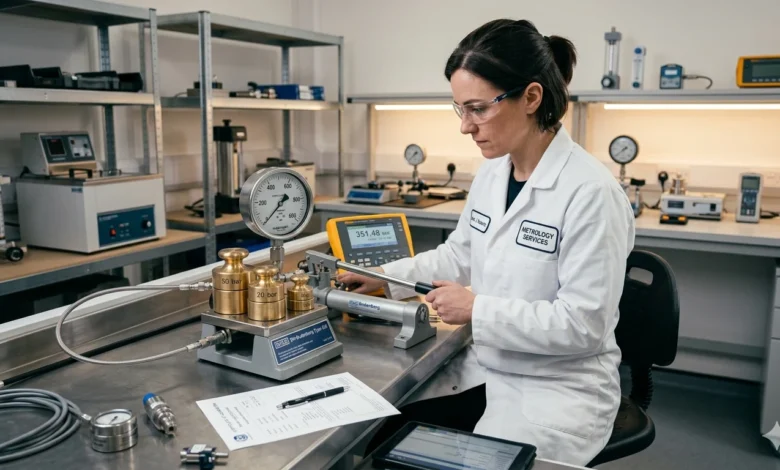
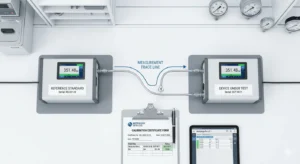
The comparison method is the backbone of how calibration gets done. You take a device under test (DUT) let’s say a pressure gauge and you compare its output directly against a dead weight tester or another primary reference standard whose accuracy is already established and traceable to a national or international standard. The gap between what your gauge reads and what the reference standard confirms is your measurement error. From there, you determine whether the instrument is still within acceptable tolerance limits or whether it needs adjustment and re-testing.
This process is what creates the traceability chain. Every calibration needs to be traceable meaning there’s an unbroken, documented chain of comparisons linking your field instrument all the way back to a national standard like NIST (National Institute of Standards and Technology) or its international equivalents. NIST traceability isn’t just a nice-to-have; it’s a legal and regulatory requirement in most industries. Without it, your calibration data is essentially unverifiable.
Calibration vs. Verification – A Critical Distinction
Here’s something a lot of people get wrong: verification vs. adjustment are two completely different things, and lumping them together leads to dangerous assumptions. Verification confirms whether an instrument meets its specification at the time of checking. Calibration goes further it quantifies exactly how far off the instrument is, even when it passes verification. An instrument can “pass” a verification check and still have a systematic measurement error that introduces real inaccuracy into your data. That’s exactly why calibration at defined calibration frequency intervals is non-negotiable.
Why Calibration Is Important in Measurement – The Science Behind Accurate Readings
Instrument Drift Is Real and It Happens to Every Device
One of the most underappreciated concepts in measurement science is instrument drift. Every single measurement device you own your calipers, your RTD, your oscilloscope, your load cell drifts over time. This happens because of normal physical and environmental processes: component aging, mechanical wear, temperature fluctuations, humidity exposure, vibration, and electromagnetic interference all cause the internal characteristics of an instrument to shift gradually away from their calibrated state. Calibration maintains measurement accuracy by catching that drift before it becomes large enough to cause real errors in your output.
I want to be very direct about this: if you’ve had an instrument in service for 12 months without calibrating it and it’s been operating in a harsh environment, you have no idea what it’s actually measuring. You might think that pressure gauge is reading 100 PSI. It could be reading 102, or 98. In a low-stakes scenario, that two percent error is annoying. In a high-stakes scenario pharmaceutical manufacturing, aerospace, medical devices it is catastrophic.
Why Measurement Uncertainty Matters More Than You Think
Measurement uncertainty is the quantitative expression of doubt in a measurement result. Every measurement you take has an associated uncertainty a range within which the true value probably lies. Calibration reduces that uncertainty to an acceptable and documented level. Without calibration, your measurement uncertainty is undefined, which means you can’t honestly claim your measurements mean anything at all.
This is critical when you’re making decisions based on instrument readings. If a temperature sensor has an undocumented drift of ±3°C and you’re running a pharmaceutical process that has a ±1°C tolerance, you are flying blind. You could be approving out-of-spec batches as compliant, or rejecting perfectly good batches as failures. Both outcomes cost money. Both outcomes represent a failure of measurement accuracy. Regular calibration is the only way to keep measurement uncertainty within known, documented bounds.
Reference Standards and the Traceability Chain
The concept of traceability is what gives calibration its scientific legitimacy. A reference standard is an instrument of known, documented accuracy used as the benchmark for calibrating other devices. For a calibration to be meaningful, that reference standard must itself be traceable meaning it was calibrated by a more accurate standard, which was calibrated by an even more accurate standard, all the way up to a national or international measurement institute. This unbroken chain is what metrology professionals call the traceability chain, and it’s the reason a calibration certificate from an ISO/IEC 17025 accredited laboratory holds real value.
Why Calibration Is Important in Industry – Real Stakes, Real Consequences
Manufacturing – Where Measurement Accuracy Decides Product Quality
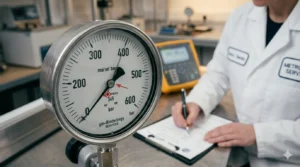
In manufacturing, the importance of calibration is not theoretical it is baked into the production process itself. Every tolerance you hold, every specification you meet, every part that passes or fails your quality inspection depends entirely on the accuracy of your test and measurement devices. When calibration is neglected, you get false acceptance (passing parts that should fail) and false rejection (scrapping good parts). Both of these outcomes hurt your profitability, and the false acceptance scenario introduces defective products into the market.
Consider a machined component with a dimensional tolerance of ±0.05mm. If the caliper or micrometer being used for inspection hasn’t been calibrated in over a year and has drifted by 0.03mm, you’re already eating up 60% of your tolerance window with pure measurement error before you’ve even started measuring the part. That is exactly why calibration is critical in manufacturing. It’s not about compliance paperwork. It’s about whether your parts actually conform to the spec your customer paid for.
Pharmaceutical and Food Production – When Accuracy Is a Life Safety Issue
In pharmaceutical manufacturing and food production, the importance of calibration in laboratory and production settings goes beyond quality it becomes a matter of public safety and regulatory survival. The FDA requires calibration programs as part of 21 CFR Part 211 compliance for pharmaceutical manufacturers. Every temperature sensor, pressure gauge, pH sensor, and pipette that touches a drug formulation or food product must be calibrated at documented intervals, and the calibration records must be traceable and audit-ready.
A calibration failure in a pharmaceutical plant doesn’t just mean a bad batch. It means a product recall, an FDA warning letter, possible facility shutdown, and in extreme cases, patient harm. Calibration improves reliability of instruments throughout the production chain, and that reliability is what regulators, auditors, and consumers are trusting when they use your product.
Energy, Oil & Gas, and Aerospace – Where Calibration Failures Kill People
In high-hazard industries like energy, oil and gas, and aerospace, the consequences of calibration failures move beyond financial damage and into the territory of catastrophic accidents and loss of life. Pressure calibration errors in a refinery can cause vessel overpressure leading to explosions. Temperature calibration errors in aerospace can lead to incorrect thermal analysis of critical components. Force and torque calibration errors in automotive and aerospace assembly can mean fasteners aren’t tightened to spec with potentially fatal results in service.
Every safety-critical measurement in these industries depends on instruments that have been calibrated against NIST-traceable references, certified by accredited calibration labs, and documented with full calibration certificates. The significance of calibration in these sectors is recognized by every regulatory authority from the FAA to OSHA to API, and non-compliance is not treated lightly.
Why Calibration Is Important in Quality Control – The QA Professional’s Perspective
Calibration Is the Foundation of Every Quality Management System
If you’ve ever implemented ISO 9001 in your organization, you already know that calibration isn’t optional it’s a core clause requirement. Clause 7.1.5 of ISO 9001:2015 specifically requires organizations to determine and provide the resources needed for valid and reliable monitoring and measuring results, and that includes maintaining calibration of measuring equipment. Calibration is essential for quality control because a quality management system built on uncalibrated instruments is a house of cards.
The whole purpose of quality control is to objectively determine whether your product or process meets its defined requirements. That determination is only as trustworthy as the instruments making the measurements. Every attribute you measure dimensions, weight, temperature, electrical parameters, chemical concentration — needs to be measured with a calibrated, traceable device. When auditors arrive for your ISO 9001 certification audit, your calibration records are one of the first things they examine.
Reducing Scrap, Rework, and Production Downtime Through Calibration
Here’s a direct connection that gets overlooked in most calibration discussions: calibration reduces uncertainty in measurements, and reducing measurement uncertainty directly reduces scrap and rework costs. When instruments are calibrated and their measurement uncertainty is known, your process engineers can set control limits confidently. When instruments are out of calibration, control limits become meaningless you’re making decisions based on inaccurate data, and the result is parts that are scrapped or reworked unnecessarily, or worse, defective parts that make it through to the customer.
Production downtime is another cost that calibration directly impacts. When an out-of-calibration instrument is discovered mid-production run, the entire run may need to be quarantined and reviewed. Every unit produced while the instrument was out of calibration becomes suspect. That review process costs time and money. A proactive calibration scheme with documented calibration intervals prevents this scenario entirely.
Process Consistency and Customer Satisfaction
Process consistency is what separates a world-class manufacturer from an average one. Customers don’t just want a product that meets spec today they want a product that meets spec every single time, with the same performance characteristics, batch after batch. That level of consistency is only achievable when your measurement systems are calibrated, traceable, and operating within their defined uncertainty budgets. Calibration matters because it’s the mechanism that keeps your measurement system stable, which in turn keeps your process stable, which in turn keeps your customer satisfied and coming back.
Importance of Calibration in Laboratory Testing – What Every Lab Professional Needs to Know

ISO/IEC 17025 and the Calibration Requirements for Testing Laboratories
If you operate a testing or calibration laboratory, ISO/IEC 17025 is the standard that governs your world. This international standard specifically addresses competence, impartiality, and consistent operation of laboratories, and calibration of reference equipment and measuring instruments is a central technical requirement. An accredited laboratory under ISO/IEC 17025 is one that has demonstrated its calibration processes are valid, traceable, and capable of delivering results with documented uncertainty.
The importance of calibration in laboratory settings cannot be overstated. Every test result a laboratory reports whether it’s a tensile strength measurement, a chemical analysis, a dimensional inspection, or an electrical measurement carries an implicit assumption that the instruments used were calibrated. When that assumption fails, the test result is meaningless, and any decisions made based on it are built on sand.
Calibrators and Reference Equipment in the Lab Environment
A calibration laboratory lives and dies by the quality of its calibrators the reference instruments used to calibrate other devices. These calibrators must be maintained to a higher accuracy than the instruments they calibrate (typically a 4:1 test accuracy ratio is standard practice), and they must themselves be calibrated by accredited primary laboratories to maintain the traceability chain. Common laboratory calibrators include dead weight testers for pressure calibration, dry block calibrators for temperature calibration, and multi-function calibrators for electrical calibration of multimeters and oscilloscopes.
Documented calibration records for every piece of reference equipment in the lab are mandatory. These records need to include calibration dates, due dates, the identity of the calibrating laboratory, the calibration uncertainty, and the certificate number. This traceability documentation is what auditors check and what customers rely on when they receive your test reports.
Measurement Validation and Proficiency Testing
Beyond maintaining calibrated instruments, a credible laboratory also participates in proficiency testing inter-laboratory comparisons that verify the lab’s measurement results are consistent with those from other accredited labs. Measurement validation is the process of confirming that your measurement procedures and instruments are producing results that are fit for purpose. Calibration is the prerequisite step you can’t validate a measurement process built on uncalibrated instruments. It’s the laboratory equivalent of trying to build a precise building on a foundation that nobody’s confirmed is level.
Importance of Calibration in Healthcare – Patient Safety Depends on Accurate Instruments
Medical Devices and the Life-or-Death Stakes of Calibration
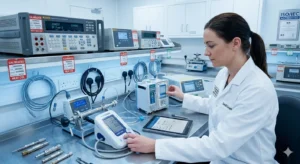
In healthcare, the importance of calibration in healthcare is as fundamental as sterilization or drug dosage protocols. Medical devices from blood glucose monitors and infusion pumps to ECG machines, blood pressure monitors, and diagnostic imaging equipment must deliver accurate measurements because clinical decisions are made based on their readings. A glucometer that reads 20% high in the low-glucose range could fail to trigger a hypoglycemia warning. An infusion pump that delivers an incorrect dose because its flow calibration has drifted could harm a patient.
The FDA regulates medical device calibration under 21 CFR Part 820, the Quality System Regulation for medical device manufacturers. Hospitals and clinical laboratories are governed by CLIA (Clinical Laboratory Improvement Amendments) requirements, which mandate regular calibration and quality control for all diagnostic instruments. These aren’t bureaucratic formalities they’re the regulatory recognition that calibration is a patient safety requirement.
Temperature and Pressure Calibration in Clinical Settings
Temperature calibration is particularly critical in healthcare. Pharmaceutical storage refrigerators, autoclaves, blood banks, and tissue culture incubators all require precisely controlled temperatures. If the temperature sensors governing these environments drift out of calibration, medications can degrade, blood products can become compromised, and sterilization cycles can be ineffective. These are direct patient safety consequences.
Similarly, pressure calibration matters in respiratory equipment, anesthesia machines, and ventilators. A ventilator that delivers incorrect pressure because its pressure sensor is out of calibration is a direct clinical hazard. Calibration in these contexts isn’t a quality assurance box-ticking exercise it is a literal life-support mechanism.
Why Calibration Is Necessary for Accuracy – The Technical Science Made Simple
How Instrument Error Builds Up Without Calibration
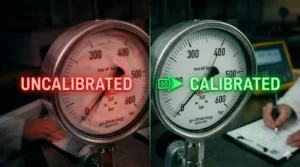
Every measurement instrument has inherent error sources: zero error, span error, linearity error, hysteresis, repeatability, and environmental sensitivity. Over time, these errors accumulate and drift. Without calibration, these errors go undocumented and uncorrected, and your measurement data becomes increasingly unreliable. Calibration prevents measurement errors by establishing a baseline, tracking drift over time, and correcting or flagging instruments before their errors exceed acceptable tolerance limits.
Here’s a practical way to think about it: imagine you’re using a torque wrench to assemble critical fasteners. The wrench was accurate to ±2% when it was new. After 18 months of use without calibration, it has drifted and is now reading 8% low meaning you’re under-torquing every fastener by 8%. The bolts are installed. They feel tight. But they’re not. Three months later, a fastener loosens in service. The root cause traces back to an uncalibrated torque wrench. Why calibration is necessary for accuracy is not an abstract concept. It is the direct answer to “why did that fastener fail?”
Tolerance Limits and the Role of Calibration in Keeping You Within Spec
Tolerance limits define the acceptable range of variation for any measurement. Calibration is what confirms your instrument is capable of measuring within those tolerance limits reliably. If your instrument’s uncertainty is a large fraction of your tolerance window, you cannot confidently declare whether a product is in or out of spec. This is the core technical reason why calibration is required for instruments in any precision application. The tighter your tolerance, the more critical your calibration.
What Happens If Calibration Is Not Done? The Risks You Can’t Afford to Ignore
The Hidden Costs of Skipping Calibration
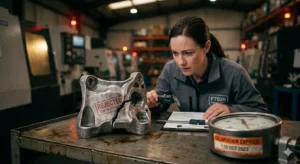
I’ll be blunt here: what happens if calibration is not done is not a hypothetical risk it’s a predictable chain of failures. The first thing that happens is silent data corruption. Your instruments start producing readings that are subtly wrong, and because nobody knows they’re wrong, decisions get made based on that bad data. Products get approved that should be rejected. Processes get adjusted in the wrong direction. Batches get released that should be quarantined.
The financial fallout compounds quickly. Scrap and rework costs escalate as defective product flows downstream. Production downtime increases when out-of-calibration equipment is eventually discovered. In the worst cases, defective product reaches the customer and triggers a product recall one of the most expensive and reputationally damaging events a manufacturer can experience.
Regulatory Non-Compliance and Legal Liability
Beyond the operational damage, non-compliance with calibration requirements creates serious legal exposure. If a product failure is traced to a calibration failure in your quality system, your liability is significantly compounded by the documented evidence that you knew calibration was required and failed to perform it. Product liability law recognizes negligence in quality management systems, and missing calibration records are powerful evidence in litigation.
Regulatory agencies the FDA, EPA, OSHA, FAA all have calibration requirements embedded in their regulations. Failing an FDA inspection because of inadequate calibration records can result in warning letters, consent decrees, import alerts, or facility shutdowns. These outcomes are entirely preventable with a properly maintained calibration program.
Reputational Damage and Customer Trust
In today’s transparent, digital marketplace, reputational damage from a calibration-related quality failure travels fast. A product recall, a regulatory enforcement action, or a high-profile defect traced to measurement inaccuracy can permanently damage customer trust. The cost of rebuilding that trust in marketing investment, customer recovery programs, and management time far exceeds the cost of any calibration program. The ROI calculation on calibration is not subtle: it is overwhelmingly positive when measured against the risk of not doing it.
Benefits of Calibration in Measurement Systems – Why the Investment Always Pays Off
Improved Safety Across All Operations
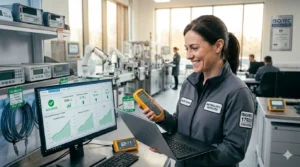
The most fundamental benefit of calibration is improved safety. This applies in every industry: in manufacturing, calibrated instruments prevent the production of unsafe products. In energy and oil and gas, calibrated pressure and temperature instruments prevent equipment failures and safety incidents. In healthcare, calibrated medical devices protect patient safety. In aerospace and defense, calibrated instruments ensure components and systems perform reliably under operational stress. Calibration improves safety is not a marketing slogan it’s an engineering reality backed by incident investigation data across every high-hazard sector.
Cost Savings and Return on Investment
Here’s the business case for calibration expressed simply: the cost of a calibration program is predictable and manageable. The cost of not having one is unpredictable and potentially catastrophic. Cost savings from calibration come from multiple directions: reduced scrap and rework, fewer production stoppages, lower risk of product recalls, extended equipment life through predictive maintenance-oriented calibration programs, and avoided regulatory penalties.
Return on investment (ROI) from calibration is typically very strong. Studies in manufacturing environments consistently show that for every dollar invested in a quality calibration program, multiple dollars are saved in defect-related costs. Extends equipment life is another direct benefit — when instruments are regularly calibrated and maintained, their performance degradation is tracked and managed, which means you get more useful life out of expensive test and measurement equipment rather than having to replace instruments that were allowed to degrade beyond repair.
Increases Profitability Through Process Consistency
Profitability in manufacturing and service businesses is built on consistency. Increases profitability is a direct outcome of a calibration program because consistent, accurate measurements allow you to tighten your process controls, reduce your quality costs, and deliver products that meet specification reliably. Companies with mature calibration programs consistently outperform their competitors on first-pass yield, customer return rates, and cost of quality metrics. That performance gap is one of the most compelling arguments for investing in calibration.
Why Calibration Is Critical in Manufacturing – A Detailed Look at the Factory Floor
Dimensional Calibration – Calipers, Micrometers, and CMMs
On the factory floor, dimensional calibration is the cornerstone of any machined or fabricated parts operation. Every caliper, micrometer, gauge block, and coordinate measuring machine (CMM) needs to be calibrated at regular intervals. The tolerances in modern precision machining are extremely tight often in the range of micrometers and even a small drift in a dimensional measurement tool can mean the difference between a part that fits and functions as designed and one that creates an assembly failure.
Why calibration is needed in engineering and manufacturing comes down to this: the design intent lives in the engineering drawing with its defined tolerances. The only way to confirm that intent has been achieved in the physical part is through dimensional measurement. And the only way to trust that dimensional measurement is to ensure the instrument making it is calibrated. Remove calibration from that chain and you remove the bridge between engineering design and manufacturing reality.
Electrical Calibration in Electronics Manufacturing
In electronics manufacturing, electrical calibration of multimeters, oscilloscopes, function generators, power supplies, and signal analyzers is essential for ensuring manufactured products meet their electrical specifications. A multimeter that reads voltage 3% high will cause you to misdiagnose electrical failures in finished products. An oscilloscope with an uncalibrated time base will give you incorrect frequency and timing measurements. These errors propagate through every test step in your production process.
The electronics industry also relies heavily on automated calibration software and automated test equipment (ATE). Even these automated systems require periodic calibration of their reference channels and measurement inputs. The sophistication of the equipment doesn’t eliminate the need for calibration — it makes it more critical, because errors in automated systems propagate at production speed.
Flow Calibration in Process Industries
In process manufacturing chemicals, food production, pharmaceuticals, oil and gas flow calibration is a critical requirement. Flow meters govern the addition of ingredients, the dosing of chemicals, and the management of pipeline throughput. A flow meter that is out of calibration can cause incorrect formulation, energy waste, environmental non-compliance, or process safety incidents. Why calibration is required in measurement in these environments is inseparable from process safety and product integrity.
Why Calibration Is Needed in Engineering – The Design-to-Reality Bridge
Calibration in R&D and Scientific Laboratories
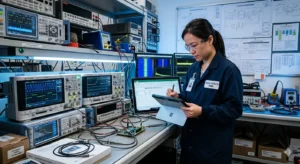
In research and development and scientific laboratory environments, calibration importance takes on a different character. In a production environment, calibration protects product quality. In an R&D environment, calibration protects the validity of scientific data. Every experimental result, every material characterization, every performance measurement in R&D depends on the accuracy of the instruments used. Uncalibrated instruments in R&D produce data that cannot be trusted, reproduced by others, or used as the basis for engineering decisions.
Importance of calibration in laboratory testing for R&D is particularly high because R&D data drives decisions about product design, material selection, process parameters, and investment. A wrong decision made based on R&D data from uncalibrated instruments can cost millions in misdirected development work. Calibration is the quality control mechanism for the data itself, not just for the final product.
Humidity and pH Calibration in Specialized Applications
Not all calibration is about dimensions and pressures. Humidity calibration is critical in environmental testing, pharmaceutical storage, semiconductor manufacturing, and food processing. Even a few percent error in humidity measurement can cause failures in environmental qualification testing or spoilage in temperature-controlled storage. Similarly, pH calibration is essential in chemical manufacturing, pharmaceutical production, water treatment, and laboratory research. pH electrodes are particularly prone to drift and contamination, making regular calibration with standard buffer solutions mandatory for accurate results.
Calibration and Regulatory Compliance – ISO 9001, ISO/IEC 17025, NIST, FDA, and Beyond
ISO 9001 Calibration Requirements – What You Must Know
ISO 9001:2015 is the world’s most widely adopted quality management standard, and its requirements for monitoring and measuring resources are among the most audited clauses in the standard. Regulatory compliance under ISO 9001 requires organizations to calibrate measuring instruments at specified intervals or before use, against measurement standards traceable to international or national measurement standards. Where no such standards exist, the basis used for calibration must be recorded as documented information.
Specifically, ISO 9001 requires that you identify all measuring equipment that can affect product or service conformity, maintain calibration records as documented information, and protect measuring equipment from damage and deterioration. These aren’t just checkbox requirements they reflect the core logic that quality management is only as good as the measurement systems supporting it. Organizations that treat ISO 9001 calibration requirements as bureaucratic overhead rather than operational discipline consistently underperform on quality metrics.
ISO/IEC 17025 Accreditation – The Gold Standard for Calibration Laboratories
For organizations that perform calibration as a service or need to demonstrate the highest level of measurement competence, ISO/IEC 17025 accreditation is the gold standard. This standard covers the general requirements for the competence, impartiality, and consistent operation of laboratories. Accreditation under ISO/IEC 17025 by a recognized accreditation body confirms that the laboratory’s calibration results are technically valid, traceable, and produced by competent staff using validated methods.
NIST traceable calibration certificates from ISO/IEC 17025 accredited laboratories are the highest-confidence calibration documentation available. When customers, regulators, or auditors ask for proof that your measurements are valid, an accredited calibration certificate from an ISO/IEC 17025 lab is the most defensible answer you can provide.
FDA Regulations and Legal Metrology
In the United States, FDA regulations covering pharmaceutical manufacturing, food production, and medical device manufacturing all include explicit calibration requirements. Legal metrology the branch of metrology covering legally mandated measurement requirements also governs calibration in commercial transactions, environmental monitoring, and public safety applications. EPA regulations governing environmental monitoring instrumentation, for example, include specific calibration standards and frequencies that must be met for monitoring data to be legally defensible.
Industry standards across aerospace (AS9100), automotive (IATF 16949), defense (MIL-SPEC), and other sectors all incorporate calibration requirements that reflect the same fundamental principle: measurements used to make decisions about product conformity, safety, or regulatory compliance must be made with calibrated, traceable instruments.
Types of Calibration – Temperature, Pressure, Electrical, and More
Temperature Calibration – Thermometers, RTDs, and Thermocouples
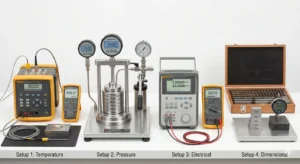
Temperature calibration covers a broad range of instruments: thermometers, resistance temperature detectors (RTDs), thermocouples, thermal cameras, and temperature controllers. Temperature is one of the most commonly measured physical parameters in industry, and it’s also one where drift is extremely common. RTDs drift due to mechanical stress and contamination. Thermocouples drift due to chemical changes in the wire junction. Even digital thermometers drift as their reference electronics age.
Calibration of temperature instruments is typically performed using dry block calibrators (for field and industrial calibrations) or liquid baths (for higher-accuracy laboratory calibrations), with reference thermometers that are traceable to NIST or national standards. The result of a temperature calibration is a correction factor or a table of corrections that can be applied to readings to bring them within the instrument’s specified accuracy.
Pressure Calibration – Gauges, Transducers, and Dead Weight Testers
Pressure calibration is essential in virtually every industrial process. Pressure gauges, pressure transducers, pressure transmitters, and differential pressure sensors all require periodic calibration. The reference standard for pressure calibration is the dead weight tester, which generates known pressures through the gravitational force on calibrated masses applied to a precision piston-cylinder assembly. Dead weight testers provide the highest accuracy available for pressure calibration and are used to calibrate the transfer standards used for routine field calibrations.
Pressure sensors drift due to diaphragm fatigue, seal degradation, and electronic component aging. In critical applications pressure vessels, hydraulic systems, pneumatic controls an out-of-calibration pressure instrument is a direct safety hazard. Regular pressure calibration against traceable references is the only way to ensure your pressure measurements are reliable.
Electrical Calibration – Multimeters, Oscilloscopes, and Power Analyzers
Electrical calibration covers the widest variety of instruments: multimeters, oscilloscopes, power supplies, signal generators, frequency counters, power analyzers, and more. Electrical calibration ensures that voltage, current, resistance, frequency, and power measurements are accurate to their stated specifications. A multimeter that has drifted is the silent killer of electrical troubleshooting technicians make decisions based on its readings, and when those readings are wrong, the troubleshooting goes in the wrong direction.
Multi-function calibrators are the primary reference tools for electrical calibration, capable of generating precise voltage, current, and resistance values to check the accuracy of the instruments under test. For oscilloscopes, frequency and timing calibration are critical for signal integrity work in electronics design and manufacturing.
Mechanical Calibration – Force, Torque, and Dimensional
Mechanical calibration covers force measurement (load cells, force gauges), torque measurement (torque wrenches, torque screwdrivers, torque sensors), and dimensional measurement (calipers, micrometers, height gauges, gauge blocks, thread gauges). Force and torque calibration is particularly important in assembly operations where fastener integrity is safety-critical automotive, aerospace, and structural steel construction all rely on torque wrench calibration to ensure assembly compliance.
Dimensional calibration uses gauge blocks, optical flats, and coordinate measuring machines to verify the accuracy of dimensional instruments. The accuracy standards for dimensional calibration are defined in ISO and ASME standards, and the traceability chain for dimensional metrology goes back to the definition of the meter as maintained by BIPM (Bureau International des Poids et Mesures).
How Often Should Calibration Be Done and Why? Setting the Right Calibration Interval

The Science Behind Calibration Frequency
How often should calibration be done is one of the most common questions I get, and the honest answer is: it depends on the instrument, the application, the environment, and your risk tolerance. There is no universal rule that says “calibrate every 12 months” although many organizations default to annual calibration because it’s administratively convenient. The right calibration frequency is determined by a combination of factors: the manufacturer’s recommended interval, the instrument’s historical drift data, the criticality of the measurements it supports, and the regulatory requirements of your industry.
The correct approach is to start with the manufacturer’s recommended interval and then adjust based on actual calibration history. If an instrument consistently comes back from calibration well within spec, you can consider extending the interval. If it frequently returns out of spec, you need to shorten the interval and investigate the cause.
Building a Calibration Scheme That Works
A calibration scheme is the documented plan that defines which instruments require calibration, how often they’re calibrated, what standards are used, and who is responsible for each calibration event. A robust calibration scheme also includes a recall system typically supported by automated calibration software that tracks calibration due dates and automatically generates notifications when instruments are coming due.
The scheme should also address what happens when an instrument fails calibration. This is called a “calibration failure response” and it should include: quarantine of affected product produced with the out-of-calibration instrument, root cause investigation, corrective action documentation, and risk assessment to determine whether any previous measurements need to be reviewed. This aspect of calibration management is one of the most frequently cited deficiencies in quality system audits.
Predictive Maintenance and Calibration Integration
Modern calibration programs are increasingly integrated with predictive maintenance strategies. By tracking the drift rate of each instrument over successive calibrations, maintenance engineers can predict when an instrument is likely to go out of tolerance and schedule calibration proactively, before the drift causes a measurement problem. This integration of calibration data with maintenance planning maximizes instrument uptime, minimizes disruption to production, and optimizes the overall cost of the calibration program.
Calibration Tools and Equipment You Need to Know About
Primary Calibration Equipment for Every Discipline
Understanding the key calibration tools and equipment used across different disciplines helps you make better decisions about your calibration program and communicate more effectively with your calibration service provider. In temperature calibration, the primary tools are dry block calibrators (portable, field-usable devices that create precise temperature environments) and liquid baths (higher-accuracy lab devices). For pressure, the dead weight tester remains the gold standard primary reference. For electrical calibration, multi-function calibrators cover voltage, current, and resistance. For dimensional work, gauge blocks are the traceable reference standard.
Field instruments that are most commonly in need of calibration include multimeters, thermometers and temperature sensors, pressure gauges, torque wrenches, pipettes, oscilloscopes, calipers and micrometers, load cells, flow meters, RTDs and thermocouples. Each of these instrument types has its own calibration procedure, its own applicable standards, and its own typical drift characteristics. Understanding these differences helps you prioritize which instruments in your inventory need the most attention.
The Calibration Certificate – What It Must Contain
A calibration certificate is the documented proof that calibration was performed. For it to be useful and legally defensible, it must contain specific information: identification of the instrument calibrated (model, serial number), the calibration date, the due date for next calibration, the calibration method and standards used, the reference standard identifications and their calibration traceability, the as-found and as-left measurement data, the measurement uncertainty of the calibration, and the identity and signature of the calibration technician. A calibration certificate that is missing any of these elements is incomplete and may not be acceptable to auditors or regulatory inspectors.
How to Build a Calibration Program That Actually Works
Step 1: Inventory All Measurement Equipment
The foundation of any effective calibration program is a complete, accurate inventory of every measurement instrument in your facility. This sounds obvious, but in practice, most organizations underestimate the number of calibratable instruments they have especially in areas like maintenance and R&D where instruments are procured informally and may not make it into the official inventory. Your calibration inventory should include every instrument that influences product quality, safety, or regulatory compliance, regardless of who bought it or where it lives in the organization.
Step 2: Assign Calibration Requirements to Each Instrument
Once you have a complete inventory, assign calibration requirements to each instrument: the applicable standard or method, the calibration interval, the acceptable tolerance limits, and whether in-house calibration or third-party accredited calibration is required. Not every instrument needs accredited calibration, but instruments that directly support regulatory compliance, product release decisions, or safety-critical measurements should be calibrated by ISO/IEC 17025 accredited laboratories.
Step 3: Implement a Recall and Tracking System
Manual tracking of calibration due dates is error-prone and administratively burdensome. Automated calibration software solutions ranging from purpose-built calibration management systems (CMMS or CALS) to modules within enterprise quality management systems automate the tracking of calibration due dates, generate recall notifications, store calibration certificates, and produce management reports on calibration compliance. Implementing a proper tracking system is the difference between a calibration program that runs reliably on its own and one that requires constant manual intervention to avoid lapses.
Step 4: Close the Loop on Calibration Failures
The most neglected aspect of calibration programs is the calibration failure response. When an instrument comes back from calibration out of tolerance, the program must have a documented, consistently applied response that includes assessing the impact on any measurements made since the last valid calibration. This impact assessment should be risk-based instruments used for critical measurements get a thorough review; instruments used for monitoring with wide tolerances may only need documentation. Without this step, your calibration program is incomplete and potentially non-compliant with ISO 9001, ISO/IEC 17025, and FDA requirements.
FAQs
Why is calibration important?
Calibration is important because it ensures that measurement instruments are producing accurate, reliable results that you can trust for quality control, safety, and regulatory compliance decisions. Without calibration, instrument drift goes undetected, measurement errors accumulate, and the data your instruments produce becomes increasingly unreliable. Calibration is the process that keeps your measurement systems honest.
Why do we need calibration?
We need calibration because every measurement instrument drifts over time due to aging, wear, environmental exposure, and mechanical stress. This drift causes measurement errors that can lead to defective products, process failures, safety incidents, and regulatory non-compliance. Calibration identifies and corrects that drift, maintaining the accuracy and reliability of your instruments.
What happens if calibration is not done?
If calibration is not done, instruments silently drift out of specification and begin producing inaccurate readings. This leads to false acceptance of defective products, false rejection of good products, process control failures, regulatory non-compliance, and in the worst cases, safety incidents. Undiscovered calibration failures often trigger product recalls and significant financial and reputational damage.
Why is calibration necessary in industry?
Calibration is necessary in industry because manufacturing, pharmaceutical, healthcare, aerospace, and energy operations all depend on accurate measurements to control processes, verify product quality, and comply with regulations. Without calibrated instruments, the data used to make these critical decisions is untrustworthy, and the consequences of acting on wrong data in high-stakes industrial environments range from financial loss to catastrophic accidents.
Why is calibration important in laboratory testing?
In laboratory testing, calibration is important because every test result a lab reports depends entirely on the accuracy of the instruments used to produce it. ISO/IEC 17025 requires calibration of all reference instruments in accredited labs, and the validity of test reports issued to customers and regulators rests on the traceability and accuracy of those calibrations.
Why is calibration important for instruments?
Instruments need calibration because they are physical devices subject to the same degradation processes that affect all mechanical and electronic systems component aging, mechanical wear, thermal cycling, and environmental exposure all cause their measurement characteristics to drift over time. Regular calibration against traceable reference standards detects and corrects this drift, keeping instruments performing within their specified accuracy.
What is the purpose of calibration?
The purpose of calibration is to compare a measurement instrument’s output against a known reference standard, quantify any deviation, and document the result so that users know the instrument’s accuracy at that point in time. When deviation exceeds acceptable limits, calibration also guides the adjustment needed to bring the instrument back into specification.
How does calibration improve accuracy?
Calibration improves accuracy by identifying the systematic errors and drift in a measurement instrument and either correcting them through adjustment or documenting them as known correction factors. By quantifying and managing these errors, calibration ensures that measurement results are as close to the true value as the instrument’s design capability allows, with a documented uncertainty that users can rely on.
Why should equipment be calibrated regularly?
Equipment should be calibrated regularly because drift is continuous — it doesn’t stop between calibrations. The calibration interval is set to ensure that the drift that accumulates between calibrations stays within acceptable limits. Regular calibration also provides historical drift data that allows calibration intervals to be optimized and predicts when an instrument may be approaching the end of its useful service life.
How often should calibration be done?
Calibration frequency depends on the instrument type, manufacturer recommendations, the application, the operating environment, and the instrument’s calibration history. Many organizations start with a 12-month interval and adjust based on historical drift data. Instruments in harsh environments, high-use applications, or safety-critical measurements typically need more frequent calibration than bench instruments in stable laboratory conditions.
Conclusion
After walking through everything in this guide from the calibration definition and measurement uncertainty to regulatory compliance, industry applications, and program building I want to leave you with this: why calibration is important is the right question to start with, but the more important question is “what does my calibration program need to do to actually protect my operations?”
Calibration is not an administrative task. It is a technical discipline that sits at the intersection of measurement science, quality management, regulatory compliance, and operational risk management. Every instrument in your facility that isn’t calibrated is a small, silent liability. Over time, those liabilities compound into real financial, operational, and reputational consequences.
The value of calibration is ultimately the value of trustworthy data. In a world where every production decision, every quality release, every safety assessment, and every regulatory submission depends on measurement data, the integrity of that data is not negotiable. Calibration is how you protect that integrity.
If you’re looking to strengthen your calibration program, assess your current calibration coverage, or ensure your instruments meet the traceability requirements of your industry’s standards, explore the calibration resources and services available at sts-calibration where measurement accuracy is taken seriously
This article was written by the STS Calibration team with over two decades of hands-on experience in test and measurement, quality management, and calibration services across manufacturing, pharmaceutical, aerospace, and energy sectors.
Also Read:
- Calibration Guide 2026 | Process, Steps & Accuracy
- 20 ways | How To Fix Android Phone Touch Screen Problem |
- CRITICAL Fixes PS5 Controller Not Working | STS-Calibration
- What is Calibration? Why Accuracy Fails Without It
- Calibration Process Guide 2026 | Steps Methods & Importance
- Calibration vs Standardization | 15 Key Differences Explained
- How to Calibrate Equipment Correctly | 15 Critical Steps Most Technicians Miss
- Pressure Gauge Calibration Process | 18 Steps Every Technician Must Know (2026)