Why Is My Monitor Color Calibration Not Working | 8 Proven Fixes That Actually Work
Fix broken Windows color calibration, ICC profile conflicts, HDR issues, and driver errors with clear, tested solutions that restore true color accuracy.

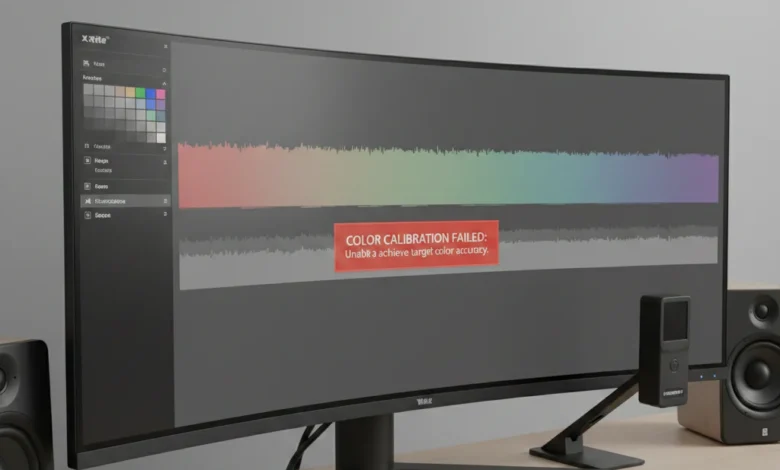
If you’re asking “Why is my monitor color calibration not working?”, you’re not alone and no, it’s not because you “did it wrong.”
Color calibration failures usually happen due to software conflicts, Windows color management errors, driver issues, HDR interference, incorrect color profiles, or physical monitor limitations. Calibration is not just a slider tool; it’s a system-wide color pipeline that must stay intact from GPU → OS → ICC profile → panel hardware.
This guide explains why monitor color calibration fails on Windows 10, Windows 11, Windows 7, and Dell/HP displays, and exactly how to fix it permanently.
Why Is My Monitor Color Calibration Not Working on Windows?
When Windows color calibration doesn’t apply correctly, the issue is almost never the calibration wizard itself. It’s usually a breakdown in Windows Color Management, where ICC profiles fail to load or are overridden.
Windows Color Calibration Not Working (Core Causes)
Windows relies on ICC/ICM profiles to translate color values correctly. Calibration breaks when:
- Outdated or corrupted display drivers override color profiles
- HDR mode interferes with SDR calibration
- Multiple ICC profiles conflict
- GPU control panels reset color values
- Windows Color Management service fails
This explains why users see:
- Colors snapping back after reboot
- Calibration changes not applying
- Gray tones appearing tinted
- Washed-out or overly dark visuals
Windows 10 vs Windows 11 Calibration Failures
- Windows 10 commonly fails due to legacy driver conflicts and improper ICC assignment
- Windows 11 adds Auto Color Management, which can override manual profiles if not disabled
If you see messages like:
“An error occurred while display color calibration was preparing to calibrate”
…it means Windows couldn’t lock brightness, contrast, or gamma values due to driver or HDR restrictions.
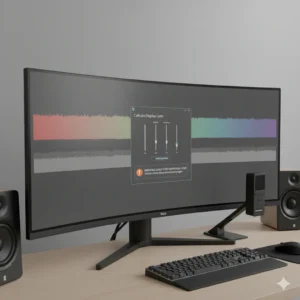
Why Is My Monitor Color Calibration Not Working on Windows 10?
Windows 10 calibration issues are usually profile-application failures, not visual problems.
Common Windows 10 Calibration Errors
- Calibrate display color not working
- Windows color calibration not working
- ICC profile loads but colors don’t change
How to Properly Calibrate Display Color in Windows 10
To correctly calibrate your display in Windows 10:
- Press Win + R, type
dccw, press Enter - Disable HDR before starting
- Set monitor to factory defaults
- Use native resolution and refresh rate
- Assign the new ICC profile manually via Color Management
Skipping brightness or contrast steps breaks the calibration pipeline.
Why Is My Monitor Color Calibration Not Working on Windows 11?
Windows 11 introduces Auto HDR and advanced color handling, which often blocks manual calibration.
Color Profile Not Working in Windows 11
Common causes include:
- HDR mode enabled during SDR calibration
- Auto Color Management overriding ICC profiles
- GPU software forcing color enhancement
Fixing Windows 11 Color Calibration Issues
- Disable HDR during calibration
- Remove all extra ICC profiles
- Set one profile as system default
- Restart Windows Color Management service
Windows 11 requires manual enforcement of profiles more than Windows 10.
Why Is My Monitor Color Calibration Not Working on Dell, HP, or Factory-Calibrated Displays?
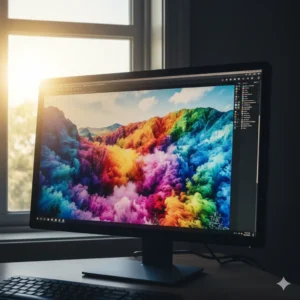
Factory-calibrated monitors often lock internal LUTs, preventing Windows calibration from applying correctly.
Why Dell Monitor Color Calibration Fails
Dell monitors may:
- Ignore ICC profiles unless set to sRGB mode
- Override calibration via internal presets
- Require USB connection for LUT access
Factory Calibration vs User Calibration
Factory calibration is not permanent. Panel aging, lighting conditions, and GPU changes still require recalibration but only with compatible tools.
Common Monitor Calibration Problems That Break Accuracy
Calibration fails when physical, environmental, or workflow conditions aren’t controlled.
Hardware & Environmental Issues
- Monitor not warmed up (needs 30+ minutes)
- Ambient light interference
- Aging backlight or IPS glow
- Physical monitor buttons not responding
- Incorrect viewing angle
User Workflow Mistakes
- Not resetting monitor before calibration
- Using wrong color space (sRGB vs Adobe RGB)
- Skipping contrast adjustment
- Calibrating in daylight or mixed lighting
These issues cause:
- Color banding
- Gray color casts
- Inconsistent brightness
Advanced Software & Driver Conflicts That Override Calibration
Even perfect calibration fails if software overrides it afterward.
Graphics Card Settings Overriding Calibration
NVIDIA, AMD, and Intel drivers can:
- Reset gamma curves
- Apply digital vibrance
- Override ICC profiles
HDR Conflict with Calibration
HDR must be disabled during calibration. HDR remaps gamma curves and ignores SDR ICC profiles entirely.
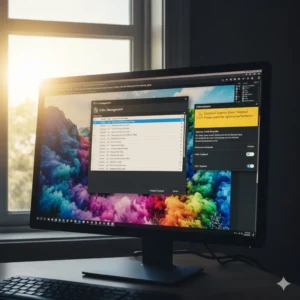
Professional vs Built-In Calibration Tools (Why Yours May Be Failing)
Built-in tools adjust software values only hardware calibration is different.
Built-In Calibration Limitations
Windows calibration:
- Cannot adjust monitor LUT
- Relies on OS-level color correction
- Breaks after driver updates
Hardware Calibration Advantages
Spyder and X-Rite devices:
- Write directly to monitor LUT
- Eliminate OS dependency
- Maintain consistency across systems
How to Recalibrate After Updates, Driver Changes, or Color Breakage
Calibration must be repeated after:
- Windows updates
- GPU driver updates
- Monitor firmware updates
Safe Recalibration Workflow
- Factory reset monitor
- Disable HDR
- Update GPU drivers
- Run calibration
- Assign ICC manually
- Verify via grayscale tests
Long-Term Calibration Maintenance
- Recalibrate monthly
- Document settings
- Avoid direct sunlight
- Clean screen before calibration
How to Check Monitor Color Accuracy After Calibration
Calibration is useless without validation.
Visual Accuracy Tests
- Check neutral gray balance
- Inspect gradient smoothness
- Compare skin tones
Technical Accuracy Indicators
- Delta-E below 2
- No banding
- No color clipping
FAQs:
Q: Why does my monitor calibration reset after restart.?
Because GPU drivers or Windows Color Management are overriding the ICC profile.
Q: Why do my colors look worse after calibration.?
Your monitor was oversaturated before; calibration reveals true color.
Q: Can calibration fail due to monitor age.?
Yes. Aging panels lose color stability and brightness consistency.
Q: Does HDR break calibration.?
Yes. HDR ignores SDR ICC profiles completely.
Q: Why does grayscale look tinted.?
Incorrect gamma or color balance settings.
Q: Can I calibrate without a colorimeter.?
Yes, but accuracy is limited.
Q: Why do multiple monitors look different.?
Each panel has unique color characteristics.
Q: Does HDMI vs DisplayPort matter.?
Yes. DisplayPort offers more accurate color handling.
Q: How often should I recalibrate.?
Monthly for professionals; quarterly for casual users.
Q: Is factory calibration enough.?
No. Environment and usage change accuracy over time.
Conclusion:
If you’re still asking “Why is my monitor color calibration not working?”, the real answer is rarely just one issue. In almost every case, calibration fails because of a chain of small problems stacking together — outdated drivers, HDR conflicts, corrupted ICC profiles, incorrect gamma, poor ambient lighting, or even something as simple as calibrating before the monitor warms up. When any one of these elements is ignored, Windows color calibration (whether on Windows 10, Windows 11, or even Windows 7) can appear broken, inconsistent, or ineffective.
The most important truth is this: monitor color calibration is a system-level process, not a single click. Your monitor hardware, graphics card, operating system, color profiles, and environment must all agree. If Windows color management is overridden by GPU control panels, if HDR mode interferes with SDR calibration, or if multiple ICC profiles conflict, calibration results won’t apply even though the wizard finishes successfully. That’s why many users see symptoms like washed-out colors, gray tints, color banding, or calibration changes that “don’t stick.”
Reliable calibration requires discipline:
- Always warm up your monitor for 30+ minutes
- Reset the monitor to factory defaults
- Disable HDR during calibration
- Use the native resolution
- Eliminate conflicting ICC/ICM profiles
- Keep graphics drivers updated
- Calibrate under controlled lighting
- Recalibrate regularly, especially after Windows updates
Built-in tools like Windows Color Calibration (dccw) are sufficient for most users if used correctly, but professionals, gamers, and creators will see far more consistent results with hardware calibrators (Spyder, X-Rite) and professional software like DisplayCAL or CalMAN. Aging monitors, worn backlights, or low-quality panels can also limit how accurate calibration can ever become at that point, the problem isn’t software, it’s physics.
Ultimately, color calibration isn’t about perfection it’s about predictability and consistency. When calibration works, colors stop shifting between apps, prints match screens, games look intentional, and edits appear the same everywhere. If your calibration isn’t working, it’s not Windows gaslighting you it’s your workflow breaking the chain.
Fix the chain, and calibration works. Every time.
Also Ready:
- How to Color Calibrate Monitor | 10 Expert Methods for True Color Accuracy
- Easy Windows 10 Colors Calibration
- Windows HDR Setup | Fix Washed Colors Fast! Easy 3-Step
- Monitor Color Calibration | Fixes, AI Tools & Pro Hacks
- Windows HDR Calibration 2025 | Fix Washed-Out & Boost Gaming
- Fix HDR, ICC Profiles & Colors