Why Is My Samsung S22 Touch Not Working Properly | 6 Shocking Fixes Guide
Why Is My Samsung S22 Touch Not Working Properly? (Root Cause Overview)

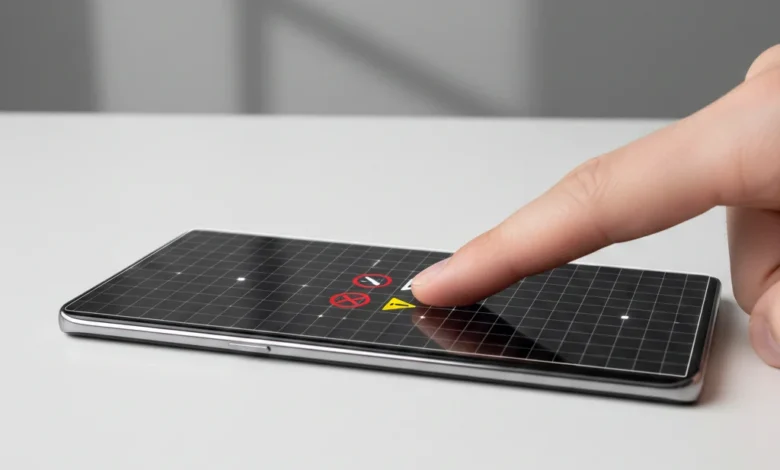
Touchscreen failure on a premium phone like the Galaxy S22 is frustrating and confusing. When the screen looks perfect but refuses to respond, the issue is usually deeper than users expect. This guide explains why your Samsung S22 touch is not working properly, how to diagnose the exact cause, and what actually fixes it without wasting your time or pushing fake solutions.
When users ask “Why is my Samsung S22 touch not working properly?” they’re usually dealing with a layered failure, not a single fault. The Galaxy S22 uses a capacitive touch system that relies on electrical conductivity, software interpretation, and physical sensor alignment. If any one layer fails, touch input breaks down partially or completely.
Why Is My Samsung S22 Touch Not Working Properly?
The Samsung S22 touchscreen may stop working properly due to software bugs after updates, moisture or humidity disrupting capacitive conductivity, internal digitizer damage from drops, screen protector interference, or system-level UI freezes. In many cases, the display remains on while the touch sensor fails, making the phone appear functional but unresponsive to input.
Touch issues can appear even when the phone is powered on, the display looks normal, and there are no visible cracks. This explains why many users report “Samsung screen not working but phone is on” or “Samsung touch screen not working but phone is on.” In these cases, the display panel is active, but the digitizer layer responsible for registering touch is malfunctioning.
Common triggers include:
- Software bugs introduced after updates
- Moisture or humidity disrupting conductivity
- Internal damage after a drop (even without cracks)
- Misalignment between touch input and screen response
- Temporary system freezes caused by corrupted cache files
High-end smartphones are more sensitive because they use higher-density touch grids, which means small disruptions cause noticeable failures. That’s why S22 and S22 Ultra users often notice specific zones on the screen that do not register touch or experience phantom taps and random screen actions.
This guide breaks the problem into diagnosable categories, so you fix the cause not just the symptom.
Common Touchscreen Symptoms on Samsung S22 (What Your Phone Is Telling You)
Samsung S22 touch issues follow recognizable patterns. Understanding the symptom helps identify the root cause faster than trial-and-error fixes.
Common signs your Samsung S22 touch is not working properly:
-
Screen does not respond but phone is powered on
-
Certain areas of the screen don’t register touch
-
Phantom taps or random screen actions
-
Touch misalignment (tap location differs from response)
-
Touch stops working after a software update
-
S-Pen works but finger touch does not (S22 Ultra)
Screen Not Responding to Touch at All
If your Samsung screen is not responding to touch, but buttons, sound, and notifications still work, this points to:
- System-level UI freeze
- Digitizer failure
- Severe software corruption
This is common after failed updates or forced restarts during system optimization.
Touch Works in Some Areas but Not Others
When specific zones on the S22 screen do not register touch, the cause is usually:
- Internal digitizer damage
- Pressure damage from drops
- Manufacturing stress points near edges
This is not fixable via calibration if the dead zones are consistent.
Phantom Touches and Misalignment
If the screen registers touches you didn’t make, or taps land in the wrong place, the cause is often:
- Moisture trapped under glass
- Electrical interference
- Screen protector interference
- Digitizer desynchronization
These symptoms worsen in humid environments and during charging.
Software-Related Reasons Your Samsung S22 Touch Stops Working
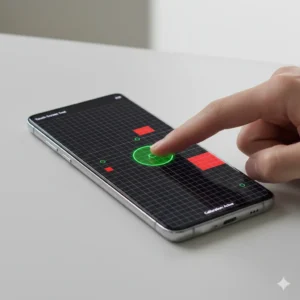
Software is the most overlooked cause of touch failure and also the most fixable.
Main causes of Samsung S22 touch screen failure:
-
Software glitches after OS updates
-
Third-party apps interfering with touch input
-
Moisture or humidity affecting screen conductivity
-
Internal digitizer damage without visible cracks
-
Screen protector thickness or compatibility issues
-
Electrical interference during charging
Touchscreen Not Working After Update
Many users search “S22 Ultra touch screen not working after update” because OS updates can:
- Reset touch drivers incorrectly
- Introduce UI bugs
- Conflict with previously installed apps
Samsung often fixes these through patch updates, which is why installing the latest OS version matters.
Third-Party App Interference
Poorly coded apps can hijack touch input layers. Booting into Safe Mode helps determine if:
- A launcher
- A screen filter app
- A gaming overlay
is causing the issue.
Corrupted System Cache
Temporary system files can break touch responsiveness. Clearing cache does not delete data, but restores system communication between the UI and digitizer.
Physical & Environmental Causes (Invisible Damage Explained)
Not all damage is visible. This is why users often say “Samsung touch screen not working after drop” even though the glass is intact.
Internal Hardware Damage Without Cracks
The digitizer sits under the glass. A drop can:
- Loosen connectors
- Crack internal sensor traces
- Cause micro-fractures
These issues cannot be fixed by software.
Moisture, Humidity & Conductivity Failure
Moisture alters electrical conductivity. Even sweat or steam can cause:
- Random taps
- Delayed response
- Complete touch failure
This explains why touch sometimes fails temporarily, then “fixes itself.”
Screen Protector Interference
Thick or non-Samsung protectors reduce capacitance. Adjusting settings may help but removing the protector is often the real test.
Diagnostic Tests to Identify the Exact Touch Problem
Before fixing, verify the failure.
How to test if Samsung S22 touch is a hardware or software issue:
-
Dial #0# to open Samsung diagnostic mode
-
Select “Touch” and trace the grid
-
Check for dead zones or missed input
-
Restart in Safe Mode to rule out apps
-
Test touch while unplugged from charger
Samsung Touch Sensor Test (#0#)
Using Samsung’s diagnostic menu:
- Open the dialer
- Enter #0#
- Select Touch
This reveals dead zones, ghost input, and alignment issues instantly.
Safe Mode Testing
If touch works in Safe Mode, the issue is software not hardware.
Visual & Behavioral Clues
- Touch fails only while charging → electrical interference
- Touch fails only on edges → digitizer damage
- Touch fails randomly → moisture or cache corruption
Fixes That Actually Work (From Least to Most Aggressive)
Not all fixes are equal. Start simple.
Clean the Screen Correctly
Use microfiber + isopropyl alcohol (70%). No water. No household cleaners.
Adjust Touch Sensitivity Settings
Enable touch sensitivity if using a screen protector—but disable accidental touch protection if it blocks input.
Software Reset (Final Non-Repair Step)
A factory reset is the last software step and requires backup. If touch fails after this, the issue is hardware—period.
When calibration or settings fixes won’t work:
-
Touch fails after factory reset
-
Same screen areas are always unresponsive
-
S-Pen works but finger touch doesn’t
-
Touch failure started after a physical drop
These indicate digitizer hardware failure, requiring screen repair or replacement.
FAQs:
Q: Why is the touchscreen on my high-end smartphone unresponsive.?
Because capacitive screens rely on software, conductivity, and sensor integrity. Failure in any layer breaks touch input.
Q: Can a software update fix Samsung S22 touch issues.?
Yes if the cause is driver or UI related. Updates cannot fix hardware damage.
Q: Why does my S22 Ultra pen work but touch doesn’t.?
The S-Pen uses a separate digitizer layer, confirming touch sensor failure.
Q: How do I recalibrate my Samsung S22 touchscreen.?
Samsung doesn’t offer manual calibration, but software resets and diagnostics can resync touch input if hardware is intact.
Q: Does moisture permanently damage touchscreens.?
Usually no but repeated exposure can corrode internal connectors.
Q: Why does touch stop working only while charging.?
Electrical interference from faulty chargers disrupts touch conductivity.
Q: Can screen protectors cause touch failure.?
Yes, especially thick or non-certified protectors.
Q: Is touch failure always a sign of screen replacement.?
No. Software and moisture issues are fixable. Dead zones are not.
Q: How do I know if the digitizer is damaged.?
Consistent unresponsive areas confirmed via #0# test indicate hardware failure.
Q: Is factory reset guaranteed to fix touch issues.?
No. It only rules out software causes.
Conclusion:
If you’re dealing with a Samsung S22 touchscreen that looks fine but doesn’t respond, the issue is rarely random. Touch failure on the Galaxy S22 happens when software interpretation, electrical conductivity, or the digitizer layer breaks down and each cause behaves differently.
Software-related issues are the most forgiving. Touch problems that appear after updates, during charging, or only in certain apps are often resolved through system patches, cache cleanup, or isolating third-party app conflicts. Moisture-related issues can also mimic serious hardware failure, even though they’re temporary and environment-driven.
However, when the problem becomes patterned and consistent such as the same screen zones never responding, phantom touches persisting after resets, or the S-Pen working while finger input fails the cause is almost always digitizer-level damage. This type of failure cannot be fixed with calibration, apps, or resets, no matter how many guides claim otherwise.
The most important takeaway is this:
Diagnosis matters more than fixes.
Running Samsung’s built-in diagnostics, testing Safe Mode, and observing when the issue occurs (after updates, after drops, during charging, or in humidity) prevents wasted time and unnecessary resets.
If your Samsung S22 touch is not working properly, don’t guess identify the failure layer first, then act. That’s how you avoid both unnecessary repairs and false hope solutions.
Also Read:
- How to Calibrate Samsung S22 | 30 Easy Ways
- How to Calibrate Samsung Galaxy S22 Battery | 12 Proven Fixes Guide
- How to Calibrate Samsung S22 Screen | 12 Proven Fixes Guide
- 6 Powerful Ways | How to Calibrate Compass on Samsung S22
- How to Calibrate iPhone 12 | Complete Step-by-Step Guide to Fix Issues & Boost Performance
- 20 ways | How To Fix Android Phone Touch Screen Problem |
- 12 Powerful Steps | How to Reset Samsung S22 for Calibration
- Fixing White Balance Issues on a Top-Tier Android Handset | Step-by-Step Guide 2026