How to Reset Acer Aspire Laptop Battery? | 7-Step Quick Fix Guide
Why You Need to Reset Acer Aspire Laptop Battery (Real Reasons Users Face Issues)

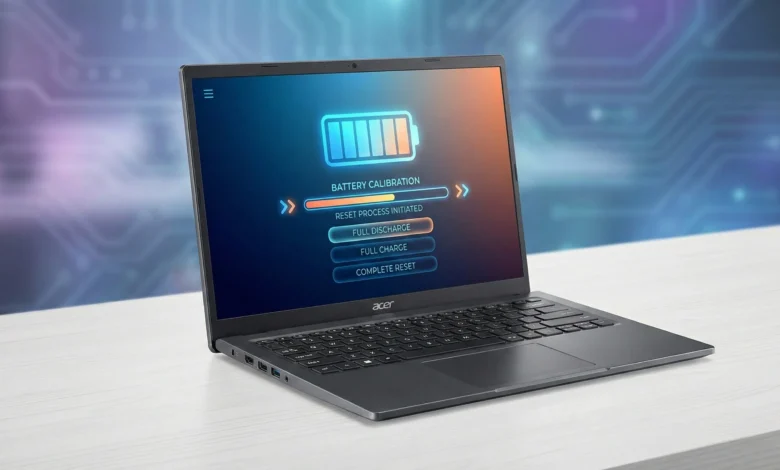
If your Acer Aspire laptop battery percentage jumps suddenly from 60% to 15%, charges slowly, or shuts down early, it means the Battery Management System (BMS) has incorrect charge data. Over time, lithium-ion battery cells lose calibration due to partial charging habits, long-term power adapter use, USB Type-C power adapter variations, or Acer power settings preventing 100% charging. Resetting the battery helps Windows and BMS re-learn real full charge, full discharge, and battery charge threshold levels. This fixes battery not charging, improves battery charging accuracy, and restores battery health estimation on Windows 10.
Signs Your Acer Aspire Battery Needs a Reset
If you notice unusual behavior like:
- Battery not charging to 100%
- Sudden system shutdown while battery still shows charge
- Laptop detects charger but battery icon stays stuck
- Windows battery report shows wrong cycle count
- System always stays in AC mode even unplugged
These are indicators the laptop needs Acer battery calibration. Many Acer Aspire users think the battery is failing, but it’s actually just inaccurate calibration causing wrong readouts in Windows 10.
Why Acer Aspire Battery Loses Calibration
Your battery loses its charge tracking mainly due to:
- Always using Power Saving Mode
- Rarely letting the battery discharge below 40%
- BIOS or Acer Care Center updates changing charge limits
- Smart Battery wear level confusion
- Using high-power adapters or USB-C hub charging
Pro Tip: Battery calibration does not fix damaged or dead cells, but it restores accurate charge behavior and improves performance if BMS is misreporting levels.
How to Reset Acer Aspire Laptop Battery in Windows 10
Resetting your Acer Aspire laptop battery can solve issues like inaccurate percentage readings, sudden shutdowns, or the laptop not charging beyond a certain point. Modern laptops, including Acer Aspire models, use lithium-ion batteries equipped with a Smart Battery Management System (BMS) to protect battery health. However, when calibration drifts due to aging or irregular charging habits, battery reset becomes necessary. In this detailed guide, you will learn how to reset Acer Aspire laptop battery step-by-step whether you’re on Windows 10, using the battery reset pinhole, Acer Care Center, BIOS settings, or a full discharge cycle. This process ensures more accurate charge reporting and helps improve overall battery performance.
Reset Acer Aspire Battery Using the Battery Reset Pin Hole
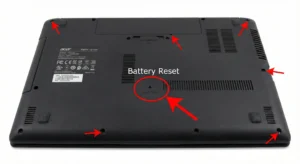
Most Acer Aspire laptops include a Battery Reset Button (mechanical cut-off switch) at the bottom. This forces a shutdown of internal circuits and allows the Battery Management System to restart properly.
Step-by-Step Battery Reset (Hardware Method)
1. Fully shut down your laptop
2. Unplug the AC adapter and remove external devices
3. Locate the battery reset pinhole (look for a tiny battery icon)
4. Use a paperclip → press & hold 5–10 seconds
5. Wait 10–15 minutes
6. Reconnect the charger and power ON the laptop
When to Use This Method?
- Battery stuck at 0% or 1%
- Laptop not charging even with a working charger
- Battery percentage not updating
- Laptop only works on charger
This reset helps restore battery detection, correct charge cycle reporting, and restart the built-in BMS for improved accuracy.
Fixing Acer Aspire Battery Not Resetting After Calibration
When you perform battery calibration or a full reset on your Acer Aspire laptop but the battery still refuses to charge correctly, shows the wrong percentage, or shuts down early it means the Battery Management System (BMS) is still out of sync. This can happen due to outdated ACPI drivers, incorrect Windows 10 power settings, or charge controller faults on the motherboard. Before assuming your battery is defective, there are several advanced troubleshooting steps you should follow to fully restore battery charge accuracy and power efficiency. By applying these fixes, your battery percentage will match the real capacity and the laptop will stop shutting off unexpectedly, making your Acer Aspire perform like new again.
Update Your ACPI-Compliant Control Method Battery Driver
The ACPI battery driver controls communication between Windows and your lithium-ion battery cells. If it’s corrupted or outdated, battery calibration won’t save properly, and your battery percentage will always be inaccurate.
Steps:
- Open Device Manager
- Expand Batteries
- Right-click ACPI-Compliant Control Method Battery → click Uninstall device
- Restart your laptop, Windows reinstalls a fresh driver automatically
This helps the system correctly detect battery charge cycles, full discharge status, and improves battery reset success.
Optimize Windows 10 Power Settings
Sometimes Acer battery reset fails because the system forces sleep or hibernate too early, interrupting calibration.
Follow this optimized power setup:
- Go to Settings → System → Power & Sleep
- Set Sleep: Never (at least during calibration)
- Disable Fast Startup in Control Panel → Power Options
This allows full discharge calibration without auto-stopping power consumption.
BIOS Battery Reset Check
If your Acer Aspire supports Battery Charge Limit or Battery Reset in BIOS, ensure it’s not restricting charging.
How to check:
- Restart & press F2 for BIOS
- Go to Main / Advanced → Power Management
- Disable Battery Limit Mode
- Save changes & restart
BIOS-level settings override Acer Care Center, so this step is crucial.
Acer Aspire Battery Reset Not Working? Advanced Solutions
If you’ve tried all normal battery reset steps and your Acer Aspire still isn’t holding charge, overheating, or stuck at low percentage, these deeper fixes may be necessary to restore your Battery Management System (BMS) and internal battery cells stability.
Perform a Soft Battery Fuse Reset
Some Acer batteries have a built-in protection fuse. If triggered, the battery won’t charge even if it’s healthy.
Try this:
- Shut down
- Disconnect charger
- Hold power button for 2 minutes
- Reconnect charger
- Boot normally
This resets internal protection without opening the laptop.
Check USB Type-C or Barrel-Port Charger
Wrong wattage = battery won’t charge properly.
Make sure:
- You’re using a 65W or higher Acer-certified adapter
- Cable supports power delivery, not only data
- Charging port is dust-free and snug
Using an uncertified charger may damage battery cells over time.
When Your Battery Needs Replacement
Even with perfect calibration batteries degrade. If you notice:
✔ Drops more than 25% in 10 minutes
✔ Random shutdowns above 20%
✔ Charging stuck at 80–90% permanently
✔ Battery test says “Replace Battery”
→ The internal battery health is below limits, and replacement is the only option.
You can verify this with:
Command Prompt → type: powercfg /batteryreport
This Windows Battery Report reveals battery design capacity vs full charge capacity, helping you confirm aging.
How to Reset Acer Aspire Laptop Battery Using Acer BIOS Settings
Resetting your Acer Aspire laptop battery using the BIOS settings is one of the most accurate ways to restore correct battery percentage reading and recharge behavior. If your laptop battery is not charging to 100%, drains too fast, or shows wrong percentages, BIOS-level reset helps recalibrate the Battery Management System (BMS) directly at hardware level. This method works even if Windows tools fail or Acer Care Center features are not available. Many Acer Aspire users report that after a BIOS reset, their battery capacity reporting becomes more accurate and charging stability improves especially for lithium-ion battery packs that have experienced charging threshold inconsistencies or partial discharge cycles.
Why BIOS Reset Fixes Acer Aspire Battery Charge Problems
BIOS interacts directly with the Smart Battery System, controlling how power flows into the battery cells, when charging should stop, and how accurate the charge percentage is. When Windows updates, power plan changes, or USB Type-C power adapter issues interrupt this system, the battery may refuse to charge or get stuck at incorrect percentages. BIOS reset recalibrates battery charge thresholds, refreshes power management, and clears sensor memory that misreports percentage or cycle status. It’s especially useful for models with Acer battery charge limit settings configured incorrectly inside firmware.
Step-by-Step Reset Acer Aspire Battery in BIOS
Follow these exact steps:
1. Shut down your Acer Aspire completely
2. Press the power button while holding F2 (or Del) to enter BIOS
3. Go to Main → Battery Reset (or Battery Refresh)
4. Select Enable then press F10 to save and restart
5. Allow the laptop to fully discharge after reset
6 Connect your original AC adapter and charge to 100% without interruption
This may take 2–4 hours depending on the model and battery life
Important:
Do NOT force shutdown during the reset process it interrupts the calibration cycle.
Pro Tips for Better BIOS-Level Reset Results
✔ Unplug USB-powered devices, they affect discharge pattern
✔ Disable Fast Startup in Windows before calibrating
✔ Avoid overheating while discharging, use a flat, cool surface
✔ Do not use “battery saver mode” during charging phase
When BIOS Reset Won’t Help
If after reset your:
- Battery still doesn’t charge at all
- Jumps from 60% → 20% → shutdown suddenly
- Needs constant AC power to stay on
your lithium-ion cells may be failing and battery replacement is required soon.
Quick Summary
- “How to reset Acer Aspire laptop battery in BIOS?” Enter BIOS → Battery Reset option → Discharge fully → Full recharge.
- “Does BIOS reset fix Acer battery not charging?” Yes, it corrects Smart Battery calibration and percentage reporting.
Advanced Acer Aspire Battery Reset Using Windows Power Settings
When your Acer Aspire laptop battery is not charging properly, draining too fast, or stuck at a certain percentage, Windows power settings may be causing incorrect battery calibration values. This leads users to search “how to reset Acer Aspire laptop battery” because the Battery Management System (BMS) becomes confused about actual battery capacity. Advanced reset through power settings helps refresh power profiles, optimize Battery Charge Threshold, and restore accurate reporting for lithium-ion battery cells. This method improves battery discharge behavior, prevents battery overcharging, and fixes charging accuracy issues especially on Windows 10 laptops.
Step-by-Step Windows Power Plan Reset (Fix Battery Charge Accuracy Issue)
To fix power management corruption and reset battery performance:
1. Open Control Panel → Power Options
2. Select the Balanced (Recommended) plan
3. Click Change plan settings
4. Set both (Plugged in / On battery) to Never temporarily
5. Go to Advanced Power Settings
6. Reset all customized settings to Default
7. Apply changes → Restart your laptop
⏺ Why it works?
Over time Windows 10 Power Plan settings conflict with Acer Power Management tools, causing the battery not to charge to 100%. Resetting ensures proper battery charging percentage alignment with the Smart Battery system.
Pro Tip: After reset, let the laptop fully discharge to 10% and then fully charge back to 100% to restore BMS accuracy.
Disable Battery Charge Limit and Optimize Acer Power Management
Some Acer Aspire models include Acer Care Center settings like “Battery Charge Limit” or “Battery Smart Charging” which force the battery to stop charging at 80–90% to extend battery life.
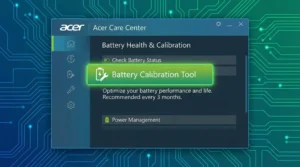
To disable:
- Open Acer Care Center
- Select Battery Manager
- Turn OFF Battery Charge Limit
- Restart your laptop
If the setting blocks full charging → you will think the battery is stuck, but it’s actually a feature preventing overcharging.
This step is crucial before doing any Windows 10 Battery Calibration.
Reset Sleep, Hibernate & USB Power (Fix Battery Draining While Off)
Incorrect sleep or USB power settings can drain the battery at night. Fix it here:
✔ Disable USB selective suspend under Advanced Power Options
✔ Set Hibernate after: Never
✔ Disable Fast Startup to improve calibration stability
✔ Enable Battery Saver when below 20%
This prevents constant trickle-discharge that affects calibration of Acer battery cells.
Use Battery Report to Identify Calibration Problems
Windows has a hidden powerful tool:
➡ Run Command:
powercfg /batteryreport
This shows:
- Design Capacity vs Full Charge Capacity
- Battery Cycle Count
- Recent Discharge Sessions
- Battery Wear Status
If capacity drops below 70%, calibration alone cannot fix it, consider Battery Replacement soon.
Why This Section Belongs Here
Best placement for this Part G is after hardware methods (like battery pin reset / BIOS reset) and
before Acer Care Center Calibration section to maintain user progression from simple → advanced fixes.
Because users who reach this step are facing Power Management Tool Conflicts, which is more advanced troubleshooting.
How to Reset Acer Aspire Laptop Battery (Step-by-Step)
To make the entire Acer Aspire battery reset process super easy to follow, here’s a visual workflow that shows exactly what happens and what you need to do at each step. You can place this section right after your “Main Fix Methods”
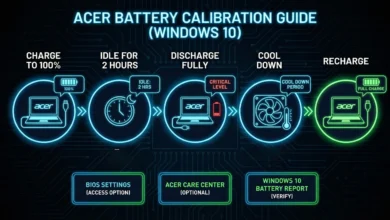
Battery Reset Workflow
Step 1 — Identify the Issue
⬇
Check if the battery is:
✔ Not charging
✔ Stuck at certain % (80–95%)
✔ Dropping rapidly
✔ Showing “Plugged in, not charging”
✔ Laptop shuts off when unplugged
⬇
Step 2 — Try a Soft Battery Reset
• Shut down Acer Aspire
• Disconnect the charger
• Press & hold power button 15–20 sec
➡ Removes static / power glitches
⬇
Step 3 — Full Charge & Full Discharge Cycle
• Charge to 100%
• Use until 0% and laptop powers off
• Recharge again to 100% without interruption
➡ Re-syncs Battery Management System (BMS) for accurate reporting
⬇
Step 4 — Acer Care Center Battery Calibration
• Install/open Acer Care Center
• Go to: Battery → Calibration
• Follow on-screen instructions
➡ Best for software-based calibration
⬇
Step 5 — BIOS Battery Reset (Hardware-Level)
For Acer Aspire with battery reset pin-hole:
• Power OFF the laptop
• Use paper clip to press reset button 5–10 sec
➡ Resets internal power controller
⬇
Step 6 — USB Type-C / AC Adapter Check
• Use original Acer adapter
• Test a different outlet
• Check if USB-C port supports charging model
➡ Fixes AC adapter issues
⬇
Step 7 — Windows 10 Battery Troubleshooting
• Run: powercfg /batteryreport
• Update Power Drivers
• Set Acer Power Plans correctly
➡ Fixes Windows-level battery inaccuracies
⬇
Step 8 Re-evaluate Battery Health
If:
✔ Cycle count is extremely high
✔ Battery cells are weak
✔ Battery failure alerts appear
➡ Replacement becomes the best option
Quick Visual Summary for Users
| Issue Detected | Fix Method | Expected Result |
|---|---|---|
| Battery stuck at 80–95% | Remove charge limit in Acer Care Center | Charges to 100% again |
| Laptop shuts down on unplug | BIOS Reset + Recalibration | Stable battery power |
| Slow charging or no power | Adapter/Cable replacement | Normal charging speed |
| Percentage drops fast | Full discharge + BMS reset | Accurate battery reading |
FAQs:
Q: How do I know if I need to reset my Acer Aspire laptop battery.?
If your laptop stops charging to 100%, drops percentage suddenly, or only works when charger is plugged in, your Battery Management System has inaccurate calibration and needs reset.
Q: Is resetting and calibrating the same thing.?
Resetting fixes communication issues between Windows and the battery.
Calibration helps the battery learn correct full-charge and low-drain levels.
Sometimes you must do both together.
Q: Does Acer provide a built-in battery reset tool.?
Yes, many Aspire models include a Battery Reset Pin Hole on the bottom. Press gently using a SIM pin for 10–30 seconds.
Q: Can Windows 10 settings alone fix Acer battery calibration.?
Partially. Windows tools like Battery Report, Power Plan tweaks, and hibernation settings help but hardware reset performs the real fix.
Q: Will this solve “plugged in, not charging” issue.?
Yes, especially when caused by battery percentage limit, BIOS inaccuracies, or Acer Care Center charging restrictions.
Q: How long should a reset/calibration take.?
The full process (charge → discharge → recharge) usually takes 2–7 hours, depending on battery condition and usage.
Q: Can battery reset fix an aging or failed battery.?
No, if your battery has high cycle count or swollen cells, replacement is required. Resetting cannot restore damaged cells.
Conclusion
Resetting your Acer Aspire laptop battery is no longer confusing. Whether your laptop stops charging at 60%, drains too fast, or only powers on with the charger a proper reset + battery calibration ensures the Battery Management System detects true capacity again. The best method combines:
✔ Battery reset pinhole / power drain
✔ Full charge → discharge → recharge cycle
✔ Windows 10 battery calibration tools
✔ Acer Care Center battery limit settings
Do this once every 2–3 months for long-term health of your Lithium-ion smart battery, accurate charge predictions, and peak performance. And if reset doesn’t help it’s a sign that battery replacement or BIOS update is needed.
You now have the complete expert guide to fix an inaccurate Acer Aspire battery no more frustration, no more guessing!
Also Read:
- Acer Battery Calibration Windows 10 | Powerful Fix for Charging Issues
- Windows 10 Laptop Battery Calibration | & Replacement Guide
- Easy Windows 10 Colors Calibration
- 7 Easy Ways | How to Reset Acer Laptop Battery.?
- Dell Battery Calibration Tool | 2026 Guide Fix Sudden Drops & Shutdowns Fast
- Acer Battery Calibration Windows 11 | Ultimate Fix to Restore Battery Accuracy