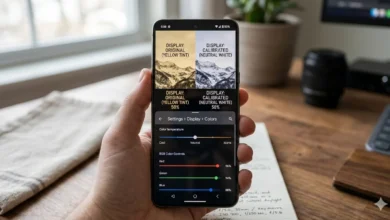
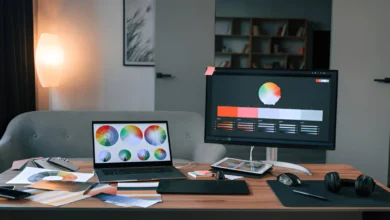
How to Color Calibrate Monitor | 10 Expert Methods for True Color Accuracy
How to Calibrate Monitor Colors for Accurate Display (Complete Guide)

Think those colors are accurate.? Spoiler: They’re not. Learning how to color calibrate monitor isn’t just for pros it’s for anyone tired of guessing if ‘sky blue’ is really neon teal
If you’ve ever wondered why your photos look muddy on Instagram, your designs clash in print, or games feel oversaturated, blame your monitor. Uncalibrated displays are like chefs who eyeball recipes sometimes they nail it, often they burn the soup. For photographers, designers, and even gamers, monitor color calibration is the difference between meh and whoa.
– Monitor color calibration ensures your screen matches real-world colors.
– Color calibrate monitor to fix inaccuracies that sabotage your work.
Tools You Need
The “Must-Haves” for Pro-Level Accuracy
– Colorimeters:
– Datacolor Spyder X Pro (budget-friendly).
– X-Rite i1Display Pro (studio-grade).
– Software:
– DisplayCAL (free/open-source).
– CalMAN (for HDR/OLED nerds).
Free Hacks (For the Frugal Folks)
– Use Windows/Mac built-in tools (search calibrate display color).
– QuickGamma for tweaking gamma without a degree in rocket science.
– Adjust gamma correction (aim for 2.2).
– Save ICC profiles to lock in settings.
Pre-Calibration Checklist – Don’t Skip This!
Prep Like a Pro
1. Warm Up Your Monitor: 30 minutes minimum cold screens lie.
2. Reset Settings: Factory defaults = clean slate.
3. Lighting Matters: Ditch fluorescent bulbs. Use 5000K-6500K LEDs.
Avoid These Facepalm Moments
– Using HDR/Adaptive Contrast: They sabotage calibration. Turn. Them. Off.
– Ignoring GPU Drivers: Update NVIDIA/AMD drivers first old drivers = chaos.
– Why is my monitor color calibration not working? → Outdated drivers or HDR conflicts.
– How often should I calibrate my monitor? → Monthly for LCDs, every 3 weeks for OLEDs.
If your screen looks oversaturated, dull, or inconsistent across devices, the issue isn’t your eyes it’s your display. Understanding how to calibrate monitor color is essential for photographers, designers, gamers, editors, and anyone who wants accurate visuals. Monitor calibration aligns your screen output with real, measurable color standards so what you see is reliable.
This guide explains what color calibration is, how to calibrate a monitor, and how to fix monitor color issues using proven, industry-standard methods.
What Is Color Calibration and Why It Matters
What is color calibration?
Color calibration is the process of adjusting a monitor so it accurately displays colors according to defined standards like sRGB, Adobe RGB, or DCI-P3. Without calibration, monitors drift over time due to backlight aging, temperature, and usage.
When you calibrate your monitor for color accuracy, you ensure:
- Correct white balance
- Accurate gamma (usually 2.2)
- Consistent brightness and contrast
- Predictable color reproduction across devices
Uncalibrated displays are the primary reason prints don’t match screens, designs look different on other monitors, and games appear washed out or oversaturated.
How to Calibrate a Monitor (Before You Start)
Before learning how to color calibrate your monitor, preparation is critical.
Pre-Calibration Setup Checklist
- Warm up the monitor for at least 30 minutes
- Reset monitor to factory defaults
- Disable HDR, dynamic contrast, vivid modes
- Use consistent ambient lighting (5000K–6500K)
- Update GPU drivers (NVIDIA / AMD / Intel)
Skipping these steps will reduce calibration accuracy even with professional tools.
How to Calibrate Monitor Color Using a Colorimeter (Best Accuracy)
If you want professional-grade results, this is the most reliable way to calibrate monitors for accurate colors.
Tools Required
- Datacolor Spyder X Pro
- X-Rite i1Display Pro
- Software: DisplayCAL or CalMAN
Step-by-Step Process
- Launch calibration software
- Place the colorimeter on the screen
- Set targets:
- Gamma: 2.2
- White point: D65
- Brightness: 120 cd/m²
- Let the software measure colors
- Save and apply the ICC profile
This method is the gold standard for:
- How to calibrate a monitor for color grading
- How to calibrate IPS monitor panels
- How to calibrate computer monitor for professional work
How to Calibrate Monitor Without Colorimeter (Software Method)
If you’re wondering how to calibrate monitor without colorimeter, built-in OS tools provide acceptable results for everyday use.
How to Calibrate Display Color on Windows
- Search Calibrate display color
- Follow the on-screen wizard
- Adjust gamma, brightness, contrast, and RGB balance
- Save the profile
How to Calibrate Screen Color on macOS
- System Settings → Displays → Color → Calibrate
- Use Expert Mode
- Adjust white point and gamma
- Save profile
This method works well for:
- How to calibrate laptop monitor
- How to calibrate PC monitor
- How to calibrate laptop screen color
Accuracy is lower than hardware calibration, but far better than factory defaults.
How to Adjust Monitor Color Manually (OSD Settings)
Sometimes calibration software isn’t enough. Knowing how to adjust color on monitor directly helps fix visible issues.
Key Settings to Tune
- Brightness: 100–120 cd/m²
- Contrast: Avoid clipping whites
- Color Temperature: 6500K
- RGB balance: Neutral grayscale
- Gamma: 2.2
This approach helps when you need to:
- Fix monitor color quickly
- Adjust color of monitor after updates
- Fix colors on monitor that look washed out
How to Color Correct Monitor After Calibration
Calibration aligns the display; color correction ensures content looks right.
Use ICC profiles correctly:
- Apply the correct profile in OS
- Match software color spaces (Photoshop, Premiere, DaVinci)
- Disable conflicting color enhancements
This step is essential for:
- How to color correct a monitor
- How to color correct your monitor for editing
- How to calibrate your monitor for color correction
How to Calibrate Monitor for Gaming
Gaming monitors prioritize speed, not accuracy. To calibrate monitor for gaming:
- Enable sRGB mode if available
- Reduce brightness to prevent black crush
- Disable overdrive color enhancements
- Match gamma to 2.2
This improves:
- Shadow detail
- Skin tones
- Visual consistency
Ideal for users learning how to calibrate your gaming monitor without sacrificing performance.
How Often Should You Calibrate a Monitor?
- IPS / VA monitors: Every 4–6 weeks
- OLED displays: Every 3 weeks
- New monitor: Calibrate immediately
- After major lighting or GPU changes
Regular recalibration prevents color drift and keeps accuracy consistent.
How to Check Monitor Color Accuracy
To verify results:
- Use Lagom.nl test patterns
- Check Delta-E (below 2 is ideal)
- Compare prints under neutral lighting
- Re-measure with a colorimeter if available
This confirms how to check monitor color accuracy objectively.
Common Monitor Color Problems and Fixes
| Issue | Solution |
|---|---|
| Oversaturated colors | Disable vivid / HDR modes |
| Gray blacks | Lower brightness, adjust gamma |
| Inconsistent colors | Re-apply ICC profile |
| Print mismatch | Calibrate printer and monitor |
This directly addresses how to fix color on monitor and how to fix monitor colors.
Calibrate Your Monitor Like a Pro (No PhD Required)
(Your Vibe, Your Rules Let’s Fix Those Liar Colors)
Step-by-Step Calibration: Hardware vs. Software Hacks
You’ve got two choices: spend $200 on a colorimeter or $0 on built-in tools. Both work here’s how.
Method 1: Using a Colorimeter (For Perfectionists)
1. Grab Your Gear: Datacolor Spyder X Pro or X-Rite i1Display Pro.
2. Install Software: Open DisplayCAL or CalMAN no, it’s not a dating app.
3. Stick It On: Attach the puck to your screen (suction cups won’t bite).
4. Follow Prompts: Adjust brightness to 120 cd/m² (like a cozy candlelit dinner).
5. Save ICC Profile: Name it something cool, like Netflix & Chill Mode.
– Best monitor color calibration software → DisplayCAL for free, CalMAN for pros.
– How to use a colorimeter for monitor calibration → Spoiler: It’s idiot-proof.
Method 2: Free Software Hacks (For the Frugal Crowd)
Windows Users:
– Search calibrate display color → Drag sliders until grays look… gray.
– Gamma Correction: Aim for 2.2 not the movie villain.
Mac Fans:
– System Preferences > Displays > Color > Calibrate → Follow the wizard (no wand needed).
– Can I calibrate my monitor without hardware? → Yes, but it’s like diet soda good enough.
– How to check if my monitor is color-accurate? → Use Lagom.nl tests post-calibration.
Troubleshooting: Fix Calibration Fails Like a Boss
“Why Do My Colors Still Look Like a Rainbow Puked?”
– Problem: Oversaturated colors.
– Fix: Disable Vivid Mode (aka “Instagram Filter Mode”) in your monitor’s OSD.
– Problem: Blacks look gray.
– Fix: Lower brightness to 100 cd/m² → Disable Dynamic Contrast (it’s trash).
“My Calibration Software Hates My Monitor!”
– Fix: Update GPU drivers → Disable HDR → Pray to the tech gods.
– Gamma correction = Midtone magic.
– ICC profiles = Your monitor’s “true self” settings.
Brand-Specific Hacks (Because One Size Fits None)
– Dell Ultrasharp: Use Dell Display Manager + X-Rite i1Display → Lock in sRGB mode.
– Apple Studio Display: Turn off True Tone → Calibrate with ColorSync Utility (it’s sneaky good).
– ASUS ROG Gamers: Enable sRGB → Tweak with CalMAN → Dominate without color lies.
Maintenance – Because Monitors Love to Gaslight
Calibrating once is like brushing your teeth once. Don’t be that person
How Often to Recalibrate (Spoiler: More Than Your Ex’s Texts)
– OLED Panels: Every 3 weeks (they drift faster than TikTok trends).
– IPS/VA Monitors: Monthly.
– After Major Changes: New GPU, room lighting shift, or existential crisis.
– Color gamut maintenance → Keep that sRGB/Adobe RGB in check.
– Delta-E (<2) → The “lie detector” for color accuracy.
Validate Like a Skeptic
1. Online Tests:
– Lagom.nl → Nail gamma, contrast, and grayscale.
– W4ZT → Spot banding like a hawk.
2. Print Test:
– Print a Pantone chart → Compare to screen under 5000K light.
3. Hardware Check:
– Re-run your Datacolor Spyder → Delta-E should scream “I’m perfect!”
– “How to check if my monitor is color-accurate?” → Lagom + Spyder = truth serum.
– “Why do colors look different after calibration?” → Your monitor’s a drama queen. Recalibrate.
FAQs
Q: How Often Should I Calibrate My Gaming Monitor.?
Every 4-6 weeks. OLED gamers? Every 3 weeks. Yes, it’s high-maintenance.
Q: Why Do My Prints Still Look Like Mud.?
Calibrate your printer too, genius. Use paper-specific ICC profiles (not rocket science).
Q: Can I Trust Free Calibration Software.?
Sure, if you trust dollar store sushi. Use DisplayCAL or QuickGamma for “good enough.”
Q: Is Calibration Needed for Netflix Binges.?
Only if you want skin tones to look human and not Oompa Loompa chic.
Q: How do I calibrate my monitor.?
Use a colorimeter for best accuracy or built-in OS tools if hardware isn’t available.
Q: Can I color calibrate a monitor without hardware.?
Yes. Software tools work, but precision is limited.
Q: How to calibrate new monitor.?
Always calibrate immediately after purchase factory presets are inaccurate.
Q: How to match monitor colors across displays.?
Calibrate each monitor separately using the same target settings.
Q: What is colour calibration.?
It’s the process of aligning a monitor’s output to standardized color references.
Q: How to calibrate monitor colours for laptops.?
Use OS tools and reduce brightness; laptop panels vary more than desktops.
Conclusion – Stop Guessing, Start Calibrating
Key Takeaway: Your monitor’s a sneaky liar. Calibrate it, validate it, and never let it gaslight you again.
Still winging it? Your clients (and K/D ratio) deserve better.
Learning how to calibrate monitor colors isn’t optional anymore it’s foundational. Whether you want to fix monitor color, adjust monitor colors, or calibrate a display for professional accuracy, proper calibration removes guesswork and ensures consistency.
Accurate color means:
-
Reliable edits
-
Predictable prints
-
Better gaming visuals
-
Reduced eye strain
Calibration turns your monitor from a liar into a tool you can trust.
Also Read: