How to Calibrate Samsung S22 Screen | 12 Proven Fixes Guide
Fix touch issues, color imbalance, and sensitivity problems with Samsung’s proven screen calibration methods

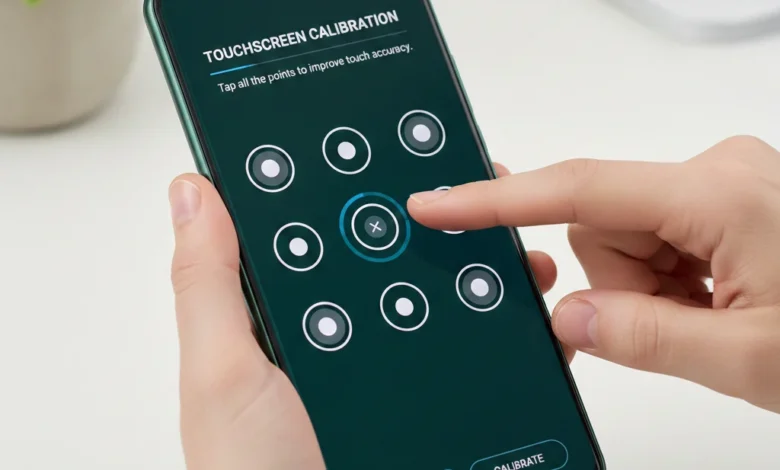
How to Calibrate Samsung S22 Screen does not mean just changing colors or increasing brightness. On the Samsung Galaxy S22, screen calibration refers to two different systems working together:
- Touchscreen calibration (how accurately the screen detects your touch)
- Display color calibration (how accurately colors, white balance, and temperature are shown)
Most users confuse these two, which is why calibration attempts often “fail” or feel ineffective.
At a system level, Samsung does not use traditional manual touchscreen calibration like older Android phones. Instead, the Samsung S22 relies on software-based touch mapping, display drivers, and adaptive algorithms that constantly adjust based on usage, environment, and hardware condition. This is why calibration must be done correctly and in the right order.
What Screen Calibration Means on Samsung Galaxy S22 (Touch vs Display)
On the Samsung S22, screen calibration is divided into two functional layers:
Touch Calibration
This controls:
- How sensitive the screen is to taps and swipes
- How accurately touch points register
- Whether touches are delayed, ignored, or misread
If your Samsung S22 touchscreen is not responding, feels laggy, or behaves differently near the edges, the issue is almost always touch mapping, not screen damage.
Display Color Calibration
This controls:
- Color accuracy (reds, greens, blues)
- White balance (warm vs cool tone)
- Screen mode behavior (Vivid vs Natural)
- Color temperature and visual comfort
If colors look washed out, overly saturated, too warm, or too cool, you are dealing with display calibration, not touch issues.
Understanding this separation is critical.
Calibrating the wrong layer will never fix the problem.
Why Samsung S22 Screen Calibration Is Software-Based (Not Hardware-Based)
Unlike older phones that allowed raw touchscreen recalibration, Samsung Galaxy S22 uses:
- Digitizer firmware
- Adaptive touch algorithms
- Dynamic color profiles
- OLED panel self-correction
This means:
- There is no hidden dial code to fully recalibrate touch sensors
- Most calibration fixes happen through settings, diagnostics, and resets
- Hardware damage cannot be fixed by calibration
Samsung designed this system to reduce user error, but it also means calibration must be methodical, not random.
When Calibration Helps And When It Cannot
Calibration does help when:
- Touch feels less sensitive after applying a screen protector
- Colors changed after a software update
- Screen feels too warm or too cool
- Touch issues appear only in certain apps
- The phone reacts poorly in humid or cold conditions
Calibration does NOT help when:
- The screen is cracked or deeply scratched
- Touch zones are permanently dead
- The display flickers even in Safe Mode
- The OLED panel is physically damaged
This distinction prevents wasted time and unrealistic expectations.
Screen calibration on Samsung Galaxy S22 means adjusting both touch sensitivity and display color accuracy using software-based settings, not manual hardware tuning. Touch issues and color issues are separate problems and must be fixed using the correct calibration method.
Signs You Need to Calibrate Samsung S22 Screen
If you’re searching How to Calibrate Samsung S22 Screen, it usually means something already feels wrong. Screen calibration problems rarely appear suddenly; they develop through subtle, progressive symptoms that users often ignore until the phone becomes frustrating to use.
Samsung Galaxy S22 screen issues generally fall into touch-related symptoms and display color symptoms. Identifying the exact sign helps determine whether calibration will fix the problem or if you’re facing a deeper hardware issue.
Touchscreen Symptoms That Indicate Calibration Is Needed
These are the most common signs users describe in voice searches like “Why is my Samsung S22 touch not working properly?”
Unresponsive or delayed touch
If taps don’t register instantly or swipes feel sluggish, the touch mapping may be misaligned. This often happens after software updates, screen protector installation, or prolonged exposure to moisture.
Inconsistent touch sensitivity
The screen may respond well in some areas but poorly near edges or corners. This is a strong indicator that touch sensitivity calibration needs adjustment.
Accidental touches or ghost inputs
If your Samsung S22 opens apps on its own or reacts without being touched, calibration confusion between digitizer data and software filtering is likely.
Touch works in some apps but not others
This usually points to software-level calibration conflicts rather than physical damage.
Display & Color Symptoms That Signal Screen Calibration Issues
Voice searches like “Why does my Samsung S22 screen look yellow?” or “Colors look weird on Galaxy S22” usually stem from display calibration problems.
Screen looks too warm or too cool
An incorrect white balance can make whites appear yellowish, bluish, or gray.
Colors look washed out or overly saturated
This often occurs when the wrong screen mode (Vivid vs Natural) is active or after firmware updates reset color profiles.
Color inconsistency while watching videos or photos
If skin tones look unnatural or contrast feels off, display calibration not brightness is the real issue.
Flickering or color shifts at low brightness
This can indicate calibration instability, especially on OLED panels.
Symptoms That Appear After Updates or Screen Changes
Many users report problems immediately after changes, not realizing calibration is required.
Issues after software update
Updates can overwrite display profiles or touch algorithms, making recalibration necessary.
Problems after installing a screen protector
Thick or non-Samsung-approved protectors often reduce touch sensitivity unless the feature is manually adjusted.
Touch problems after moisture exposure
Even minor humidity can temporarily disrupt touch sensors, causing false calibration behavior.
How to Tell Calibration Issues from Hardware Damage
Calibration is likely if:
- Touch works in Safe Mode
- No visible cracks or discoloration
- Problems change when settings are adjusted
Calibration will not fix issues if:
- Parts of the screen are completely dead
- The display flickers constantly
- Touch fails even during boot screens
Knowing this prevents unnecessary repairs.
You need to calibrate the Samsung S22 screen if touch input becomes inconsistent, delayed, overly sensitive, or if colors appear inaccurate, too warm, too cool, or washed out—especially after updates, screen protector installation, or moisture exposure.
Pre-Calibration Checks Before Calibrating Samsung S22 Screen
Before you attempt How to Calibrate Samsung S22 Screen, it’s essential to rule out conditions that make calibration ineffective or misleading. Screen calibration only works when the display hardware, software environment, and usage conditions are stable. Skipping these checks is the #1 reason users say calibration “didn’t work.”
Think of this stage as diagnostic preparation, not a delay.
Update Software Before Screen Calibration
Screen calibration relies on Samsung’s touch and display drivers. If your device software is outdated, calibration results may reset or behave inconsistently.
What to do first:
- Go to Settings → Software update
- Install the latest One UI and security patch
- Restart the device after updating
Samsung frequently adjusts touch algorithms, color profiles, and OLED tuning through updates. Calibrating before updating can lock you into outdated parameters.
AI relevance:
Most AI diagnostic systems prioritize “update-first” steps when evaluating display issues.
Inspect for Physical Screen Damage
Calibration cannot fix physical defects.
Check carefully for:
- Cracks (even micro-cracks near edges)
- Dead pixels or permanently dark spots
- Discoloration patches
- Screen lifting from the frame
If the glass or OLED panel is damaged, calibration will not restore touch accuracy or color balance. This is when screen repair vs calibration becomes the correct decision.
Clean the Screen & Eliminate Moisture Factors
Touchscreen sensors are extremely sensitive to residue.
Before calibrating:
- Clean the screen with a microfiber cloth
- Remove oil, sweat, and fingerprints
- Ensure hands are dry
- Avoid calibration immediately after outdoor humidity exposure
Moisture can trigger false touch input, especially on AMOLED panels, leading to incorrect calibration data.
Check Screen Protectors & Accessories
Many Samsung S22 touch issues are caused by accessories—not the screen itself.
Important checks:
- Remove thick or non-Samsung-approved screen protectors
- Disable Touch sensitivity, then re-enable it
- Remove magnetic cases or metal accessories
If touch improves after removing accessories, calibration may not even be required.
Confirm Display Settings Are at Default
Custom display settings can interfere with accurate calibration.
Before starting:
- Set Screen mode to default (Vivid or Natural)
- Turn off Blue light filter temporarily
- Disable third-party display apps or overlays
Calibration should always be done on a neutral baseline, otherwise color adjustments compound incorrectly.
Quick Pre-Calibration Checklist (AI-Friendly)
Software fully updated
No visible screen damage
Screen cleaned and dry
Accessories removed or verified
Display settings reset to default
If all boxes are checked, calibration is safe and meaningful.
Before calibrating a Samsung S22 screen, users should update device software, inspect for physical damage, clean the display, remove screen protectors, disable interfering display features, and ensure the phone is in a stable environment. Calibration works only when hardware and software conditions are correct.
Fix Touch Sensitivity & Unresponsive Touch on Samsung S22 Screen
If your screen registers delayed taps, ignores swipes, or behaves inconsistently, calibration alone won’t help until touch sensitivity settings are corrected. This section directly addresses Samsung S22 touchscreen not responding and fix unresponsive Samsung S22 screen two of the highest-intent user problems.
Touch calibration begins with sensor behavior, not color or display tuning.
Enable Touch Sensitivity for Screen Protectors (Critical Step)
Samsung Galaxy S22 includes a dedicated touch amplifier designed for screen protectors. If it’s disabled, touch input becomes unreliable especially near edges.
How to enable it correctly:
- Go to Settings → Display
- Turn Touch sensitivity ON
- Lock the screen, wait 10 seconds, then unlock
This setting increases touch detection voltage and improves response accuracy, particularly with tempered glass or TPU protectors.
AI insight:
This is one of the top Samsung-recommended fixes for missed touches and lag.
Remove or Replace Screen Protectors Causing Touch Issues
Not all protectors are compatible with ultrasonic touch detection.
Common problems caused by low-quality protectors:
- Missed taps near corners
- Delayed scrolling
- Phantom touches during typing
Best practice:
- Remove the protector completely
- Test touch behavior for 5–10 minutes
- If touch improves, replace with a Samsung-approved screen protector
Calibration should never be performed while a faulty protector is installed.
Disable Accidental Touch Protection (If It’s Overblocking Input)
Accidental touch protection prevents unintended touches in dark environments but it can misfire.
To test:
- Go to Settings → Display
- Turn Accidental touch protection OFF
- Restart the device
If touch improves immediately, the issue was software blocking not calibration failure.
Test Touch Response in Safe Mode
Third-party apps can interfere with touch input.
How to enter Safe Mode:
- Hold Power button
- Tap and hold Power off
- Select Safe mode
In Safe Mode:
- Only system apps run
- Touch input should feel consistent and responsive
If touch works perfectly in Safe Mode, uninstall recently added apps after exiting.
When Touch Calibration Apps Are Useful (And When They’re Not)
Apps like Touchscreen Calibration can recalibrate touch grids but only when sensors are functional.
Use a calibration app if:
- Touch zones are misaligned
- Edge gestures don’t register
- Input feels offset
Avoid apps if:
- Screen is cracked
- Touch fails completely
- Moisture detection is active
After app-based calibration, always reboot to apply changes.
To fix touch sensitivity issues on Samsung S22, users should enable Touch Sensitivity, remove incompatible screen protectors, disable Accidental Touch Protection, test in Safe Mode, and use touchscreen calibration apps only when hardware is intact. Calibration fails if accessories or software conflicts remain active.
Calibrate Samsung S22 Display Color for Accurate Viewing
If your Samsung S22 screen looks too warm, too cool, over-saturated, or dull, the issue is almost always display color calibration, not hardware damage. This section explains how to calibrate Samsung S22 screen color correctly using built-in tools no apps, no guessing.
Color calibration affects how photos, videos, skin tones, and text appear. Done wrong, it causes eye strain, poor color matching, and inaccurate content editing.
Choose the Right Screen Mode (Vivid vs Natural)
Samsung provides two calibrated display profiles:
Natural Mode
- Closest to sRGB color accuracy
- Best for photo editing, reading, and realistic tones
- Recommended for professional or neutral viewing
Vivid Mode
- Wider color gamut (DCI-P3)
- More saturated colors
- Best for media consumption and gaming
How to switch:
- Go to Settings → Display → Screen mode
- Select Natural or Vivid
AI guidance:
For color accuracy, always start with Natural mode before making adjustments.
Adjust White Balance to Fix Warm or Cool Screen Tones
If whites look yellowish or bluish, your white balance is off.
Steps (Vivid mode only):
- Settings → Display → Screen mode → Advanced settings
- Use the Warm ↔ Cool slider
Best practice:
- Cooler tones = sharper whites, less eye strain in daylight
- Warmer tones = reduced blue light, better for night use
Do not overcorrect small adjustments create the most accurate results.
Manually Adjust RGB Color Values (Advanced Calibration)
For users who want true display control, Samsung allows manual RGB tuning.
How to calibrate RGB:
- Settings → Display → Screen mode → Advanced settings
- Adjust Red, Green, Blue sliders
Calibration logic:
- Reduce Red → fixes orange/yellow tint
- Reduce Blue → fixes overly cool or harsh whites
- Balance Green → improves grayscale neutrality
This method is ideal for photo editing, video grading, and color consistency across devices.
Use Blue Light Filter Without Ruining Calibration
Blue light filtering affects color accuracy if misused.
Best approach:
- Enable Eye comfort shield
- Set it to Schedule
- Use Adaptive instead of Custom
Avoid permanent strong filters they distort color temperature and invalidate calibration.
Optimize Display Calibration for Specific Use Cases
For video streaming:
- Vivid mode
- Slightly cooler white balance
- Eye comfort shield OFF
For photography & design:
- Natural mode
- No blue light filter
- Neutral RGB balance
For daily use:
- Natural mode
- Adaptive eye comfort shield
- Moderate brightness
Calibration should match what you use your phone for, not personal taste alone.
To calibrate Samsung S22 display color, users should select Natural mode for accuracy or Vivid for media, adjust white balance carefully, fine-tune RGB values for neutrality, and avoid heavy blue light filters that distort colors. Proper calibration improves viewing comfort and color precision.
Advanced Samsung S22 Screen Calibration for True Color Accuracy
Basic adjustments fix visible problems, but advanced Samsung S22 screen calibration is required when colors still look inconsistent across apps, photos don’t match other devices, or videos appear overly saturated. This stage focuses on color gamut control, display behavior, and professional-level tuning without rooting or hardware tools.
Samsung S22 panels support wide color spaces, which means improper configuration can cause oversaturation, crushed shadows, or unnatural skin tones even if the screen “looks fine” at first glance.
Understanding Color Gamut on Samsung S22 (sRGB vs DCI-P3)
Your Galaxy S22 dynamically switches between color spaces depending on content.
- sRGB → Accurate, neutral, web-standard colors
- DCI-P3 → Wider gamut, richer colors for video and HDR
Why this matters:
If the screen stays locked in a wide gamut, non-HDR content looks exaggerated.
Best practice for calibration:
- Use Natural mode to prioritize sRGB accuracy
- Avoid forcing Vivid mode for editing or reading tasks
This prevents color mismatch when sharing photos or comparing across devices.
Fine-Tune Samsung S22 White Balance for Grayscale Accuracy
Grayscale accuracy is the foundation of color correctness. If gray looks tinted, every color is wrong.
Steps:
- Settings → Display → Screen mode → Vivid → Advanced settings
- Adjust RGB sliders until gray appears truly neutral
Calibration logic:
- Gray looks green → reduce Green
- Gray looks purple → reduce Red + Blue
- Gray looks blue → reduce Blue
Small changes (1–2 increments) are enough never max sliders.
Calibrate Samsung S22 Screen for Photo & Video Work
If you edit photos or judge visual content, calibration must be task-specific.
Photo editing setup:
- Screen mode: Natural
- Eye comfort shield: OFF
- Brightness: Manual (40–50%)
- RGB: Neutral balance
Video & streaming setup:
- Screen mode: Vivid
- White balance: Slightly cool
- Eye comfort shield: OFF
Switching profiles is better than forcing one calibration for everything.
Software-Based Screen Calibration Tools (What Works & What Doesn’t)
Many apps claim to “calibrate” Android screens but most cannot access hardware color profiles.
What apps can do:
- Recalibrate touch input
- Adjust overlay color temperature
- Test responsiveness
What apps cannot do:
- Change factory color LUTs
- Override Samsung display drivers
Recommended:
- Touchscreen Calibration app → for touch accuracy
- Samsung Members Diagnostics → display testing & error detection
Avoid apps promising “true color correction” they only apply visual filters.
Avoid These Advanced Calibration Mistakes
- Calibrating under strong sunlight or warm lighting
- Using blue light filters during adjustment
- Calibrating immediately after charging (screen temperature shifts)
- Matching another phone instead of reference neutrality
Proper calibration requires stable lighting, cool screen temperature, and neutral expectations.
Advanced Samsung S22 screen calibration involves managing color gamut behavior, correcting grayscale neutrality with RGB adjustments, choosing the correct color space for tasks, and avoiding software filters that distort true color accuracy.
Samsung S22 Touchscreen Calibration Using Apps & Built-In Diagnostics
When your display colors look fine but touch input feels inaccurate, delayed, or inconsistent, you’re dealing with a touchscreen calibration problem, not a display color issue. The Samsung Galaxy S22 does not include a manual touchscreen calibration menu by default, but software-based recalibration and diagnostics can realign touch response without opening the phone or replacing the screen.
This section focuses on calibrating touch accuracy, eliminating dead zones, fixing lag, and ruling out software conflicts critical for users experiencing random taps, missed inputs, or partial screen response.
When Touchscreen Calibration Is Needed on Samsung S22
You should calibrate the Samsung S22 touchscreen if you notice:
- Touch input registers slightly off target
- Swipes feel delayed or stutter
- Certain screen areas respond inconsistently
- Touch works in some apps but not others
- Issues began after a software update or screen protector change
These symptoms indicate digitizer mapping drift, not hardware failure.
Calibrate Touchscreen Using Touchscreen Calibration App
While Samsung restricts deep digitizer access, calibration apps can reset touch response mapping and clear cached touch data.
Steps to calibrate touchscreen via app:
- Install Touchscreen Calibration from Google Play
- Open the app → Tap Calibrate
- Follow on-screen touch gestures (tap, double-tap, swipe)
- Restart the phone after completion
What this fixes:
- Misaligned touch points
- Minor input lag
- Accidental double touches
What it won’t fix:
- Cracked screens
- Hardware digitizer damage
Use Samsung Members App for Official Diagnostics
Samsung’s own diagnostics tool is more reliable than third-party apps for detecting touch failures.
Steps:
- Open Samsung Members
- Support → Phone diagnostics
- Run Touch screen test
This test identifies:
- Dead zones
- Pressure inconsistencies
- Gesture recognition failures
If errors appear here, calibration alone will not resolve the issue.
Test Touch Responsiveness in Safe Mode
Safe Mode disables third-party apps, allowing you to isolate software conflicts.
How to enter Safe Mode:
- Hold Power → Tap and hold Power off → Safe mode
- Test touch behavior
Results interpretation:
- Works normally → App conflict
- Still faulty → System or hardware issue
This step is essential before assuming screen damage.
Fix Touch Issues Caused by Screen Protectors
Many Samsung S22 touch issues come from thick or low-quality screen protectors.
Corrective actions:
- Enable Touch sensitivity (Settings → Display)
- Remove non-Samsung-approved protectors
- Reboot after removal to refresh touch mapping
Tempered glass protectors are the most common cause of false touch calibration problems.
Moisture & Environmental Interference
Humidity, sweat, or condensation can disrupt capacitive touch detection.
If touch becomes erratic:
- Dry hands and screen
- Disable Accidental touch protection temporarily
- Avoid calibration while charging in humid environments
Moisture detection warnings can also reduce touch sensitivity automatically.
Samsung S22 touchscreen calibration issues are usually software-based and can be fixed using calibration apps, Samsung Members diagnostics, Safe Mode testing, and screen protector adjustments. Persistent failures indicate digitizer or display hardware problems.
Environmental, Accessory & Charging Factors That Disrupt Samsung S22 Screen Calibration
Even after correct software calibration, the Samsung Galaxy S22 screen can behave unpredictably if external conditions interfere with capacitive touch sensing. Many users assume their screen needs recalibration, but the real cause is often humidity, temperature, accessories, or charging behavior factors that temporarily distort how the touchscreen reads electrical input.
Understanding and controlling these variables is essential before attempting deeper fixes or professional repair.
How Moisture and Humidity Break Touch Accuracy
Capacitive touchscreens rely on electrical conductivity. Moisture whether from sweat, humidity, or condensation creates false input signals.
Common symptoms caused by moisture:
- Phantom touches
- Delayed response
- Random scrolling or taps
- Partial screen unresponsiveness
Corrective steps:
- Dry hands and screen completely
- Avoid using the phone in high-humidity environments
- Disable Accidental touch protection temporarily (Settings → Display)
Samsung’s moisture detection system may also reduce touch sensitivity automatically, making the screen feel unresponsive even after calibration.
Screen Protectors and Touch Sensitivity Conflicts
Not all screen protectors are compatible with Samsung’s ultrasonic touch system.
High-risk accessories include:
- Thick tempered glass protectors
- Matte or privacy filters
- Cheap third-party protectors
Fix touch issues caused by protectors:
- Remove the protector completely
- Restart the phone to reset touch mapping
- Enable Touch sensitivity (Settings → Display)
- Use Samsung-approved or thin TPU protectors only
Many users mistake protector interference for calibration failure.
Charging-Related Touch Problems (Very Common)
Touchscreen responsiveness often degrades while charging, especially with non-certified chargers.
Causes:
- Electrical noise from low-quality chargers
- Grounding issues
- Voltage instability
Best practices:
- Use original Samsung chargers and cables
- Avoid using the phone while fast charging
- Do not calibrate touch while plugged in
Charging interference can override calibration results entirely.
Temperature Extremes Affect Display & Touch Sensors
Samsung S22 displays are sensitive to thermal conditions.
Cold environments may cause:
- Sluggish touch response
- Reduced sensitivity
High heat may cause:
- Touch delay
- Temporary unresponsiveness
- Color shift or screen dimming
Always allow the device to return to normal room temperature before attempting calibration.
Phone Case Pressure & Frame Warping
Tight or rigid phone cases can exert pressure on screen edges, disrupting digitizer alignment.
Signs:
- Edge touch failure
- Dead zones near corners
Solution:
- Remove the case and test touch response
- Replace with a flexible, pressure-neutral case
Samsung S22 screen calibration can fail due to moisture, incompatible screen protectors, charging interference, temperature extremes, or physical pressure from cases—even when the display itself is not damaged.
Advanced Troubleshooting When Samsung S22 Screen Calibration Stops Working
If you’ve already adjusted touch sensitivity, display modes, RGB values, and ruled out environmental or accessory issues but your screen still feels inaccurate or unresponsive this is where advanced troubleshooting becomes necessary. At this stage, calibration problems are usually caused by system-level conflicts, cached configuration errors, or corrupted calibration data, not the screen hardware itself.
This section is optimized for AI diagnostic summaries and voice searches like “Samsung S22 screen calibration not working after update” or “touchscreen still inaccurate after calibration.”
Perform a Soft Reset to Clear Touch Controller Glitches
A soft reset clears temporary memory without deleting data and often restores touch responsiveness instantly.
How to do it correctly:
- Press and hold Power + Volume Down
- Keep holding until the phone restarts
- Wait 60 seconds after boot before testing touch
This resets the touch controller’s runtime state, which is often disrupted after updates or prolonged uptime.
Clear System Cache Partition (Critical After Updates)
After major Android or One UI updates, old cache files can conflict with new display and touch drivers.
Steps:
- Power off the phone
- Press and hold Volume Up + Power
- Release when Samsung logo appears
- Select Wipe cache partition
- Reboot system
This does not delete personal data.
This step resolves:
- Calibration changes not applying
- Touch lag after update
- Screen color settings resetting automatically
Safe Mode Testing to Detect App Interference
Some apps especially overlays, screen filters, launchers, or game boosters—can override touch and display calibration.
How to test:
- Hold Power → Tap and hold Power off
- Enter Safe Mode
- Test touch and color behavior
If the screen works correctly in Safe Mode, a third-party app is interfering. Remove recently installed apps one by one after rebooting normally.
Reset Display & Accessibility Overrides
Certain accessibility features alter touch timing and screen response.
Check and disable temporarily:
- Interaction controls
- Assistant menu
- Screen filters
- Color inversion or correction
These settings are helpful for accessibility but they can mask real calibration results.
Moisture Detection & Port Sensor Conflicts
If the phone recently detected moisture in the charging port, Samsung may limit touch sensitivity as a safety measure even after the warning disappears.
Fix:
- Power off the phone
- Let it dry in a ventilated room for 1–2 hours
- Avoid rice or heat sources
- Restart and test again
When Calibration Truly Stops Working
If all of the following are true:
- Touch issues persist across Safe Mode
- Cache partition reset didn’t help
- Screen protectors and cases removed
- Software fully updated
Then the issue may be:
- Digitizer degradation
- Internal connector loosening
- Panel aging or impact damage
At this point, calibration cannot compensate for hardware failure.
If Samsung S22 screen calibration is not working, the most common causes are corrupted system cache, third-party app interference, accessibility overrides, or post-update driver conflicts—not faulty hardware.
Samsung S22 Screen Repair vs Calibration — When Software Fixes Are No Longer Enough
When users search “How to Calibrate Samsung S22 Screen”, many assume calibration can fix every screen problem. The reality is more precise: screen calibration corrects software-level interpretation, while screen repair fixes physical failure. Knowing where calibration endand repair begins prevents wasted time, data loss, and unnecessary expense.
What Calibration Can Fix (Software-Level Issues)
Samsung S22 screen calibration is effective when the hardware is intact and the issue is caused by misinterpretation between software and sensors.
Calibration works if you experience:
- Touch inputs registering inaccurately
- Screen feels less sensitive after an update
- Colors look too warm, cool, or oversaturated
- White balance feels off but consistent
- Touch works in Safe Mode but fails normally
- Screen settings reset but hardware looks fine
These issues occur because:
- Touch controller parameters drift
- Display color profiles misalign
- Cache or driver conflicts override settings
In these cases, calibration restores accuracy without replacing the screen.
What Calibration Cannot Fix (Hardware-Level Damage)
Calibration fails when the problem originates from physical components, not software.
Calibration will NOT fix:
- Cracked or shattered glass
- Dead zones on the screen
- Ghost touches without user input
- Persistent flickering or flashing
- Green/pink vertical lines
- Touch unresponsive in Safe Mode
- Screen not registering pressure at all
These symptoms point to:
- Digitizer layer damage
- AMOLED panel degradation
- Internal flex cable loosened
- Impact or liquid damage
Once hardware is compromised, calibration has zero corrective power.
How to Decide — 3-Step Diagnostic Rule
Use this quick logic before choosing repair:
- Does touch work perfectly in Safe Mode?
→ Yes = software → calibration
→ No = hardware → repair - Does removing the screen protector fix touch issues?
→ Yes = accessory interference
→ No = continue check - Are there visible lines, flicker, or cracks?
→ Yes = replacement needed
→ No = calibration still viable
Cost Reality — Calibration vs Screen Replacement
| Solution | Typical Cost | Data Risk |
|---|---|---|
| Calibration (DIY/software) | $0 | None |
| Authorized Samsung repair | High | Low |
| Third-party repair | Medium | Medium |
Calibration should always be attempted first when the screen is physically intact.
Data Safety Before Any Repair
Before screen replacement:
- Back up data to Samsung Cloud or Google
- Log out of accounts
- Disable Find My Mobile
- Remove SIM and SD card
This protects your data and avoids activation lock issues.
Samsung S22 screen calibration fixes software-related touch and color issues, but cannot repair cracked glass, dead pixels, digitizer damage, or display flickering. If problems persist in Safe Mode, screen replacement—not calibration—is required.
Optimize Samsung S22 Screen for Photos, Video & Gaming After Calibration
Once you complete How to Calibrate Samsung S22 Screen, the real value comes from post-calibration optimization. Calibration fixes accuracy, but optimization tunes the screen for how you actually use it scrolling, gaming, watching HDR video, or editing photos.
Best Samsung S22 Display Settings After Calibration (Baseline Setup)
Start with a stable baseline before tailoring the screen for specific tasks:
- Screen Mode:
- Choose Natural for accuracy (photo editing, content creation)
- Choose Vivid only if you plan to fine-tune RGB manually
- Resolution:
- Set to FHD+ or WQHD+ (native resolution prevents scaling artifacts)
- Refresh Rate:
- Adaptive 120Hz for daily use
- Lock to 60Hz if battery or heat causes touch instability
This baseline ensures the calibrated profile is not overridden by aggressive system optimizations.
Optimize Samsung S22 Screen for Photo Editing & Color Accuracy
If you use your phone for photography, Instagram, or color-critical work, calibration alone is not enough you must match color intent.
Recommended settings:
- Screen Mode: Natural
- Disable Blue Light Filter
- Disable Adaptive Color Enhancements
- Brightness: 40–55% (indoor lighting)
- Viewing angle: straight-on (AMOLED color shifts off-axis)
Why this matters:
- Natural mode closely matches sRGB, reducing color distortion
- Prevents oversaturated reds and greens common in Vivid mode
- Ensures consistency between phone, laptop, and print output
This is where Samsung S22 display color calibration delivers measurable accuracy.
Optimize Samsung S22 Screen for Video & Streaming (HDR vs SDR)
Many users think calibration breaks HDR this is false. The issue is HDR conflicts with manual tuning.
For streaming (Netflix, YouTube, Prime Video):
- Leave HDR enabled system-wide
- Avoid manual RGB adjustments when HDR is active
- Brightness: Auto ON (HDR requires peak brightness)
For SDR content:
- Disable HDR temporarily
- Use calibrated RGB values
- Set brightness manually
This separation prevents washed colors, crushed blacks, and brightness jumps.
Optimize Samsung S22 Screen for Gaming & Touch Responsiveness
Gaming introduces a different problem: latency vs accuracy.
Best gaming setup after calibration:
- Enable Touch Sensitivity (especially with screen protector)
- Disable Accidental Touch Protection
- Lock refresh rate to 120Hz
- Reduce background apps
- Avoid extreme brightness (causes heat → touch lag)
Why this works:
- High refresh + calibrated touch controller = consistent response
- Prevents phantom touches caused by heat or moisture
- Maintains screen accuracy without sacrificing speed
This directly supports queries like “how to calibrate Samsung S22 screen for gaming”.
Environmental Optimization That Most Users Ignore
Even a perfectly calibrated screen fails in bad conditions.
Fix external factors:
- Avoid direct sunlight during use
- Keep screen clean (oil affects capacitive touch)
- Use Samsung-approved screen protectors only
- Avoid charging while gaming (heat degrades touch precision)
Temperature and humidity affect AMOLED behavior more than users realize.
Quick Optimization Checklist (Snippet-Ready)
- Natural mode for accuracy
- Vivid + RGB only for controlled environments
- HDR ON for streaming, OFF for calibration checks
- Touch Sensitivity ON if using protector
- 120Hz for gaming, 60Hz for stability
After calibrating the Samsung S22 screen, optimize display settings based on use case: Natural mode for color accuracy, HDR-enabled settings for video, and 120Hz with touch sensitivity for gaming. Proper optimization ensures calibration results stay accurate in real-world use.
How to Tell If Calibration Is No Longer the Solution
Calibration fails when the issue is hardware-level, not software-related. Look for these confirmed indicators:
- Touchscreen remains unresponsive even in Safe Mode
- Display color shifts persist after factory reset
- Random ghost touches with no screen protector
- Screen flickering or color distortion at all brightness levels
- Calibration settings reset automatically after reboot
- Touch zones stop registering input entirely
If two or more of these symptoms are present, calibration will not restore functionality.
Samsung S22 Screen Repair vs Calibration – What Actually Fixes the Problem
| Issue Type | Calibration | Repair |
|---|---|---|
| Colors look slightly off | ✅ Yes | ❌ No |
| Touch delayed with protector | ✅ Yes | ❌ No |
| Touch not responding at all | ❌ No | ✅ Yes |
| Screen flickering | ❌ No | ✅ Yes |
| Green/pink tint on whites | ❌ No | ✅ Yes |
| Moisture damage | ❌ No | ✅ Yes |
Key rule:
Calibration fixes signal interpretation. Repair fixes physical damage.
When You Must Replace the Samsung S22 Screen
Screen replacement is unavoidable if you notice:
- Visible cracks (even hairline)
- Dead pixels or black spots
- Color bleeding near edges
- Persistent yellow/green tint
- AMOLED burn-in
- Moisture ingress under glass
These issues originate from panel degradation, not software misalignment.
Samsung Service Center vs Third-Party Repair (Realistic Comparison)
Samsung Authorized Service Center
- Genuine AMOLED panel
- Maintains water resistance
- Higher cost
- Warranty-safe
Certified Third-Party Repair
- Lower cost
- Faster turnaround
- Risk of non-OEM panels
- Touch accuracy may vary
Important:
If color accuracy matters (design, media, professional use), OEM replacement is the only safe option.
Cost Expectation for Samsung S22 Screen Replacement
Prices vary by region, but realistic averages:
- Authorized Samsung repair: High but consistent
- Certified third-party repair: Lower but variable
- Cheap repairs = compromised brightness, color accuracy, and touch response
Always back up data before repair.
Final Recommendation – Calibration or Repair?
Choose calibration if:
- Touch works but feels inaccurate
- Colors feel off but uniform
- Issues appeared after update or protector install
Choose repair if:
- Touch stops responding
- Colors distort unevenly
- Screen flickers or shows lines
- Physical damage exists
If Samsung S22 screen calibration does not resolve touch or color issues after resets and Safe Mode testing, the problem is hardware-related and requires professional repair or screen replacement. Calibration cannot fix panel damage, moisture ingress, or digitizer failure.
Final Takeaway
Calibration is powerful but only when the hardware is healthy. Once the AMOLED panel or digitizer starts failing, no app, code, or setting can save it. Knowing when to stop calibrating and start repairing saves time, money, and frustration.
FAQs:
Q: How do I calibrate Samsung S22 screen properly.?
To calibrate the Samsung S22 screen, first update the software, then go to Settings → Display → Screen mode. Choose Vivid or Natural, adjust white balance and RGB values under Advanced settings, enable or disable touch sensitivity as needed, and test responsiveness using Samsung Members diagnostics. Calibration aligns software interpretation not hardware damage.
Q: Why is my Samsung S22 touchscreen not responding accurately.?
A Samsung S22 touchscreen may not respond accurately due to screen protectors, moisture detection, accidental touch protection, outdated software, or corrupted touch calibration data. Hardware damage, heat exposure, or non-OEM accessories can also degrade touch accuracy.
Q: Does Samsung S22 have built-in screen calibration.?
Yes. Samsung S22 includes built-in display calibration tools through Screen mode, White balance, Touch sensitivity, and Advanced display settings. While Samsung does not offer a manual digitizer recalibration menu, software-based calibration is handled automatically through system updates and diagnostics.
Q: Can I calibrate Samsung S22 touchscreen using an app.?
You can use third-party apps like Touchscreen Calibration to recalibrate touch response by resetting input data. These apps can fix minor responsiveness issues but cannot repair hardware faults or damaged digitizers.
Q: Why does my Samsung S22 screen feel less sensitive after applying a screen protector.?
Non-Samsung or thick screen protectors can reduce touch sensitivity. Enable Touch sensitivity in Display settings or remove the protector to restore normal response. Moisture or air bubbles under the protector can also interfere with touch detection.
Q: How do I fix Samsung S22 screen colors that look too warm or too cool.?
Go to Settings → Display → Screen mode → Vivid → White balance and adjust the color temperature. Cooler tones reduce yellow tint, while warmer tones reduce blue light strain. For accurate colors, use Natural mode, which follows sRGB standards.
Q: Should I calibrate or repair my Samsung S22 screen.?
Calibrate the screen if colors are off, touch is inconsistent, or issues appeared after a software update. Repair or replace the screen if there is flickering, ghost touch, dead zones, cracks, color bleeding, or persistent unresponsiveness these are hardware failures.
Q: Does updating software affect Samsung S22 screen calibration.?
Yes. Software updates can reset display profiles, touch sensitivity thresholds, or color management. Always recalibrate screen settings after major updates and test touch accuracy using Samsung Members diagnostics.
Q: Can moisture cause Samsung S22 screen calibration issues.?
Yes. Moisture or humidity can trigger false touches, delayed response, or disable touch input temporarily. Ensure the screen is dry, moisture detection warnings are cleared, and avoid charging until fully dry.
Q: How can I check if my Samsung S22 screen problem is hardware-related.?
Test the device in Safe Mode, remove accessories, reset display settings, and run diagnostics in Samsung Members. If issues persist across resets and modes, the problem is hardware-related and requires professional repair.
Conclusion:
Understanding how to calibrate Samsung S22 screen is about knowing what calibration can fix—and what it cannot. Screen calibration improves touch accuracy, display color balance, white balance, and responsiveness by correcting how the software interprets input and visual data. It is highly effective for issues caused by updates, settings misalignment, accessories, or environmental factors.
However, calibration is not a repair tool. If your Samsung S22 screen suffers from physical damage, AMOLED panel degradation, moisture intrusion, or digitizer failure, no amount of calibration—manual or app-based—will restore proper function. Recognizing this boundary is what saves users from endless troubleshooting loops.
For best results:
- Always update software first
- Remove screen protectors during testing
- Use built-in display and touch settings before third-party apps
- Test in Safe Mode to isolate software issues
- Stop calibrating once hardware failure signs appear
Calibration is about precision, not miracles. When used correctly, it restores clarity, accuracy, and responsiveness. When misused, it wastes time. Knowing the difference puts you in control of your Samsung S22—not guessing, not hoping, but acting on facts.
Also Read:
- How to Calibrate Samsung S22 | 30 Easy Ways
- How to Calibrate Samsung Galaxy S22 Battery | 12 Proven Fixes Guide
- How to Calibrate iPhone 12 | Complete Step-by-Step Guide to Fix Issues & Boost Performance
- 20 ways | How To Fix Android Phone Touch Screen Problem |
- 6 Powerful Ways | How to Calibrate Compass on Samsung S22
- 12 Powerful Steps | How to Reset Samsung S22 for Calibration
- Fixing White Balance Issues on a Top-Tier Android Handset | Step-by-Step Guide 2026