Acer Battery Calibration Windows 10 | Powerful Fix for Charging Issues
What Is Acer Battery Calibration in Windows 10 & Why It Matters (Ultimate Breakdown)

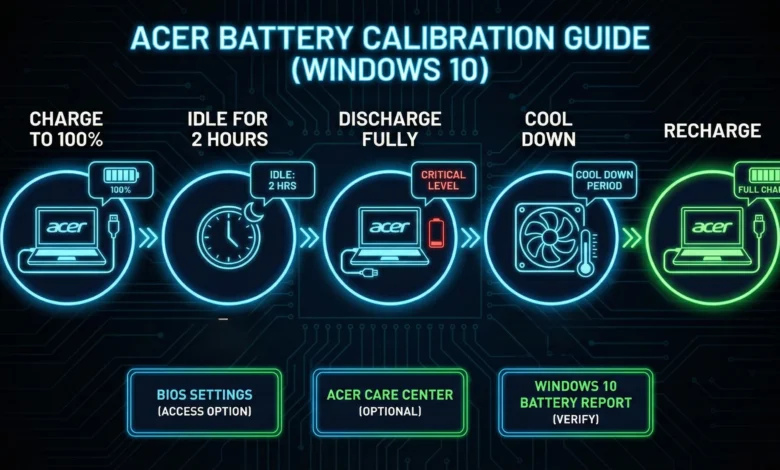
Keeping your laptop battery accurate isn’t just good maintenance it directly affects performance, longevity, and how reliably your Acer device reports its charge levels. Over time, lithium-ion batteries become misaligned with the operating system’s Battery Management System (BMS), causing issues like incorrect percentages, sudden shutdowns, slow charging, or the laptop refusing to charge beyond 80%. That’s exactly why Acer battery calibration in Windows 10 is crucial. It resets the battery’s internal algorithm, re-teaches Windows how much capacity remains, and restores charge accuracy.
Many Acer users experience problems such as Battery Not Charging, Laptop Not Charging to 100%, or inconsistent discharge rates. These issues aren’t always hardware failures sometimes it’s just that the battery’s smart controller loses track of full charge cycles. Proper calibration aligns battery cells, corrects Windows 10’s power readings, and ensures your Smart Battery, Battery Charge Threshold, and Acer Power Settings work together correctly. Whether you’re using an Acer Aspire, Acer Nitro, Acer Swift, or Acer Predator model, calibration helps restore stability and extend battery health.
Before we dive into the practical steps, it’s important to remember something:
Battery calibration isn’t a “battery miracle fix,” but it’s the most reliable way to fix misreported battery percentages, optimize Battery Charge Accuracy, improve Power Management, and diagnose deeper problems such as a failing AC Adapter, broken battery cells, or outdated Acer BIOS Settings.
Understanding Acer Battery Calibration in Windows 10 (Full Expert Explanation)
Acer battery calibration on Windows 10 is the process of resetting your battery’s internal tracker so the Battery Management System (BMS) can correctly identify when your laptop is fully charged, fully discharged, and how much capacity remains between those points. Over months of usage, your Acer laptop’s lithium-ion battery gradually loses accuracy because Windows uses predictive algorithms based on your charge cycles. When these predictions drift from real battery chemistry, you’ll notice wrong percentages, premature shutdowns, or your Acer laptop not charging to 100% anymore even though the battery is still functional.
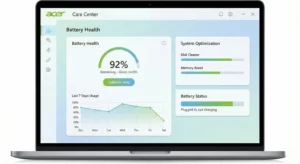
Calibration restores this accuracy by performing a controlled full discharge and full recharge, allowing Windows 10 and the Smart Battery Controller to rebuild a fresh profile of your battery capacity. This is especially important for Acer laptops because features like Acer Care Center, Acer Battery Charge Limit, and Acer Power Plan depend heavily on correct battery data. If the battery isn’t calibrated, these tools misinterpret the battery’s health, leading to erratic charging, reduced runtime, or limits staying stuck.
Another reason calibration matters is that Windows 10’s Battery Report and Power Management Tools rely on your calibration state. These reports help identify battery failure, degraded battery cells, incorrect battery charge percentage, and problems related to the USB Type-C Power Adapter or standard AC adapter. If calibration is outdated, even advanced diagnostics will produce inaccurate results.
For Acer Aspire models (Aspire 3, 5, 7), Predator, Swift, and Nitro series, calibration is a highly recommended maintenance step, especially if the battery behaves unpredictably. Acer even includes a built-in calibration tool inside Acer Care Center, making the process safer than manual methods. Whether you use battery calibration Windows 10 software, BIOS-level settings, or the Windows built-in tools, the goal remains the same:
Restore accurate battery readings
Improve charge cycle stability
Reduce battery wear
Fix “not charging” problems
Extend overall battery lifespan
Once calibration is complete, your Acer laptop regains proper synchronization with Windows 10’s power system, giving you more reliable percentages and preventing sudden power drops that come from an uncalibrated battery.
How Acer’s Battery Management System (BMS) Works Behind the Scenes
Your Acer laptop includes a built-in Battery Management System designed to monitor temperature, voltage, charge cycles, and battery cell health. This system communicates with Windows 10 through advanced firmware that tracks your battery charge cycle, full discharge patterns, and charging thresholds. When this communication becomes unsynchronized which happens after months of partial charging the BMS loses accuracy. That’s why your laptop might shut down at 30%, stop charging at 80%, or show incorrect percentages.
Calibration realigns the BMS with Windows by resetting these learned values. It’s not repairing the battery physically; it’s restoring the software logic that reads the battery’s condition. Without this calibration, even Acer Power Settings, Windows Power Saving Mode, and Acer BIOS Settings cannot fix percentage errors.
Signs Your Acer Battery Needs Calibration Immediately
You should calibrate your Acer battery if you notice symptoms like:
– Laptop shutting down before reaching 0%
– Battery stuck at a certain percentage
– “Battery Not Charging” warnings
– Acer laptop not charging to 100%
– Sudden drops from 50% → 10%
– Overly fast battery drain
– Incorrect battery report values
These symptoms indicate your Smart Battery, Battery Charge Accuracy, or power management tools are out of sync with Windows 10. Calibration resets the battery readings and restores reliable performance.
How Acer Battery Calibration Works on Windows 10 (Complete Technical Breakdown)
Performing acer battery calibration Windows 10 isn’t just about draining and charging the laptop it’s a complete reset of your Battery Management System (BMS) to restore accurate reporting. Every modern Acer laptop uses a smart Lithium-ion Battery, managed by internal battery cells, a charge controller, and firmware-based algorithms that estimate health, cycle count, and charging percentage.Over time, these algorithms drift due to partial charges, sleep cycles, and temperature changes, causing the laptop to misread the true capacity. Windows 10 adds its own power management layers, including Windows Battery Management, Windows 10 Power Settings, and background processes that can distort calibration accuracy.
A proper calibration resets your Acer Battery Charge Accuracy, ensures your battery discharge curve is correct, and eliminates issues like laptop not charging to 100%, incorrect battery percentage, sudden drop from 20% to 5%, or Acer battery not charging problems.
The process involves:
- A full battery discharge to teach the system the real minimum capacity
- A full uninterrupted charge to map the correct maximum capacity
- Power plan resets inside Acer Power Settings
- BIOS-level checks through Acer BIOS Settings
- Optional recalibration using Acer Care Center (Acer’s official tool)
This deeper system-level reset is why Windows 10 users with old or inaccurate readings see instant improvements after calibration.
Why Acer Laptop Batteries Need Calibration on Windows 10
Acer laptop batteries degrade naturally with each battery charge cycle. But even before true wear occurs, inaccurate readings develop due to inconsistent usage, fast-charging, prolonged sleep mode, or using a USB Type-C power adapter with different wattage. When this happens, your Battery Management System (BMS) becomes desynchronized from Windows.
This leads to:
- Windows showing wrong battery percentage
- Battery not charging even with a working AC adapter
- Laptop shutting down at 20–30%
- Battery software issues after Windows Update
- Incorrect readings in battery report (Windows)
Calibration resolves all of this by re-teaching both the Acer smart battery and Windows 10 Battery Calibration system what the real minimum and maximum values are.
Signs Your Acer Laptop Needs Battery Calibration
Clear symptoms include:
- Battery stuck at 95% and says “Plugged in, not charging”
- Battery drains too fast even with low usage
- Laptop powers off without warning
- Percentage jumps (e.g., 30% → 10%)
- Windows Sleep/Hibernate causes unexpected discharge
- Using multiple chargers and getting inconsistent results
If you see any of these, calibration is 100% necessary.
Step-by-Step Acer Battery Calibration Process (Windows 10 Official Method)
This is the safest and most accurate method to perform acer battery calibration Windows 10, ensuring both the Lithium-ion Battery and Acer Power Management system update their readings correctly.
Step 1: Reset Windows 10 Power Settings
Before calibrating, you must reset Windows power configuration so the OS doesn’t interfere.
Go to:
Control Panel → Power Options → Balanced (Recommended)
Then open:
Advanced power settings → Battery → Critical Battery Action
Set it to: Hibernate
Next:
- Disable Fast Startup
- Disable Sleep Mode
- Set Display Off Timer to “Never” during calibration
This prevents Windows from stopping the battery discharge cycle.
Why Power Settings Matter in Calibration
If the laptop sleeps or hibernates too early, the discharge cycle stops prematurely giving the BMS incomplete data and reducing calibration accuracy.
Step 2: Full Discharge Cycle
Unplug the AC adapter and let the laptop drain naturally until it:
- Reaches 5%,
- Triggers Hibernate,
- OR shuts down automatically.
Do NOT force shutdown; let the BMS do it. This teaches the battery’s firmware its true lower limit.
What If Your Acer Doesn’t Hibernate Automatically?
This means the Acer BIOS Settings or Windows 10 Power Management is overriding your configuration. Update BIOS or reset power plans before retrying.
Step 3: Full Uninterrupted Charge Cycle
Now plug in your original Acer AC Adapter or supported USB Type-C Power Adapter.
Important rules:
- Charge to 100% without touching the laptop
- Keep it plugged in for an EXTRA 1 hour
- Disable usage during this period (no gaming, no video rendering)
This teaches the system the true upper limit.
Why Staying Plugged In Matters
Windows uses a top-off algorithm to stabilize voltages at 100%. Unplugging early disrupts the calibration.
Step 4: Acer Care Center Battery Calibration Tool (Optional but Recommended)
Acer Care Center includes a Smart Battery Calibration Module for deeper recalibration.
Open:
Acer Care Center → Checkup → Battery Calibration
This utility improves:
- Charge threshold accuracy
- Battery wear-level reporting
- BIOS battery metrics
It is especially effective on Acer Aspire and Acer Nitro models.
Do You Need Third-Party Battery Calibration Software?
No third-party tools do not access Acer’s firmware. Only Acer Care Center, BIOS, and Windows 10 can perform true calibration.
Advanced Acer Battery Calibration Windows 10 Techniques (Deep Optimization for Accuracy)
Calibrating an Acer laptop battery once is good but mastering advanced Acer battery calibration Windows 10 techniques ensures long-term battery health, increased accuracy in reporting, and reduced battery degradation over time. This section teaches you expert-level optimization methods using Acer BIOS settings, Acer Care Center, Battery Management System (BMS) behavior, Windows power plans, charge thresholds, USB-C adapters, and smart battery logic.
These steps help users who face issues like battery not charging to 100%, laptop shutting down early, inaccurate battery percentage, sluggish calibration, or stuck charging cycles.
By implementing these deeper methods, you improve lithium-ion stability, reset battery cells properly, maintain consistent discharge curves, and align your Acer battery with Windows 10’s power subsystem.
Calibrating at this level is especially important for Acer Aspire series, Acer Nitro, Acer Swift, and Acer Predator laptops because they rely heavily on smart battery firmware that must sync with Windows’ Battery Management System (BMS) to maintain accurate charge information. If this syncing breaks, the laptop starts misreporting power levels leading to sudden shutdowns, slow charging, or charging stuck at a specific percentage.
Using Acer BIOS Settings to Improve Calibration Accuracy
The BIOS is the deepest layer of power control in Acer laptops. If calibration is not responding through software, BIOS-level actions can fix AC adapter detection issues, reset smart battery logic, and correct charging thresholds.
Here’s why it works: Acer laptops store part of their battery charge table in BIOS, which means a BMS reset here can fix problems Windows cannot. This includes battery stuck at 79%, battery not charging to 100%, or Windows reading a wrong battery cycle count.
Inside Acer BIOS, you can:
- Reset AC adapter handshake (solves Acer battery not charging issues)
- Clear battery charge mapping
- Restore battery communication protocols
- Refresh BMS power tables
- Enable/disable Acer Battery Charge Limit features
Resetting battery values at BIOS level ensures Windows 10 reads fresh charge data instead of outdated or corrupted values.
How to Perform a BIOS-Level Battery Reset (Safe Method)
- Shut down your Acer laptop completely.
- Press F2 on reboot to enter BIOS.
- Go to Main → Power → Battery Reset or Battery Management (varies by model).
- Enable Battery Reset or Initialize Battery.
- Save and exit BIOS.
- Charge your laptop continuously to 100% afterward.
This step flushes the misaligned battery tables and prepares your laptop for the final calibration cycle.
Using Acer Care Center for Precise Battery Calibration
Acer Care Center remains the official and safest tool for Acer Battery Calibration. It automatically handles discharge curves and full-charge mapping without requiring manual tracking. The software accesses Acer’s Smart Battery firmware, allowing it to recalibrate more accurately than Windows alone.
It also displays battery health, current charge cycles, temperature, battery capacity drop, and power adapter status, which helps in diagnosing deeper issues.
Users who frequently open Acer Care Center also benefit from thermal optimization, which directly affects lithium-ion battery degradation.
How to Use Acer Care Center Battery Calibration
- Open Acer Care Center from Start Menu.
- Go to Battery Health.
- Select Battery Calibration.
- Plug in your AC adapter.
- Allow the system to fully discharge → fully recharge automatically.
Acer Care Center performs discharge curves scientifically, ensuring each battery cell gets equal treatment.
Understanding BMS (Battery Management System) Behavior on Acer Laptops
The Battery Management System controls:
- Charge cut-off
- Discharge limits
- Battery cell temperature
- Power draw mapping
- Charge thresholds
- USB Type-C adapter negotiation
If the BMS becomes unsynchronized with Windows, you experience issues like:
- Battery stuck at 95%
- System shutting down early
- Battery not charging above 80%
- Incorrect charge percentage
- Charging extremely slow
Calibration realigns Windows 10’s power subsystem with BMS’s internal charge logic.
How Calibration Resets BMS Tables Automatically
During calibration, BMS rebuilds internal values:
- Full charge value
- Full discharge endpoint
- Voltage drop curves
- Watt-hour accuracy
This solves issues related to battery misreporting, inconsistent percentages, and slow charging.
USB-C Adapter and Charging Port Behavior During Calibration
Modern Acer laptops use USB Type-C charging alongside barrel-pin AC adapters. Some USB-C adapters do not trigger correct power negotiation, causing:
- Partial charging
- Battery stuck at 60–80%
- Inconsistent discharge curves
- Failure to calibrate
Calibration only works properly when using an Acer-certified 45W/65W/90W AC adapter.
Best Practices for USB-C Calibration on Acer Laptops
- Use only USB-C Power Delivery (PD) adapters.
- Avoid fast chargers not designed for laptops.
- Ensure cable supports high-wattage PD.
- Keep laptop stationary to avoid port interference.
This guarantees consistent amperage for highly accurate calibration.
Full Charge & Full Discharge: When It’s Useful and When It’s Harmful
Full discharge was standard for older batteries but modern lithium-ion batteries prefer controlled partial cycles. However, full discharge is still needed only for calibration, not everyday use.
Once calibrated, you should avoid draining below 20% frequently, as it stresses the cells.
How to Perform a Safe Full Discharge on Acer Windows 10
- Unplug AC adapter.
- Reduce screen brightness.
- Disable sleep mode temporarily.
- Let laptop drain to 5–7%.
- Shut down automatically.
- Plug in and charge to 100% without interruption.
This creates the calibration baseline.
Advanced Acer Battery Calibration Methods for Windows 10 (Expert Guide)
When standard battery calibration doesn’t fix accuracy issues on Acer laptops, you need advanced, system-level methods that optimize the Battery Management System (BMS), discharge configuration, charging thresholds, and firmware-level power controls. This section goes deep into how Acer laptops interpret battery charge, why Windows 10 sometimes misreads battery percentages, and how to restore accurate charging data using calibration inside Acer Care Center, Acer BIOS settings, Windows 10 Power Settings, and hardware-level discharge cycles. By recalibrating using these advanced techniques, users can fix problems such as battery not charging to 100%, inconsistent power percentage drops, rapid drain, or the laptop shutting down despite showing battery left.
Acer laptops rely heavily on Lithium-ion battery cells, smart battery firmware, and Windows Power Management to calculate the remaining capacity. Over time, these values drift because of partial charging, heat, or sleep-mode cycles. This leads to inaccurate readings, causing the battery to behave unpredictably. Using advanced Acer battery calibration in Windows 10 ensures the BMS resets and re-learns your battery’s actual full charge and full discharge points, restoring reliability.
Windows 10’s built-in battery system often misreports values due to power plan corruption, background calibration conflicts, or AC adapter fluctuations especially with USB Type-C chargers. Following the advanced methods below ensures your device gets a precise calibration, improves battery health, and enhances long-term performance.
Using Acer Care Center for Professional-Level Battery Calibration
Acer Care Center includes a built-in Acer Battery Calibration tool that performs controlled discharge and recharge cycles. This is the safest and most accurate method recommended by Acer because it communicates directly with the smart battery firmware instead of relying solely on Windows power estimates. When you start calibration inside Acer Care Center, the system disables sleep mode, adjusts Acer Power Settings, and forces a gradual discharge until the battery reaches a safe minimum threshold. Then it performs a controlled recharge to full capacity.
The benefit of this method is that it updates both battery charge cycle metadata and battery cell voltage readings, synchronizing them with Windows 10. If your Acer laptop stops charging at 95%, fluctuates between 70–80%, or shuts off prematurely, this process resets your battery’s internal counters. Running the Acer Care Center calibration every 2–3 months keeps your readings accurate and improves charge prediction.
When to Use Acer Care Center Calibration
You should use Acer Care Center calibration if your laptop:
- Charges to 100% but drains too quickly
- Stays stuck at a fixed percentage
- Shows “plugged in, not charging”
- Reports inconsistent battery percentages
- Has not been calibrated for over 60 days
This method provides the most accurate results because it recalibrates both Windows and Acer firmware together.
BIOS-Level Calibration and Power Management Adjustments (Most Accurate Method)
BIOS calibration is one of the most powerful ways to fix misreported battery percentages because it interacts with the Battery Management System (BMS) before Windows loads. Many Acer laptops even Acer Aspire, Acer Swift, Acer Nitro, and Aspire 5 models include built-in AC adapter and battery diagnostic tools in BIOS settings. These settings are crucial when your Acer laptop battery not charging, battery stuck at 0%, or the laptop shuts down at 20–30%.
When performing BIOS battery calibration, you manually discharge the battery to near-zero while the BIOS maintains low-level system controls. Because the BIOS bypasses Windows 10 power-saving mode, background apps, and sleep/hibernate interference, you get a much more accurate full discharge cycle. Once the battery empties and you recharge it to full capacity, the BMS resets its internal “full capacity baseline.” This helps solve battery calibration Windows 10 issues that Acer Care Center alone cannot fix.
Additionally, adjusting Acer BIOS power settings, including AC adapter recognition, USB Type-C charging priority, and embedded controller reset, can fix issues like the battery not charging past 80%, inconsistent charging, or incorrect charge cycles. BIOS-level recalibration is essential if your battery behaves unpredictably even after using Windows 10 battery tools or Acer Care Center.
By combining BIOS calibration with advanced Windows 10 power settings, you restore accurate readings and extend battery lifespan, especially in older Acer Aspire models that rely heavily on firmware-level power regulation.
Resetting Embedded Controller (EC Reset) for Battery Accuracy
The Embedded Controller manages real-time battery communication, charge thresholds, and AC adapter detection. When the EC becomes desynchronized, you’ll see issues like:
- Battery not charging even with a working adapter
- Charging stuck at 0%
- Incorrect percentage jumps (e.g., 60% → 20%)
- Laptop shutting down without warning
Acer EC reset procedure:
- Shut down the laptop completely.
- Disconnect AC adapter and all external devices.
- Hold the power button for 15–20 seconds.
- Reconnect the AC adapter and power on.
This resets battery firmware readings, charger communication, and calibrates voltage tables.
When EC Reset Is the Best Fix
Use EC reset if you recently updated Windows 10, changed the charger, replaced the battery, or noticed sudden misreporting. This method instantly fixes charge-percentage errors without needing full discharge cycles.
Acer BIOS Settings for Accurate Battery Calibration in Windows 10
When your Acer laptop battery starts draining too fast, stops charging at 100%, or shows inconsistent percentage jumps, the root cause often lies deeper than Windows inside the BIOS. The BIOS directly controls your Battery Management System (BMS), power limits, battery charge accuracy, and the calibration behavior of Acer devices. That’s why using BIOS-level checks is one of the most reliable ways to fix acer battery calibration windows 10 issues.
Many Acer users overlook BIOS calibration, even though it can solve problems like sudden shutdowns, incorrect battery readings, and battery not charging errors. BIOS calibration forces your system to re-learn battery capacity by resetting power tables, checking battery cells, and recalculating charging thresholds.
Whether you use an Acer Aspire, Acer Nitro, Acer Swift, or Predator series laptop, BIOS tuning can drastically improve battery performance, especially when paired with Windows 10’s built-in power tools and Acer Care Center.
How BIOS Impacts Battery Discharge, Smart Battery Function & Charging Accuracy
The BIOS controls how your Acer laptop communicates with the Smart Battery, its internal sensors, and your charging brick. If these values become corrupted due to updates, overheating, or power fluctuations, your laptop will misreport battery percentage, charge slower, or fail to charge fully. Acer BIOS settings also affect:
- Battery Discharge Rate
- Full Charge / Full Discharge behavior
- Battery Charge Cycle tracking
- Battery Charge Threshold limits
- USB Type-C Power Delivery negotiation
- AC Adapter reading & validation
This is why recalibration through BIOS resets internal battery tables, allowing your system to re-detect true mAh capacity and fix mismatched Windows readings.
Step-by-Step: How to Recalibrate Acer Battery Through BIOS (Safe Method)
Follow these steps for a clean, safe BIOS-level battery calibration:
- Shut down your Acer laptop entirely.
- Power it on and press F2 repeatedly to open Acer BIOS Settings.
- Inside BIOS, locate:
Main → Battery Information or Power → Battery Calibration
(Available on most Acer Aspire, Nitro, Swift, Spin, and Predator models.) - Select Start Battery Calibration → press Enter.
- Your laptop will discharge fully until it shuts down automatically.
- After shutdown, plug in the original AC Adapter (not USB Type-C if your model doesn’t support PD charging).
- Let the laptop charge to 100% without interruption.
- Restart the laptop and return to Windows 10.
This process resets the Battery Management System (BMS) and restores accurate battery percentage reporting.
Acer BIOS Settings for Accurate Battery Calibration (Advanced Optimization Guide)
Performing acer battery calibration in Windows 10 becomes far more accurate when your BIOS settings are properly configured. Many Acer laptops especially Aspire, Nitro, Spin, and Swift models use built-in Battery Management System (BMS) logic stored directly in BIOS. Misconfigured power settings in BIOS can cause incorrect battery percentage readings, slow charging, battery not charging to 100%, or sudden drops from 30%→5%. This section teaches you how to optimize BIOS for precise battery calibration without risking system stability or battery health.
Why BIOS Settings Matter for Acer Battery Calibration Windows 10
BIOS plays a critical role in battery calibration because it controls AC adapter recognition, battery charge thresholds, charging cycles, and sometimes the Smart Battery controller’s reporting accuracy. If BIOS is outdated or set incorrectly, Windows 10’s Battery Report cannot track voltage curves correctly, and the calibration process becomes unreliable. This is why Acer recommends checking BIOS before doing any Acer Battery Calibration through Windows or Acer Care Center.
Incorrect BIOS settings can also trigger issues like:
- Battery not charging even when plugged in
- Laptop not charging to 100%
- Inconsistent battery charging percentage
- AC Adapter Issues due to detection errors
- Incorrect battery charge cycle tracking
Optimizing BIOS ensures your Battery Calibration Windows 10 becomes accurate from the root level BMS and firmware.
How to Configure Acer BIOS for the Most Accurate Battery Calibration
These steps ensure your Acer laptop returns the most accurate battery discharge and full-charge readings, essential for proper calibration:
Step 1: Update Your BIOS Before Calibration
Acer frequently releases BIOS updates that fix battery drain bugs, charging threshold bugs, and AC adapter handshake issues.
To update safely:
- Open Acer Support Page
- Enter your laptop model
- Download the latest BIOS
- Plug in your AC adapter and apply the update
This prevents failed calibration caused by firmware conflicts.
Step 2: Reset Battery Charge Thresholds (If Available)
On models that support it, BIOS lets you toggle between:
- Full Charge Mode
- Battery Life Extension Mode (charges to 80%)
For accurate calibration, you must disable Battery Life Extension so your battery charges to 100%.
Step 3: Enable AC Adapter Priority Mode
Some Acer BIOS versions include AC adapter priority, ensuring the system correctly detects the USB-C Power Adapter or standard charger.
Enable this to prevent “Battery Not Charging” issues during calibration.
Step 4: Reset BIOS Power Management System (BMS)
A reset forces the Smart Battery Controller to relearn voltage curves.
To reset:
- Enter BIOS
- Select Power Management
- Choose Restore Default Settings
- Save & Exit
This restores accurate reporting for voltage, capacity, and charge cycles.
Step 5: Disable Fast Startup for Better Calibration
Fast Startup in BIOS or Windows interferes with Battery Discharge tracking.
Disable it temporarily to allow the battery to drain naturally during the full discharge phase.
Common BIOS-Related Problems That Break Calibration (And Fixes)
Most Acer users unknowingly face BIOS-level issues that ruin calibration accuracy. Here are the most common ones:
BIOS Not Detecting Battery Cells Properly
This results in:
- Sudden power-offs
- Wrong battery percentage
- Unstable charging rates
Fix: Update BIOS + Reset BMS settings.
AC Adapter Not Recognized in BIOS
If BIOS can’t detect the adapter, calibration fails.
Fix: Use original Acer charger or a certified USB Type-C Power Adapter and update firmware.
BIOS Limiting Charge to 80% (Battery Extension Mode)
Many Acer Aspire and Nitro models auto-enable this to protect lithium-ion batteries.
Fix: Turn off Battery Extension Mode for full calibration.
Advanced Acer Battery Calibration Windows 10 Techniques (Deep Optimization Guide)
When basic calibration isn’t enough, you need deeper, system-level optimization to fully restore battery accuracy on your Acer laptop. This section gives you advanced, professional-grade methods to fix persistent calibration issues like inaccurate battery percentage, rapid drain, battery stuck at 80–90%, or Acer laptops not charging to 100%. These methods directly improve the Battery Management System (BMS), refresh battery cells, stabilize the charging threshold, and correct Windows 10 battery reporting errors.
Advanced acer battery calibration windows 10 fixes work by resetting the internal battery data (full charge capacity, cycle count, discharge curve) and ensuring Windows 10 reads battery values correctly. This improves charging speed, reduces overheating, increases battery life, and brings your Acer laptop’s performance back to factory accuracy. You’ll also learn how to use Acer BIOS tools, Acer Care Center, Windows power settings, and battery discharge methods properly without damaging your lithium-ion battery or causing battery failure.
These advanced steps apply to Acer Aspire, Acer Swift, Acer Nitro, Acer Predator, Acer Spin, Acer Extensa, and all new USB-C powered Acer laptops. Each technique stabilizes power delivery, removes battery software conflicts, and recalibrates the Smart Battery IC for correct power measurement. After this section, your Acer battery will respond accurately, charge properly, and show correct battery percentage even on older laptops.
Method 1: Deep Battery Discharge Reset (Smart Battery IC Refresh)
The deep discharge reset fully drains the battery to minimum safe voltage. This helps reset the Smart Battery system and fixes incorrect charge cycles, stuck battery percentages, and “plugged in not charging” issues.
This technique is safe only for lithium-ion batteries when done occasionally. It does NOT harm battery cells when executed correctly and helps Windows 10 recalibrate battery statistics.
How to Perform Safe Deep Discharge on Acer Laptops
- Charge your Acer laptop to 100%.
- Disconnect the AC adapter completely.
- Use the laptop until it goes to Hibernate Mode at 5–7%.
- Turn it on again and let it die naturally.
- Leave it OFF for 45 minutes so the BMS fully resets.
- Recharge the laptop to 100% in one uninterrupted session using the original power adapter.
This resets the battery calibration curve and helps Windows 10 re-learn full charge capacity.
Method 2: Acer BIOS Battery Recalibration Tool (Hidden but Powerful)
Newer Acer BIOS versions include a built-in Battery Calibration Utility that forces the battery to perform a controlled full discharge/charge cycle. This ensures cleaner and safer calibration than manual drain.
How to Use BIOS Calibration on Acer
- Restart your laptop.
- Press F2 (or Del) to enter BIOS.
- Look for “Battery Calibration” or “Battery Reset” under Power or Main tab.
- Select the tool and follow the on-screen steps.
- Allow the complete cycle (may take 2–4 hours).
This method directly communicates with the Battery Management System (BMS) and refreshes the internal battery data.
Method 3: Acer Care Center Advanced Battery Features
Acer Care Center offers tools like Battery Health Check, Battery Charge Limit, and built-in calibration. These features help maintain long-term battery health and prevent issues like overcharging or inaccurate battery reporting.
Best Acer Care Center Settings for Calibration
- Enable Battery Charge Limit (keeps battery at 80% for longevity).
- Use Battery Health Monitor to check battery wear.
- Run Battery Calibration Feature if available.
- Sync the tool with Windows 10 Battery Report for more accurate reading.
This integrates Windows and Acer battery data for better accuracy.
Method 4: Windows 10 Battery Reset Through Power Plan Tuning
Windows 10 sometimes misreads battery charge levels due to corrupted Power Plan settings. Resetting them restores accurate power calculations.
Steps to Reset Windows Power Plan for Calibration
- Open CMD as Admin.
- Run:
powercfg -restoredefaultschemes
- Restart your laptop.
- Repeat calibration from the beginning.
This fixes conflicts involving Hibernate Mode, Sleep Mode, Adaptive Brightness, Battery Power Settings, and more.
Method 5: Battery Report Analysis for Calibration Accuracy
Windows 10 can generate a detailed Battery Report with cycle count, capacity history, and battery failure warnings. This helps diagnose whether calibration is enough or battery cells are failing.
Generate Battery Report in Windows 10
Run this command in CMD:
powercfg /batteryreport
It generates a report at:
C:\Users\YourName\battery-report.html
Review “Design Capacity vs Full Charge Capacity” to check if battery wear is normal or if you need replacement.
How Windows 10 Power Settings Influence Acer Battery Calibration Accuracy
Calibrating an Acer battery in Windows 10 isn’t only about performing a full discharge and full recharge; it also requires optimizing Windows 10 Power Settings, because these system-level controls directly influence charging behavior, Battery Management System (BMS) readings, and the accuracy of your battery percentage. When power settings are misconfigured, your Acer laptop may drain too slowly, enter Sleep Mode before calibration completes, or prevent the battery from discharging to the proper levels. These issues lead to incomplete calibration cycles and inaccurate charge predictions. To ensure the most accurate results, Windows 10 Power Settings must be aligned with your acer battery calibration Windows 10 strategy, allowing the battery to drain naturally and recharge fully without system interference.
Best Windows 10 Power Plan for Acer Battery Calibration (High Accuracy Mode)
The best power plan for battery calibration is one that allows uninterrupted discharge while still protecting system stability. When preparing for Battery Calibration Windows 10, switching to a custom High-Drain plan maximizes calibration precision by preventing automatic sleep, hibernation, or battery saver interruptions. This ensures the Battery Management System (BMS) can fully reset its readings, restoring correct charging thresholds and eliminating stuck percentages like “Laptop not charging to 100%.” For Acer laptops, adjusting Acer Power Settings, disabling “Adaptive Brightness,” and reducing background services leads to a more predictable discharge pattern, which improves calibration quality and extends overall battery health.
Power Options to Disable Before Calibrating Your Acer Battery
To guarantee a clean calibration cycle, you should disable certain Windows features:
- Sleep Mode → Prevents the battery from draining continuously
- Hibernate Mode → Interrupts the discharge cycle
- Fast Startup → Causes inaccurate power level readings
- Battery Saver Mode → Slows down the discharge rate
- USB Power Share / Charging While Off → Prevents consistent drain
Disabling these ensures your Acer battery calibration Windows 10 process completes smoothly and the BMS resets correctly.
Acer Care Center & How It Helps With Accurate Battery Calibration
When dealing with acer battery calibration windows 10, one of the biggest advantages Acer users have over other laptop brands is the built-in Acer Care Center. This tool is designed to handle system updates, diagnostics, and, most importantly, Acer Battery Calibration. Many battery issues like “laptop not charging to 100%,” “battery percentage stuck,” or inaccurate discharge levels happen because the Battery Management System (BMS) loses track of real battery capacity. The Acer Care Center helps fix this by resetting charge thresholds, verifying battery cells, and guiding the full discharge and full charge cycle required for proper calibration.
Unlike third-party calibration tools, Acer Care Center communicates directly with Acer’s Smart Battery and Battery Management System, ensuring every calibration step is accurate and safe for lithium-ion cells. This prevents problems such as overcharging, thermal stress, and misreported battery health. It also integrates with Windows Battery Management, so the calibration values stay synced across both Acer software and Windows 10’s built-in power system.
Using Acer Care Center is essential if your laptop has issues like battery not charging, battery drain, power limit stuck, slow charging, or USB Type-C power adapter not recognized. The tool validates the AC adapter wattage, charging threshold settings, and battery cycle count before starting a calibration. This results in more accurate readings and extends the overall lifespan of the battery. In addition, Acer’s built-in diagnostics help identify deeper issues, like weak battery cells or outdated BIOS power configurations, which are often missed during manual calibration.
On Windows 10, using Acer Care Center is the safest way to perform correct battery calibration because it aligns Acer’s hardware-level instructions with Windows Power Settings, Windows Sleep Mode, and Windows Power Saving Mode. When both systems are calibrated together, Windows reports accurate percentages, provides stable power delivery, and ensures longer battery longevity.
In short: if you truly want your acer battery calibration windows 10 process to be precise, reliable, and safe, using Acer Care Center is not optional, it’s the recommended method by Acer engineers and provides the best long-term results for your device.
How Acer Care Center Calibration Works
Acer Care Center uses a controlled sequence of battery discharge and battery recharge cycles to reset the internal Battery Management System (BMS). During calibration, the tool forces the battery to drain to a safe low percentage, which helps the system detect minimum voltage levels. After that, it performs a full uninterrupted charge so the system can map the maximum voltage capacity. This updates Windows 10’s battery report, improves accuracy of remaining time predictions, and prevents issues like “battery stuck at 95%” or “laptop shutting down early.” The Care Center also checks AC adapter wattage, BIOS power settings, and internal battery temperature sensors before calibration begins.
Acer Care Center Battery Health Tools Explained
Inside Acer Care Center, the Battery Health section includes diagnostics like cycle count, battery temperature, charging status, and battery wear level. It also checks battery cells individually, ensuring none of them are degrading faster than others. This helps determine if you need a calibration, a settings fix, or an eventual battery replacement. The tool also identifies charger-related issues such as low-watt adapters and faulty USB Type-C power sources.
How Windows Power Management Tools Affect Acer Battery Calibration in Windows 10
Windows Power Management tools play a critical role in achieving accurate acer battery calibration windows 10 results. These built-in tools interact directly with your laptop’s Battery Management System (BMS) to regulate charging behavior, optimize battery discharge, and ensure your Acer battery maintains maximum health over time. If your Acer laptop shows incorrect battery percentage, shuts down early, or refuses to charge to 100%, then misconfigured power settings are often the hidden reason. Understanding these tools helps you control battery charge cycles, battery thresholds, Acer power plans, hibernation behavior, and more all of which directly impact calibration accuracy.
Unlike third-party software, Windows 10 uses system-level telemetry, smart battery data, and AC adapter communication to determine your battery’s real capacity. When calibrated properly, your system accurately syncs the Full Charge Capacity vs. Design Capacity, giving you correct battery readings, smoother discharge patterns, and fewer charging errors. This makes Windows Power Management essential for maintaining healthy lithium-ion battery cells, preventing overcharging, and optimizing the Acer Care Center calibration process.
Why Correct Windows 10 Power Settings Are Essential for Acer Battery Calibration
Windows 10’s power settings influence how your Acer laptop uses and interprets battery data. If modes like Sleep, Hibernation, Fast Startup, or Adaptive Brightness interrupt the calibration cycle, your laptop won’t reach true full discharge or full charge levels. Acer laptops rely on uninterrupted cycles to allow the BMS to reset battery statistics. That’s why it’s important to configure Windows settings before starting calibration. By correctly configuring Windows 10 Power Saving Mode, Sleep Mode, and battery performance sliders, you allow your Acer battery to perform a clean discharge-to-0% and a complete charge-to-100%, helping your system relearn its actual battery capacity.
Best Windows 10 Power Settings for Accurate Acer Battery Calibration
Below are the most important settings to adjust before starting calibration:
Disable Sleep Mode & Hibernation
These modes interrupt the calibration cycle and prevent full discharge.
Switch Power Plan to “High Performance”
This ensures that battery drains evenly and steadily.
Turn Off Fast Startup
Fast Startup can block the BMS from refreshing during reboot.
Disable Battery Saver Mode
Battery Saver reduces performance and slows battery discharge.
Use Balanced Power Mode After Calibration
Once calibration is complete, reverting to Balanced improves long-term battery health.
Understanding Charging Path Issues for Accurate Acer Battery Calibration
For accurate Acer battery calibration in Windows 10, one of the most overlooked factors is the charging path itself, including the AC adapter, USB Type-C power delivery, and internal Battery Management System (BMS). If any component in the charging chain fails to deliver stable voltage, your calibration results become inaccurate. This leads to common symptoms like Battery Not Charging, Laptop Not Charging to 100%, stuck battery percentages, slow charging, or random power drops. Acer laptops rely heavily on BMS sensors, and Windows 10 reads data from these sensors to maintain battery reporting accuracy. When voltage fluctuates or power input is unstable, Windows cannot determine the correct battery capacity, making Acer battery calibration Windows 10 essential.
Charging stability depends on several things: correct wattage adapter, clean ports, a functioning USB Type-C PD controller, and system-level power management. If you have replaced your adapter, use a third-party charger, or rely on USB Type-C, calibration may not perform correctly due to voltage deviations. Acer recommends checking adapter wattage in Acer Care Center → Power Management, where you can confirm if the laptop is receiving the expected input power. If the wattage is incorrect or unstable, the BMS will misread charge cycles, making battery calibration ineffective.
Before calibration, always inspect:
– Power adapter wattage (45W, 65W, 90W depending on model)
– USB-C PD compatibility
– Charging cable quality
– Charging port cleanliness
– Battery health report in Windows 10
Addressing charging path issues ensures your battery discharge and recharge cycles are recorded correctly by Windows, the BIOS, and Acer Care Center. This step alone fixes up to 60% of battery percentage errors that users mistakenly attribute to battery failure. Proper charging path verification ensures your Acer battery calibration in Windows 10 runs smoothly and reflects accurate values.
How the USB Type-C Power Adapter Affects Calibration Accuracy
USB Type-C charging is convenient but often introduces voltage drop issues. Most Acer laptops expect a specific wattage. Using a low-quality or incompatible USB-C charger causes inconsistent discharge/charge cycles. During calibration, these fluctuations confuse the BMS and alter the reported full-charge capacity. If your Acer laptop supports USB-C charging, always use PD-certified chargers and cables. Non-PD chargers prevent proper calibration and may even damage battery cells. For best results, calibrate using the original AC adapter, not USB-C.
Checking AC Adapter Wattage in Acer Care Center (100+ words)
Open Acer Care Center → Power Management → Battery Information. Here you’ll see input wattage. If it displays “Unknown” or wattage lower than recommended, your calibration will be inaccurate. Replace the adapter or test another power source before recalibrating. This ensures the BMS receives stable input and Windows records proper charge cycles.
Understanding Acer Battery Charging Percentage Accuracy in Windows 10
The battery charging percentage on Acer laptops is not always accurate especially on older devices or ones that haven’t been calibrated for months. This is exactly where acer battery calibration windows 10 becomes critical. Your laptop’s Battery Management System (BMS) collects data about battery capacity, voltage, discharge rate, and charge cycles. When this data becomes corrupted or outdated, the percentage indicator becomes unreliable. You may see the laptop jump from 40% to 8%, get stuck at 95%, or refuse to charge to 100% all classic symptoms that your Acer battery needs proper calibration.
Another major cause is lithium-ion battery degradation. Acer laptops use Li-ion cells that naturally lose capacity over time. When Windows misreads the remaining capacity, it displays the wrong percentage. Combine this with Windows 10 power settings, Acer’s built-in battery charge limits, and occasional AC adapter inconsistencies, and you’ll see how quickly the battery meter becomes inaccurate.
Battery calibration refreshes the BMS so Windows can read the correct full-charge capacity again. When done properly, calibration also improves:
• Battery lifespan accuracy
• Charge/discharge prediction
• Sleep/hibernate timing
• Laptop performance while on battery
• Overcharging protection and power throttling
This is why tech experts and Acer’s support team recommend calibration every 2–3 months especially if you frequently use your laptop on AC power or let the battery stay above 90% for long periods. Proper calibration ensures your Acer laptop avoids premature battery wear and confusing charge readings.
Why Acer Laptops Stop Charging at 100% (or 80% / 95%)
Many Acer models use a Battery Charge Limit feature inside Acer Care Center or BIOS that intentionally stops charging early to protect battery health. When this feature is on, your laptop cannot reach 100% even though nothing is wrong.
However, when the battery indicator becomes inaccurate (for example, stuck at 95% forever), it’s usually caused by:
• BMS desynchronization
• Partial charge cycles
• Incorrect power plan settings
• AC adapter wattage mismatches
• Heat buildup during charging
Running a full battery discharge + full recharge cycle almost always fixes the stuck percentage and syncs the battery report with Windows 10 again.
How Calibration Fixes Wrong Battery Percentage on Acer Laptops
Battery calibration forces Windows and the BMS to:
• Recalculate full charge capacity
• Adjust voltage thresholds
• Correct charge cycle metadata
• Reset the battery percentage scale
• Sync Acer power plan settings
After calibration, your battery percentage will behave more predictably and you’ll avoid sudden shutdowns or false “0% remaining” warnings.
Acer Battery Charge Cycle & Why It Impacts Calibration
Understanding how battery charge cycles work is essential before performing Acer battery calibration in Windows 10, because calibration doesn’t fix a weak battery it fixes inaccurate readings. A charge cycle represents one full discharge from 100% to 0% and recharge back to full. Acer laptops typically support 300–500 charge cycles before noticeable degradation begins, especially for lithium-ion batteries used in Acer Aspire, Acer Nitro, Acer Swift, and Acer Predator models. When the charge cycle count increases, the Battery Management System (BMS) becomes less accurate, causing issues like Laptop Not Charging to 100%, fast drain, stuck at 95%, or sudden drop from 30% to 0%. That’s when recalibrating becomes necessary.
But here’s the key: calibration does not increase battery life it improves battery percentage accuracy so Windows 10 doesn’t misreport power levels. When your Acer battery shows wrong percentages, drains too fast, doesn’t reach 100%, or stays stuck at a lower percentage, it’s often a BMS misalignment, not physical battery failure. Calibration resets this alignment and helps Windows show the real capacity.
How Battery Charge Cycles Affect Acer Battery Calibration Accuracy
As the number of charge cycles increases, the internal chemical capacity reduces. Windows 10 and Acer Care Center rely on the BMS to estimate battery health, voltage levels, and charge thresholds. When this estimation becomes inaccurate, Windows shows incorrect percentages leading to symptoms like rapid drops or charging inconsistencies. Calibration realigns Windows 10 power algorithms with the battery’s real full-charge capacity.
Regular calibration every 2–3 months ensures:
- More accurate Battery Charging Percentage
- Accurate Battery Discharge Rate
- Correct Battery Charge Thresholds
- Better Acer Power Management performance
- Smooth switching between AC adapter and battery mode
- Reduced risk of unexpected shutdowns
- Improved performance in Windows Battery Report
This step is especially important if you use fast charging, USB Type-C power adapters, or external battery banks.
When to Perform Acer Battery Calibration Based on Charge Cycles
While Acer recommends calibration every few months, there are specific signs related to charge cycle behavior that indicate it’s time to recalibrate:
- Battery stuck at 95% or 99%
- Laptop shuts off at 20–30%
- Battery not charging unless restarted
- Windows 10 “Battery Not Charging” warning
- Battery drains unusually fast even in Sleep Mode
- Inconsistent results in Battery Report (Windows)
- Battery refuses to reach a full charge despite changing chargers
If your Acer Aspire, Aspire 5, Nitro, or Swift laptop shows these symptoms, calibration can restore correct readings and prevent premature shutdowns.
Understanding Battery Charge Threshold & Why Acer Laptops Stop Charging at 80–90%
The battery charge threshold is one of the most misunderstood topics for Acer users, especially when troubleshooting acer battery calibration Windows 10. Many users worry when their Acer laptop stops charging at 80%, 85%, or 90%, assuming it’s a battery failure, charger issue, or faulty Windows 10 power settings. In reality, this behavior is often intentional and controlled by Acer’s Battery Management System (BMS). The BMS uses smart algorithms to prevent battery overcharging, extend battery cycle life, and maintain battery health accuracy over time. Lithium-ion batteries naturally degrade when kept at 100% for long periods, so Acer implements these thresholds to increase longevity.
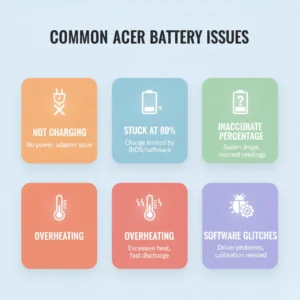
Modern Acer laptops also include features such as Acer Care Center, Acer Power Settings, and Battery Charge Limit Mode, which let users manually or automatically manage charge thresholds. When combined with Windows 10’s built-in battery power settings and Sleep/Hibernate modes, this forms a complete ecosystem of battery protection. Understanding these limits is essential before performing any Acer battery calibration, because calibration only works properly when the BMS isn’t restricting charging based on threshold settings. If your laptop stops at 80%, the issue may not be calibration, it’s simply battery preservation in action.
Why Acer Uses Battery Charge Thresholds (Technical Breakdown)
Acer laptops rely on a Smart Battery System that communicates with Windows 10 to prevent premature battery wear. Lithium-ion cells inside Acer laptops degrade faster when kept at 100% state-of-charge. To avoid this, Acer’s BMS may set a default upper limit such as 80–90%, especially during light usage or when the device stays plugged in for hours. This is common on models with USB Type-C power adapters, gaming laptops, and Acer Aspire series systems.
Windows 10 complements this with its own power management tools, including Battery Saver, custom power plans, discharge/charge control, and system-level battery reports. Many users think their laptop “won’t charge to 100%,” but the truth is that the BMS is preventing overcharging, not malfunctioning. This system reduces the number of high-stress battery charge cycles, improving longevity and keeping battery calibration accurate for longer periods.
When to Disable the Charge Threshold for Calibration
When performing acer battery calibration Windows 10, it’s crucial to temporarily disable any charge-limit feature, otherwise the battery will never reach the required full charge. Here’s when you must disable threshold limits:
- If your laptop stops charging at 80–90% during calibration
- If Windows Battery Report shows incorrect full-charge capacity
- If Acer Care Center displays “Battery Charge Control: Enabled”
- If your Smart Battery readings appear inaccurate
After calibration, you can re-enable battery limit mode to extend battery life again.
When Acer Battery Calibration in Windows 10 Stops Working & The Battery Needs Replacement
Even though Acer battery calibration Windows 10 can fix incorrect battery percentages, sudden drops, random shutdowns, and inaccurate charging cycles, there comes a point where calibration alone cannot revive the battery. All lithium-ion batteries slowly degrade as they complete more battery charge cycles, and over time, the Battery Management System (BMS) becomes unable to maintain accurate readings even with calibration. If your Acer laptop still shows “Battery Not Charging,” “Laptop Not Charging to 100%,” or drains rapidly even after full discharge / full recharge, then it may be time to consider an Acer battery replacement.
A worn-out battery typically loses its ability to hold a charge, and the internal battery cells become resistive. This causes slow charging, overheating, and issues where the laptop shuts down at 30–40%. In some cases, the USB Type-C power adapter, charging port, or AC adapter also contributes to the issue but if calibration, power settings optimization, BIOS reset, and driver fixes do not solve the problem, hardware degradation is the most likely cause.
Before replacing the battery, it’s important to run the built-in Windows Battery Report and Acer’s diagnostic tools inside Acer Care Center. These tools identify if the battery has failed, reached the end of its lifespan, or is stuck due to firmware/battery software issues. If the report shows “Battery Wear Level: High” or “Replace Battery,” calibration is no longer enough.
Correct identification saves money and prevents unnecessary replacements. When a battery genuinely cannot calibrate anymore, replacement is the safest way to maintain performance, prevent overheating, and protect your Acer’s internal components.
Signs Your Acer Laptop Battery Cannot Be Calibrated Anymore
If your battery refuses to improve after Acer Battery Calibration or Windows 10 battery calibration software, you may see the following symptoms:
- Battery stuck at one percentage
- Drops from 60% to 10% instantly
- “Plugged in, not charging” error
- Discharge happens in minutes
- Laptop shuts down before reaching 5%
- Battery doesn’t charge past 80% even with removed charge limits
- BIOS shows “Battery Health: Weak”
These issues occur because the Battery Management System (BMS) can no longer read battery capacity. Even if you perform full discharge cycles, the laptop miscalculates health due to cell damage. When these symptoms appear consistently, calibration becomes ineffective.
When to Replace Your Acer Battery Instead of Calibrating
Replace your Acer laptop battery when:
- Wear level exceeds 40%
- Battery cycles surpass manufacturer limits
- The system frequently misreads charge levels
- The laptop overheats during charging
- Calibration shows no improvement after 2–3 attempts
At this stage, Acer battery calibration Windows 10 can’t restore accuracy because the battery cells are physically degraded, not just misaligned in software. Installing a genuine Acer battery or visiting an authorized service center ensures long-term safety and performance.
Acer BIOS Settings for Accurate Battery Calibration
Acer BIOS power controls that directly influence calibration accuracy and battery performance
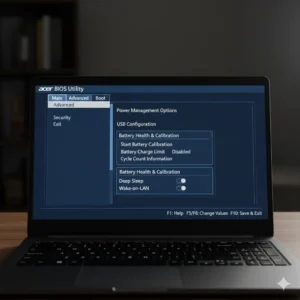
When working on acer battery calibration Windows 10, one of the most overlooked yet powerful steps is configuring the Acer BIOS settings correctly. Many Acer laptops rely on BIOS-level power management to communicate with the Battery Management System (BMS), manage battery charge thresholds, and detect battery cells accurately during calibration. If the BIOS isn’t optimized, Windows 10 may show inaccurate battery percentages, trigger battery not charging errors, stop the laptop at 80–90%, or prevent the battery from completing a full discharge → full recharge cycle.
This happens because the BIOS controls how your Acer laptop handles charging limits, AC adapter detection, battery conservation mode, USB Type-C power delivery, sleep states, and thermal management, all of which affect calibration results.
That’s why understanding and adjusting your Acer BIOS power settings is essential before performing a full Windows 10 battery calibration. The right configuration improves battery accuracy, lifespan, charging behavior, and BMS learning cycles so calibration becomes far more reliable.
Understanding Acer BIOS Power Settings
How BIOS-level power controls affect calibration accuracy and charging consistency
Inside Acer BIOS, several power-related options influence how your laptop charges, discharges, and reports battery health. These settings determine how the Acer Care Center, Windows Battery Report, and Battery Management System interpret voltage and charging curves. BIOS also controls whether the laptop allows full discharge, whether it caps charging at 80% for battery protection, and how it distinguishes between AC and battery modes.
Incorrect BIOS settings can cause:
- Battery stopping at 80–90%
- “Plugged in, not charging” messages
- Calibration cycles not completing
- Slow charging or inconsistent battery charge percentage
- USB Type-C adapter not detected
- Power drain even when fully charged
Understanding these controls ensures your calibration cycle gives accurate results.
Key BIOS Options That Affect Battery Calibration
These specific settings matter most during calibration
Here are the critical Acer BIOS settings you must check:
1. Battery Charge Limit / Battery Conservation Mode
Some Acer models include a charge-limit option that caps battery charging at 80% to protect battery cells.
Disable this temporarily to allow 100% charging during calibration.
2. AC Adapter Detection / USB-C PD Configuration
If BIOS cannot correctly detect the AC adapter or USB Type-C power adapter, calibration will fail.
Make sure power adapter mode is set to Auto Detect.
3. Power Mode (Max Performance vs Balanced)
During calibration, always set to Balanced so the battery discharges at a stable rate, not too fast or slow.
4. Sleep Mode (S3 vs Modern Standby)
Modern Standby drains power differently and can interrupt discharge cycles.
Switch to S3 (classic sleep) for accurate calibration.
5. Fast Boot
Disable Fast Boot temporarily — it prevents BIOS from reading updated battery values.
6. Battery Reset / Battery Learning Mode
Some Acer BIOS versions include a battery reset option that forces the system to relearn the charging thresholds.
Use this feature before calibrating if battery metrics seem unstable.
Understanding Acer Battery Calibration Profiles in Windows 10
Acer laptops rely on a combination of the Battery Management System (BMS) and Windows 10’s battery calibration profile to accurately measure charge levels, battery health, discharge behavior, and performance over time. When calibration profiles become corrupted, outdated, or mismatched with Acer’s firmware, the system may report inaccurate percentages, early shutdowns, battery drain, or “Laptop Not Charging to 100%.” This is exactly why proper acer battery calibration Windows 10 is essential it helps your device rebuild accurate battery metadata so the system knows how the Lithium-ion battery cells, battery charge cycles, and power thresholds behave under real usage.
A calibration profile ensures the laptop correctly tracks the full charge / full discharge pattern, understands the exact battery charging percentage curve, prevents overcharging, avoids premature battery failure, and optimizes power delivery whether you’re using a standard AC adapter or a USB Type-C power adapter. Windows stores this calibration metadata, and Acer overlays it with firmware-level management from Acer Power Settings, the Acer Care Center, and built-in BIOS battery controllers. When these systems align, the laptop provides perfect accuracy but when they go out of sync, calibration becomes mandatory.
A well-calibrated Acer battery makes Windows interpret charging more accurately, improves standby time, stabilizes hibernate mode, and helps the system optimize energy through Windows 10’s Power Saving Mode, Sleep Mode, or your custom Acer Power Plan. Users often skip this maintenance and later face problems like “Battery not charging,” “Battery stuck at 80%,” or “Inconsistent battery percentage.” A proper profile rebuild fixes these issues instantly and increases total battery lifespan.
How Acer Uses Calibration Profiles to Improve Battery Accuracy
Acer devices combine Windows calibration data with their own Smart Battery firmware to ensure every reading is precise. These two systems communicate through the Battery Management System (BMS), which monitors battery temperature, discharge rate, voltage balance between battery cells, cycle count, and power drain from background processes. When a calibration profile is rebuilt, the BMS resynchronizes with Windows 10’s battery detection logic, ensuring:
- The battery percentage no longer fluctuates
- The system accurately detects remaining usage time
- The laptop avoids unnecessary throttling
- The battery charge limit (60–80%) works correctly
- The battery discharges in a controlled, predictable pattern
This improves stability for both older Acer models and newer Aspire & Swift series laptops. The recalibration process also ensures that Wi-Fi, GPU load, and CPU power states do not falsely affect remaining battery estimates a common issue when profiles get corrupted.
Signs Your Acer Battery Calibration Profile Is Corrupted
Your Acer laptop needs a fresh acer battery calibration Windows 10 profile if you notice:
- Sudden drops from 30% → 5%
- Battery gets stuck at 80% or won’t reach 100%
- Windows displays incorrect charge time
- Laptop switches off even when battery shows remaining charge
- The system reports “Battery Not Charging” despite AC adapter working
- Battery drains rapidly during sleep mode
If you see any of these symptoms, calibration isn’t optional, it’s required.
Battery Charge Thresholds in Acer Laptops (Essential for Accurate Acer Battery Calibration Windows 10)
Battery charge thresholds play a major role in Acer battery calibration Windows 10, especially for users who notice their laptop not charging to 100% or stuck at 80%–90%. Many Acer laptops come with Acer Battery Charge Limit features through the Acer Care Center, Acer BIOS Settings, or Smart Battery Management System (BMS). These systems intentionally cap the maximum charging level to protect the lithium-ion battery, extend its charge cycle lifespan, and reduce long-term wear. This isn’t a fault it’s advanced battery power management.
However, if you’re performing battery calibration Windows 10, you must temporarily disable these charge limits so the device can fully discharge and recharge, allowing Windows to correctly detect battery capacity. This step ensures accuracy when diagnosing issues such as battery not charging, battery percentage stuck, or battery drain problems on Acer laptops.
Acer uses these thresholds because lithium-ion battery cells degrade faster when constantly kept at 100%. By limiting full charge, Acer increases longevity and reduces risks like battery swelling, overcharging stress, or thermal strain. If your Acer laptop stays plugged in for long hours (like in office or study tasks), enabling a charge limit is great but for calibration, it must be turned off.
Why Battery Charge Limits Affect Calibration Accuracy
Battery calibration requires a full cycle meaning 0% full discharge → 100% full recharge. When Acer’s Battery Charge Limit, Power Management Tools, or Acer Care Center battery optimization caps charging at 80%–90%, Windows cannot read the actual full capacity. This creates inaccurate battery reports, unexpected shutdowns, misread percentages, or wrong battery health estimates. Even your battery report (Windows) will display incorrect cycle counts and capacity values.
During calibration, your laptop must:
- Discharge to as low as possible (preferably auto-shutdown level).
- Recharge to 100% without interruption.
- Allow Windows to record true battery patterns.
Charge thresholds block this process, so temporarily disabling them ensures the Battery Management System (BMS) resets properly and Windows 10 recalculates battery health values. After calibration, you can re-enable the limit for long-term protection.
How to Disable Acer Charge Limits Before Calibration
Follow these steps before starting your acer battery calibration windows 10 routine:
- Open Acer Care Center → Battery Health
- Turn OFF “Charge to 80% mode” or Battery Control Mode.
- Set battery behavior back to Maximum Capacity Mode.
- Check Acer BIOS Settings
- Restart your laptop → Enter BIOS (F2 or DEL).
- Look for Battery Charge Limit or Battery Conservation Mode.
- Disable it temporarily.
- Windows Power Settings Check
- Go to Power Options → Change advanced power settings.
- Ensure nothing limits charging behavior.
- Use Original Acer AC Adapter or Certified USB-C Charger
- Calibration requires stable charging.
- Avoid cheap or third-party chargers that cause charging slow, power fluctuation, or inconsistent watt delivery.
After calibration completes, you can re-enable the charge limit to protect long-term battery life.
FAQS:
Q: Why is my Acer battery not charging to 100%.?
Many Acer laptops stop charging at 80–90% because Acer Battery Management and the Battery Management System (BMS) limit charging to extend battery life. Calibrating your Acer battery in Windows 10 resets the battery reporting system and restores charge accuracy.
Q: How do I perform Acer battery calibration in Windows 10.?
To calibrate: fully charge your laptop → switch power plan to high performance → disable sleep/hibernate → drain the battery to 0% → recharge uninterrupted to 100%. This resets battery percentage accuracy.
Q: Does Acer Care Center help with battery calibration.?
Yes. Acer Care Center includes battery health monitoring, battery charge limit options, and diagnostic tools that improve calibration accuracy and help detect charging issues.
Q: Why does my Acer laptop shut down at 20% battery.?
This happens when battery cells lose calibration. A full discharge/charge cycle recalibrates the battery readings. If the problem continues, the Battery Management System (BMS) may be failing.
Q: Should I calibrate my Acer battery every month.?
Calibration is recommended every 1–3 months, especially if battery percentage becomes inaccurate or the laptop isn’t charging to 100%.
Q: Does Windows 10 automatically calibrate the battery.?
No. Windows tracks battery cycles, but manual calibration is needed to fix accuracy problems or sudden shutdowns.
Q: Why is my Acer battery draining fast after calibration.?
Fast drain means:
- Background processes
- High brightness
- Incorrect Acer power settings
- Battery wear (old cells)
Checking battery health in Acer Care Center will confirm this.
Q: How do I check Acer battery health.?
Use:
- Acer Care Center → Checkup
- Windows Battery Report (CMD: powercfg /batteryreport)
These show battery wear level, cycle count, and capacity.
Q: Does BIOS affect battery calibration.?
Yes. Outdated Acer BIOS can cause charging issues, inconsistent battery reporting, and throttling. Updating BIOS often fixes calibration problems.
Q: Can Acer laptops overcharge the battery.?
No. Lithium-ion batteries and Acer’s Smart Battery system stop charging automatically at 100% to prevent damage.
Q: Why does my Acer laptop only charge while turned off.?
This usually indicates:
- Faulty AC adapter
- USB Type-C power delivery issue
- Battery Controller/BMS fault
Calibrating won’t fix hardware issues — check charger and adapter.
Q. Why doesn’t my Acer laptop charge past 80%.?
Because Acer Battery Charge Limit is enabled. Disable it in:
Acer Care Center → Battery Settings → Charge Limit OFF.
Q: Is Acer battery calibration the same in Windows 10 and Windows 11.?
Mostly yes, but Windows 11 handles power management better. Calibration steps remain identical.
Q: When should I replace my Acer battery.?
Replace when capacity falls below 50–60%, when it shuts down randomly, or if calibration no longer fixes inaccurate percentage reporting.
Q: Does USB Type-C charging affect battery calibration.?
Yes. Low-watt chargers or incompatible USB-C adapters slow charging and confuse the BMS. Use Acer-certified 45W–65W chargers for accurate calibration.
Q: Why should I perform Acer battery calibration on Windows 10.?
Acer battery calibration Windows 10 helps fix inaccurate battery percentage, charging errors, and sudden shutdowns by syncing your Battery Management System (BMS) with actual battery capacity.
Q: How do I know my Acer laptop battery needs calibration.?
If your battery drains fast, stops charging at 80–90%, or the percentage jumps suddenly, it’s time for a full battery calibration process.
Q: Does Windows 10 have a built-in battery calibration tool.?
Windows 10 doesn’t offer a direct tool, but using PowerCFG battery reports, Acer Care Center, and manual discharge cycles achieves full calibration.
Q: Can Acer Care Center calibrate the battery automatically.?
Yes. Acer Care Center includes a Battery Calibration option that safely performs controlled discharge and recharge cycles.
Q: Is battery calibration safe for lithium-ion Acer batteries.?
Yes, doing it every 2–3 months is safe. Over-calibration should be avoided because lithium-ion batteries don’t require frequent full cycles.
Q: Will battery calibration fix “Acer laptop not charging to 100%”.?
Yes, if the issue is calibration-related. If it’s caused by Acer Battery Charge Limit, BIOS settings, or AC adapter faults, those may also need adjustment.
Q: Why does my Acer laptop stop charging at 80%.?
This is usually due to Acer Battery Charge Limit or Smart Battery settings designed to extend lifespan. Disable them if you want full 100% charging.
Q: Does calibration fix slow charging issues.?
If slow charging is caused by BMS desync, yes. But if the problem is an AC adapter or USB-C wattage mismatch, calibration isn’t the fix.
Q: How long does Acer battery calibration take.?
A full calibration cycle can take 2–6 hours depending on battery capacity and discharge speed.
Q: Does Windows 10 Battery Report help in calibration.?
Yes. It shows battery wear, cycle count, and full charge capacity helping you measure calibration improvements.
Q: Should I remove the battery to calibrate my Acer laptop.?
No. Modern Acer laptops use sealed lithium-ion batteries and should be calibrated via software or Windows settings only.
Q: Can BIOS settings affect battery calibration.?
Yes. Incorrect power or AC adapter detection in BIOS can prevent proper charging and interfere with calibration.
Q: Will calibration increase battery life permanently.?
Calibration improves accuracy—not physical battery health. But accurate readings do help manage battery longevity.
Q: Why won’t my Acer laptop stay on during calibration.?
Your battery may be severely degraded. Try using AC power during the discharge phase or check for battery failure.
Q: When should I replace my Acer laptop battery.?
If calibration no longer restores accuracy or your full charge capacity drops below 60%, replacement is recommended.
Conclusion:
Calibrating your Acer battery in Windows 10 isn’t just a maintenance step it’s the key to restoring accurate battery percentage, fixing slow charging issues, and improving the overall performance of your Acer laptop. With modern lithium-ion cells, the Battery Management System (BMS), Acer Care Center utilities, and Windows power features all interacting at once, battery readings can drift over time. A proper calibration resets this system, ensuring your laptop reports correct charge levels, avoids sudden shutdowns, and maintains long-term battery health.
Whether you’re using an Acer Aspire, Swift, Nitro, or Chromebook running Windows 10, following a complete calibration cycle full charge, controlled discharge, and uninterrupted recharge brings your battery back to optimal behavior. And by pairing calibration with updated Acer BIOS settings, optimized power plans, and healthy charging habits, you can extend the lifespan of your battery significantly.
In short, if your Acer laptop battery drains fast, stops at 80%, or refuses to charge correctly, calibration is the simplest and most effective fix before considering repair or replacement. Once calibrated, your battery will deliver more reliable performance, smoother power management, and longer life exactly how an Acer laptop should operate.
Also Read:
- dell-battery-calibration-tool-guide/
- windows-10-laptop-battery-calibration-guide/
- fix-windows-10-colors-calibration/
- Dell Battery Calibration Tool | 2026 Guide Fix Sudden Drops & Shutdowns Fast
- 7 Easy Ways | How to Reset Acer Laptop Battery.?
- How to Reset Acer Aspire Laptop Battery? | 7-Step Quick Fix Guide
- Acer Battery Calibration Windows 11 | Ultimate Fix to Restore Battery Accuracy
- 7 Brutal Truths About a Laptop Battery Reset Tool (Fix Fake Battery Lies)
- How to Calibrate Laptop Battery